Table of Contents
Ready to Get Started?
Get the latest CRM insights and resources delivered directly to your inbox.
Start Free Trial22 Aug 2025
3 min read
Support Module
The Support Module in CRM Doctor is designed to help you manage and resolve customer issues efficiently, building strong, long-term relationships. This module serves as a centralized hub for all customer service requests, inquiries, and bug reports, ensuring that your team can track every ticket from creation to resolution. The key is its ability to centralize tickets from various channels and automate the workflow to ensure timely and effective support.
The Support Workflow
The support workflow in CRM Doctor is a streamlined process that starts from the moment a customer raises an issue.
Ticket Collection: The system collects tickets from multiple channels, including the Customer Portal, web forms on your website, and direct emails.
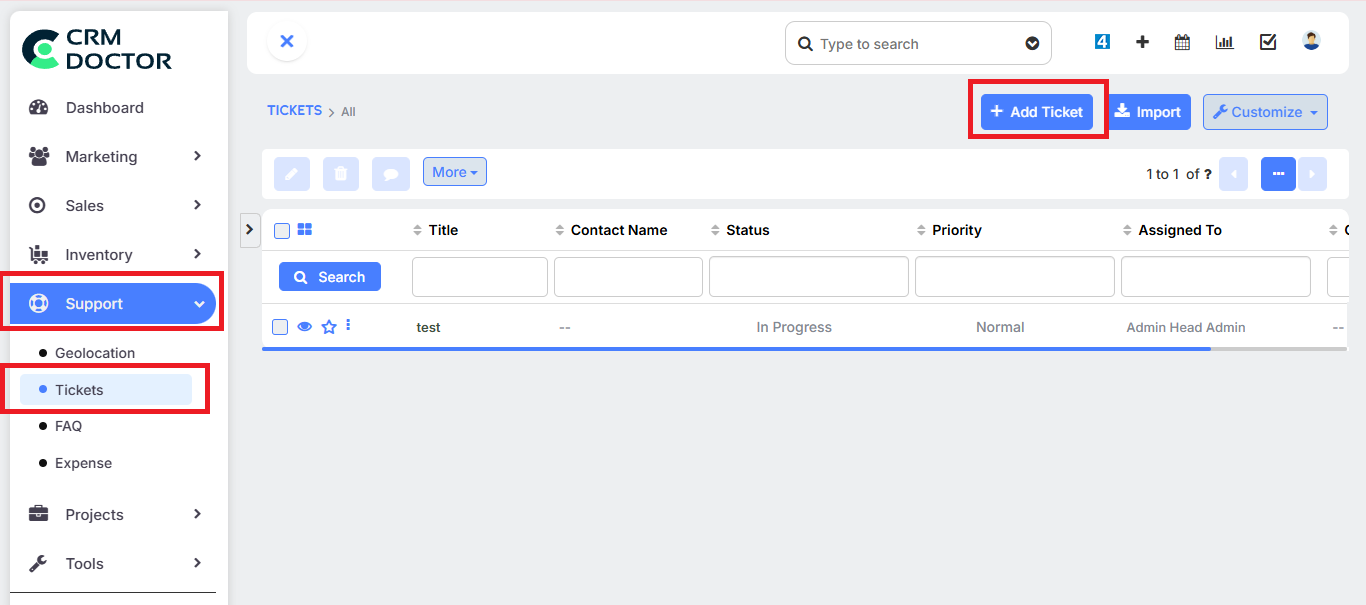
Ticket Assignment: Once a ticket is created, it is automatically assigned to a CRM expert or a specific department.
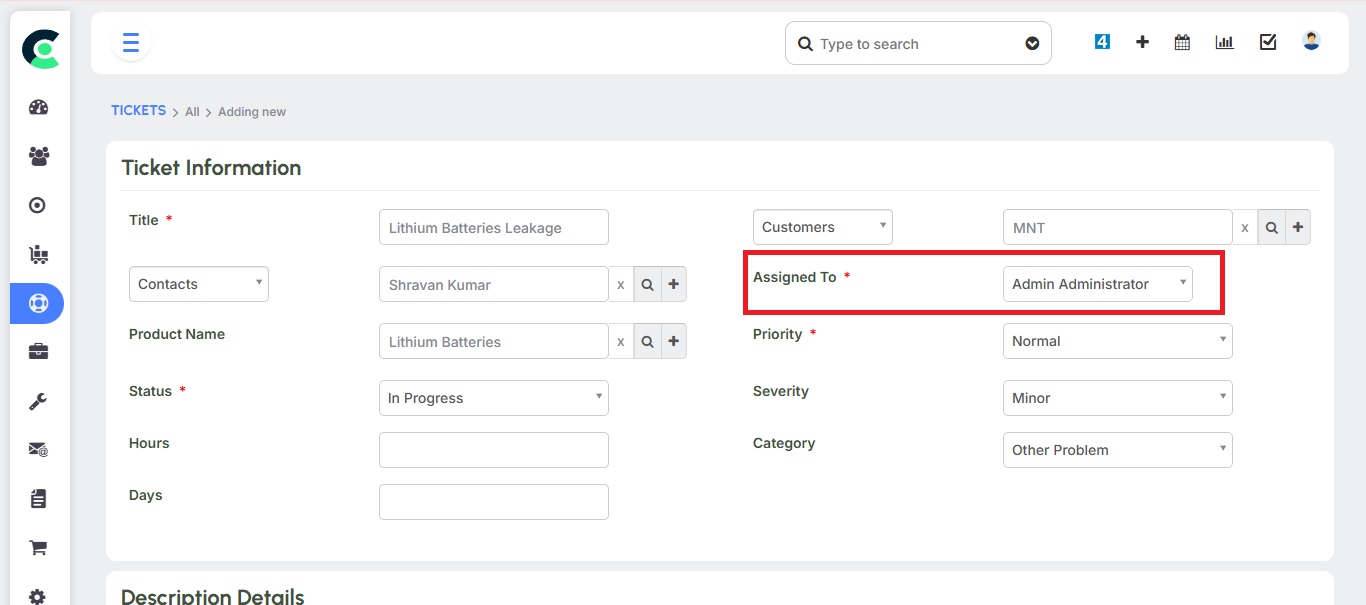
Resolution: An assigned engineer or service person attends to the ticket, marking its status as "in progress".
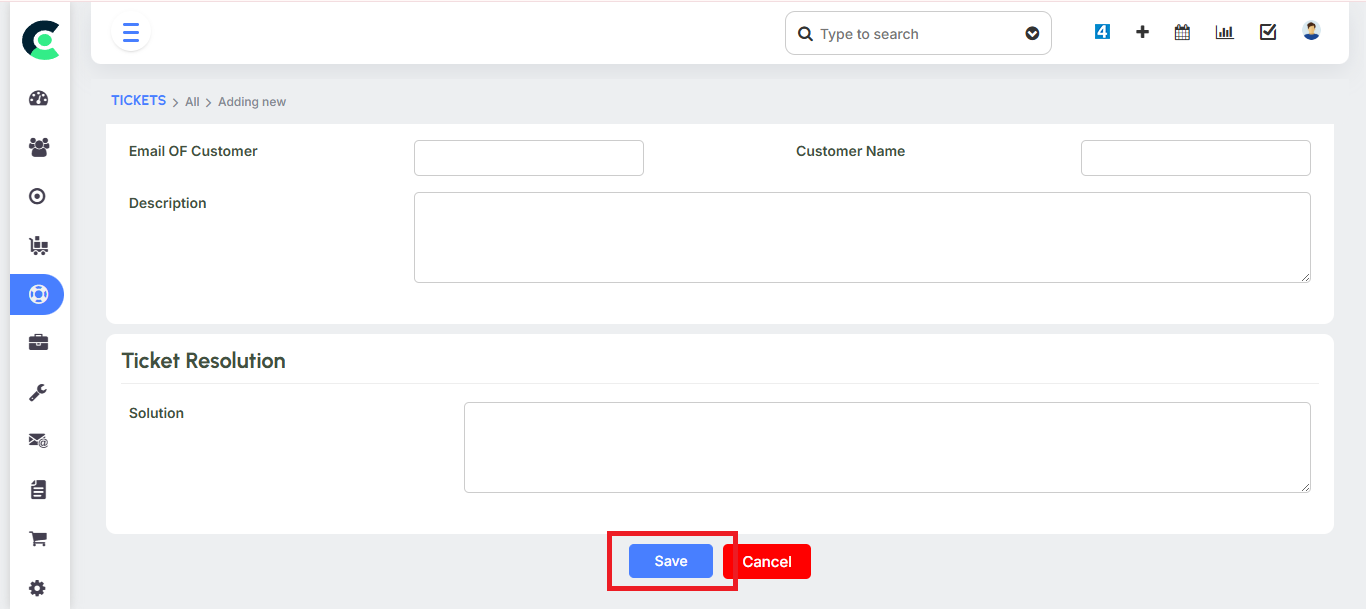
Closure: The ticket is closed after the issue is resolved and the customer provides an OTP (One-Time Password) for authentication.
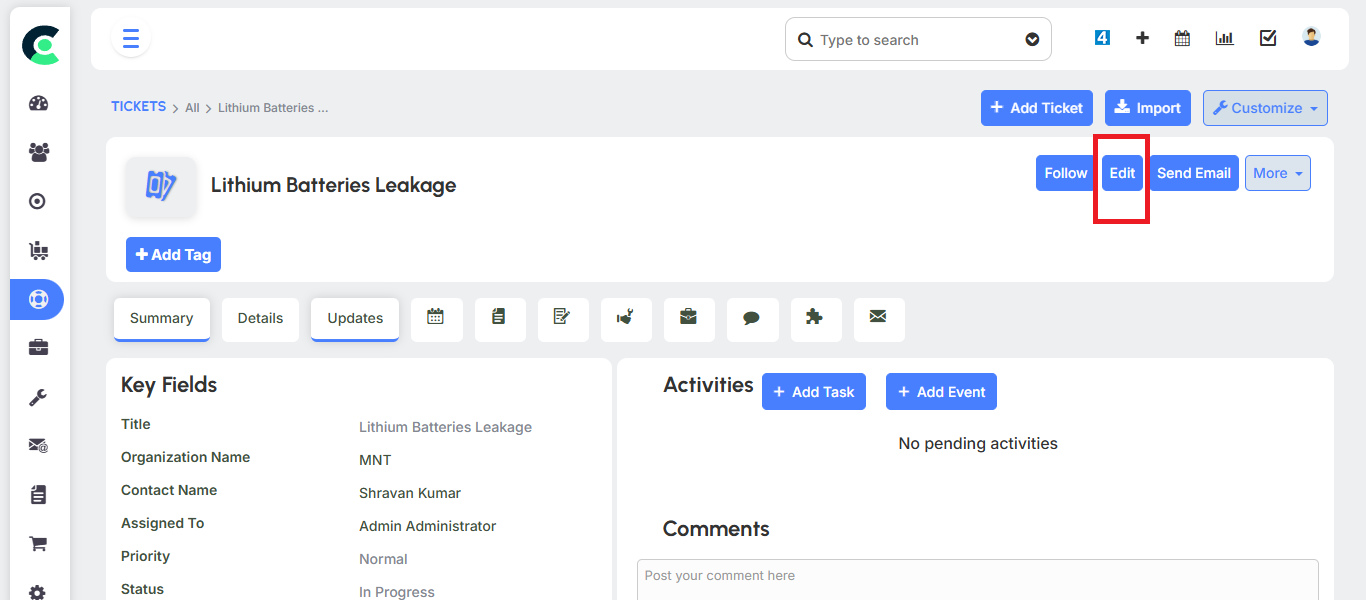
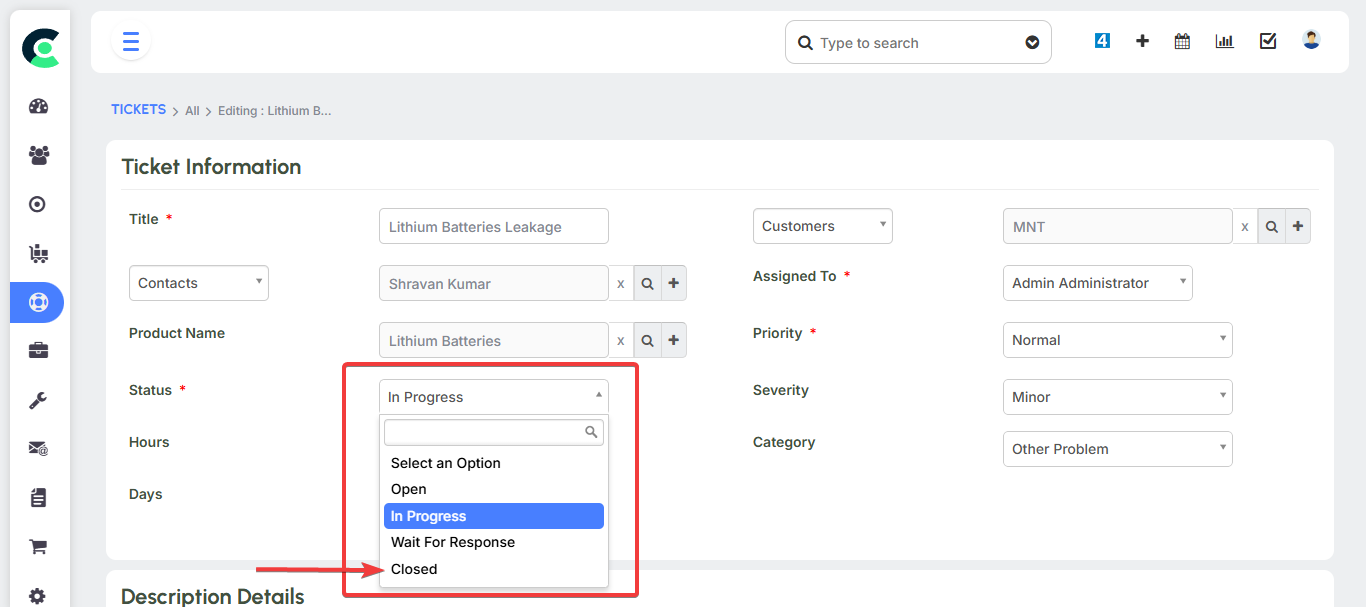
This flow ensures that all service requests are handled systematically and transparently.
Ticket Management
The Tickets module is the core of the support system, serving as a centralized repository for all customer service requests and inquiries. This is where your team logs, tracks, and manages issues from start to finish.
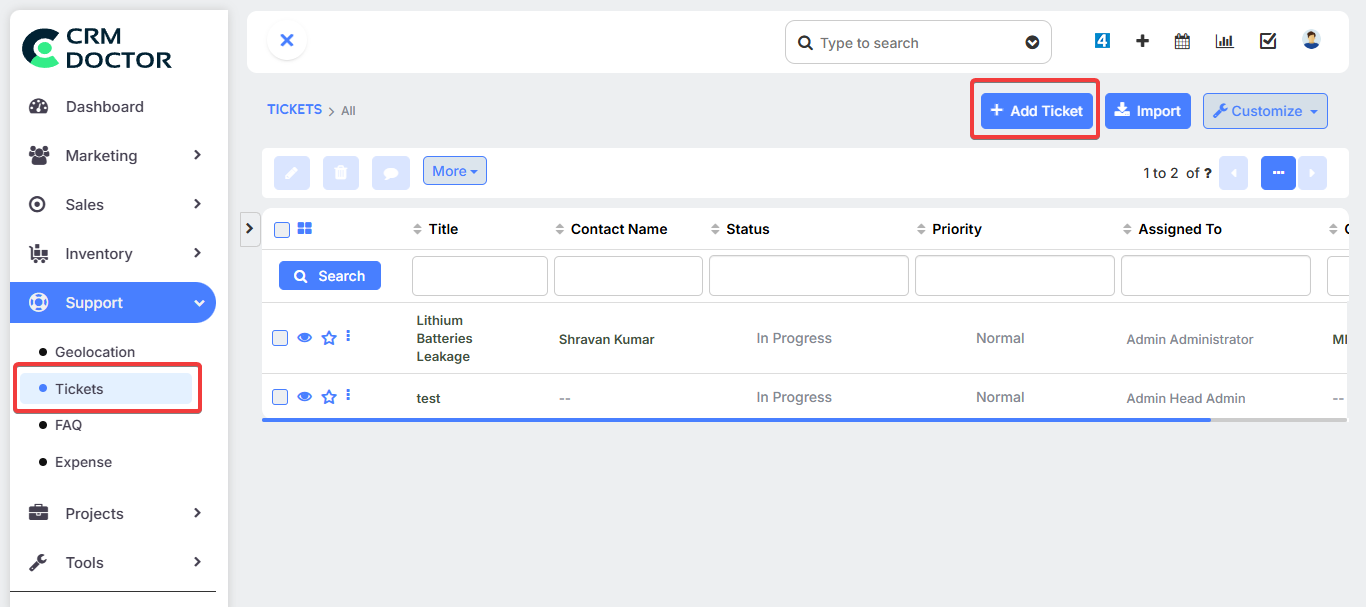
Creating a New Ticket Tickets can be created manually by your team or automatically through various channels.
- Manual Creation: An engineer or support person can manually create a ticket after a customer calls and explains their issue.
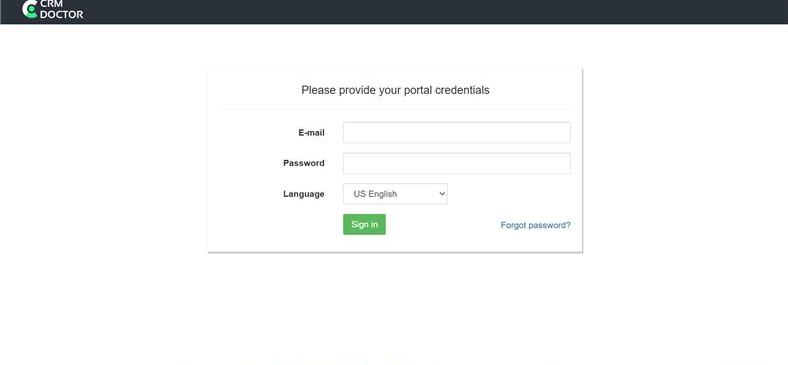
- Customer Portal: The system includes a dedicated Customer Portal where customers can log in to raise tickets on their own.
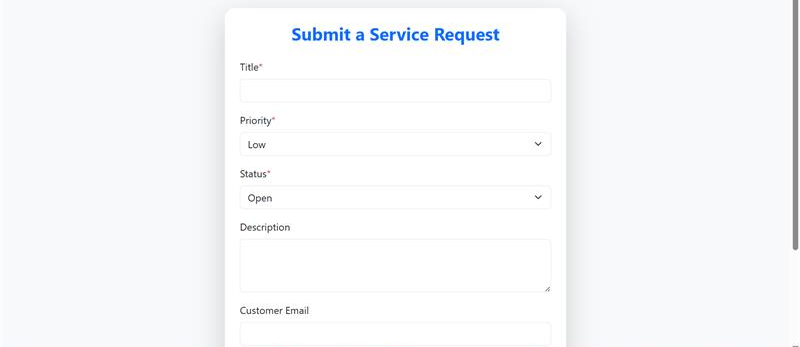
- Web Forms: You can add a web form to your company's website to allow visitors to submit tickets directly. These forms automatically capture contact details and issue descriptions, creating a new ticket in the CRM.
- Email Scanner: The system features an email scanner that can automatically convert incoming emails from customers into new tickets. For instance, if a customer emails you with a problem, the email scanner will create a ticket and add it to the centralized module.
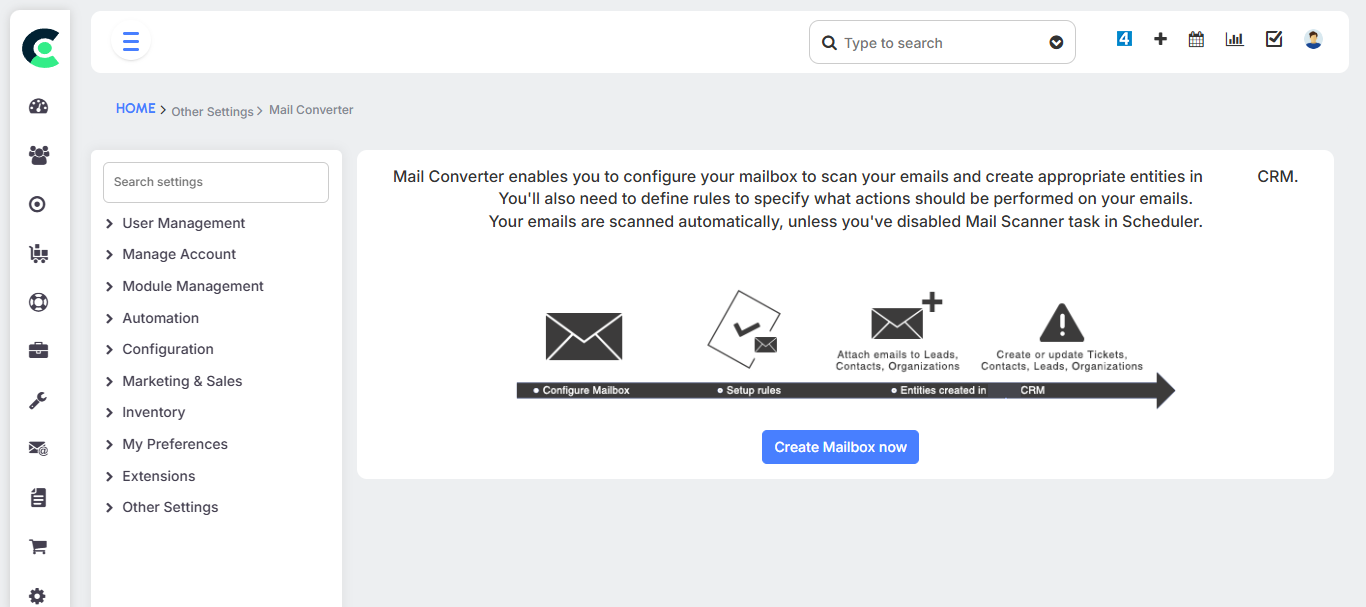
- Social Media: The system can also capture customer details and comments from social media channels, automatically converting them into tickets.
Ticket Workflow and Resolution
Once a ticket is created, it is automatically assigned to the appropriate expert or team based on the product, subject, or department. The assigned engineer then updates the ticket's status to "In Progress" as they begin working on it. Upon resolving the issue, the engineer asks the customer for an OTP to authenticate the closure of the ticket.
Automated Features & Reporting
The Support Module includes several automation and reporting features to enhance efficiency.
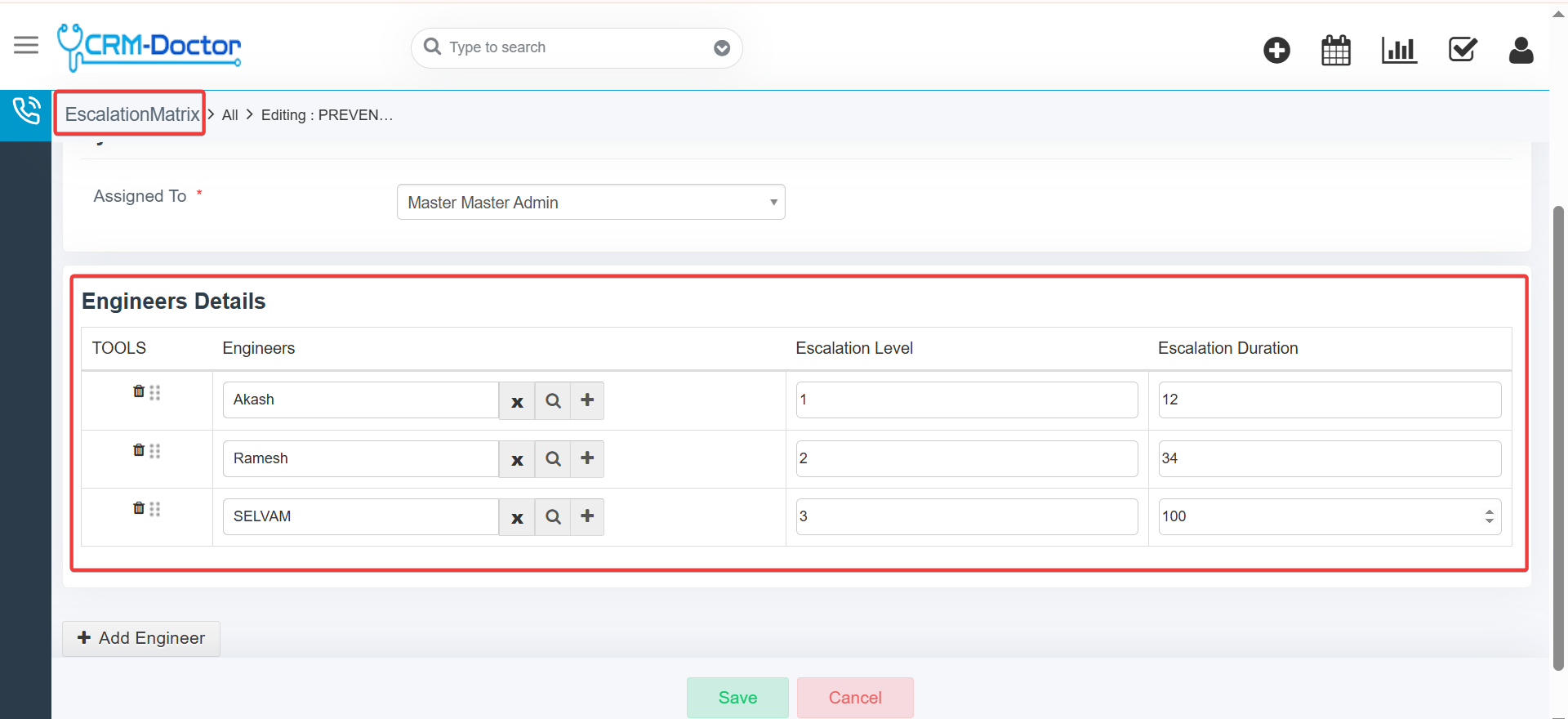
- SLA and Escalation: The system manages SLA (Service Level Agreement) based ticket escalation. If a high-priority ticket, such as an emergency fire alarm issue in a facility, is not attended to in time, it is automatically escalated to a manager.
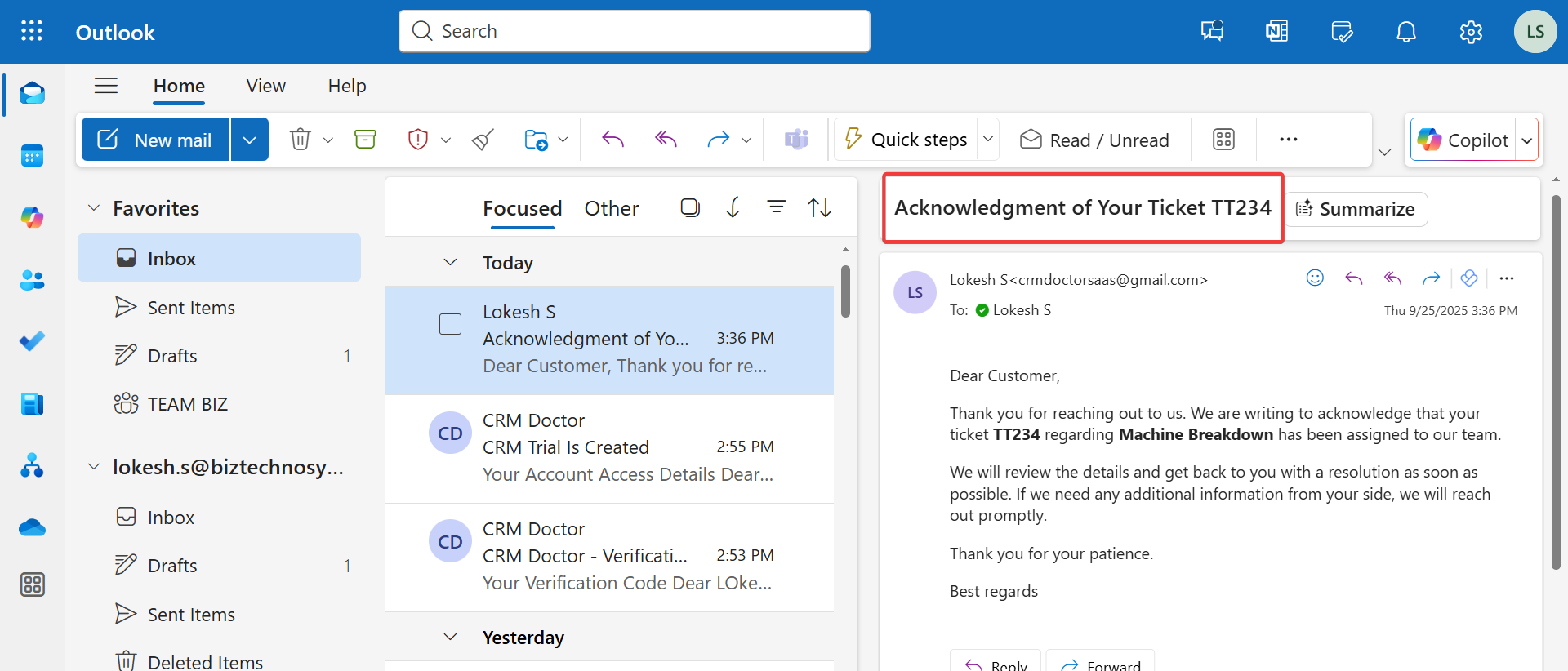
- Notifications: The system sends notifications for ticket updates and escalations. For instance, a customer can receive an automated SMS notification when their ticket status is updated or resolved.
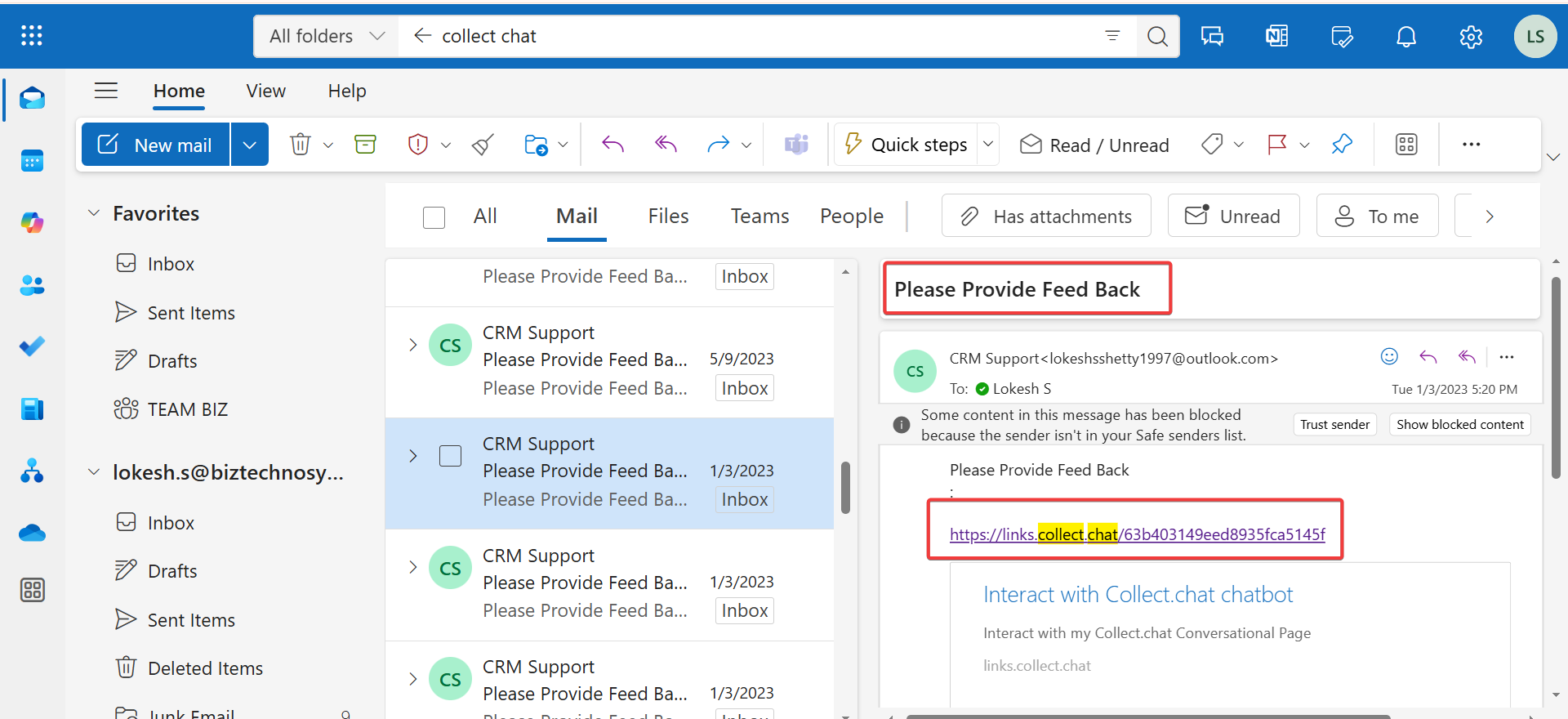
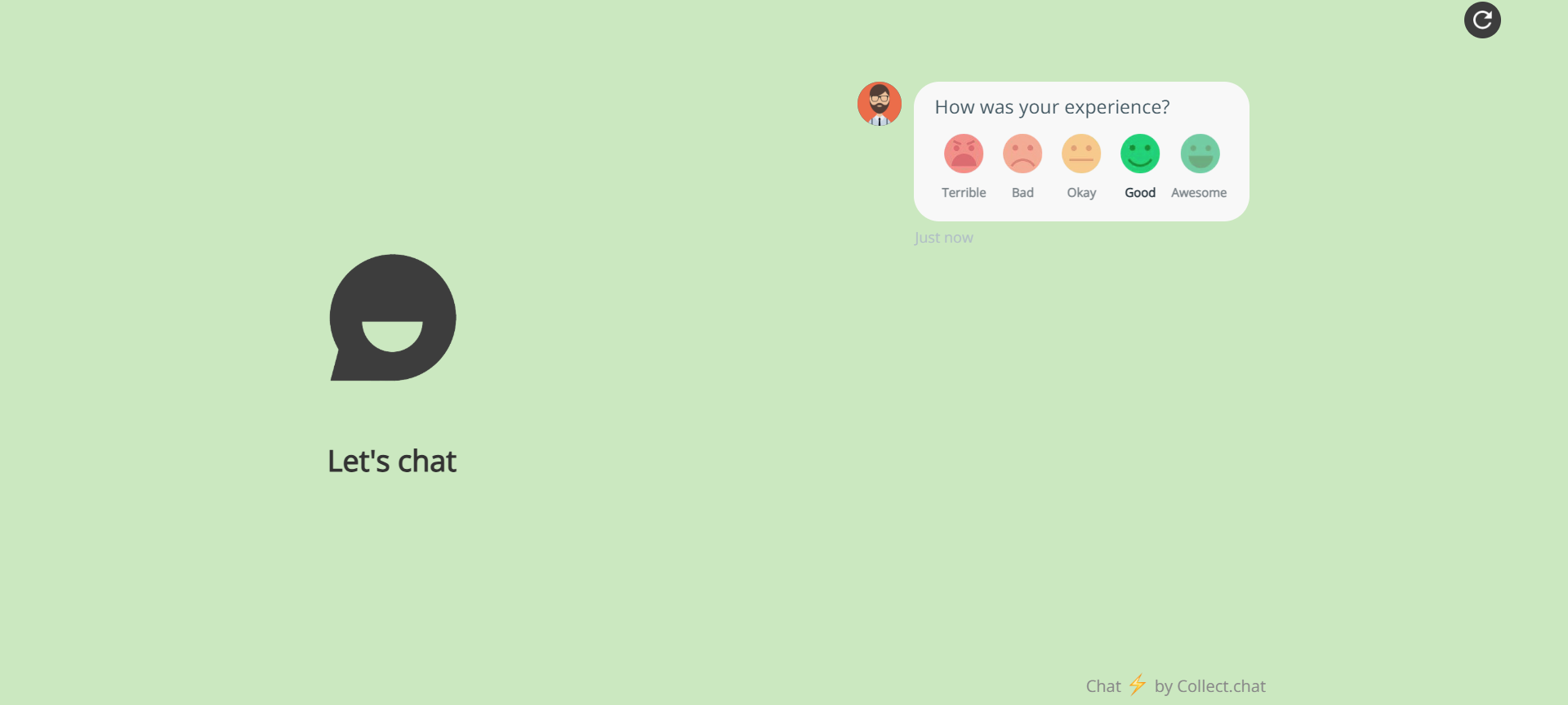
- Feedback & Ratings: After a ticket is closed, the system can send an email to the customer asking for feedback and ratings. This data helps track the performance of your support team.
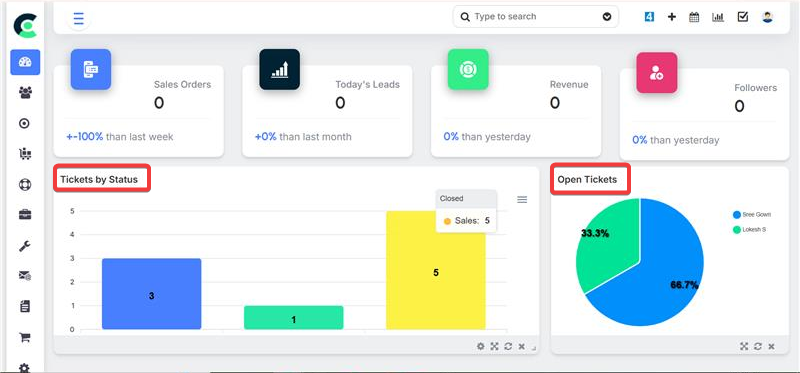
- Reports and Dashboard: You can generate ticket volume reports and other service reports to get a consolidated view of your support activities. The dashboard provides an overview of open tasks and projects, allowing you to monitor team performance. You can customize the dashboard to see widgets like "Open Tickets" and "Tickets by Status".
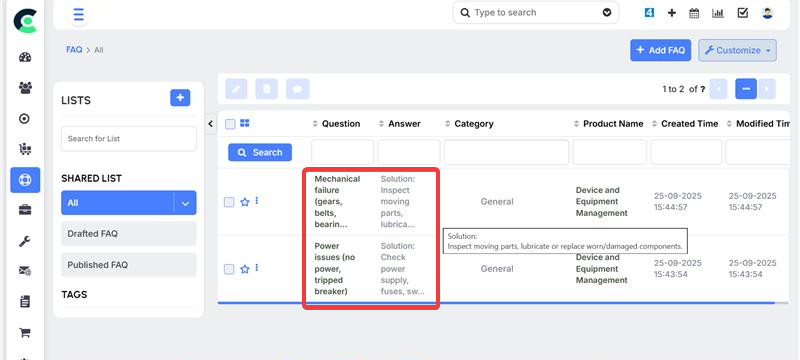
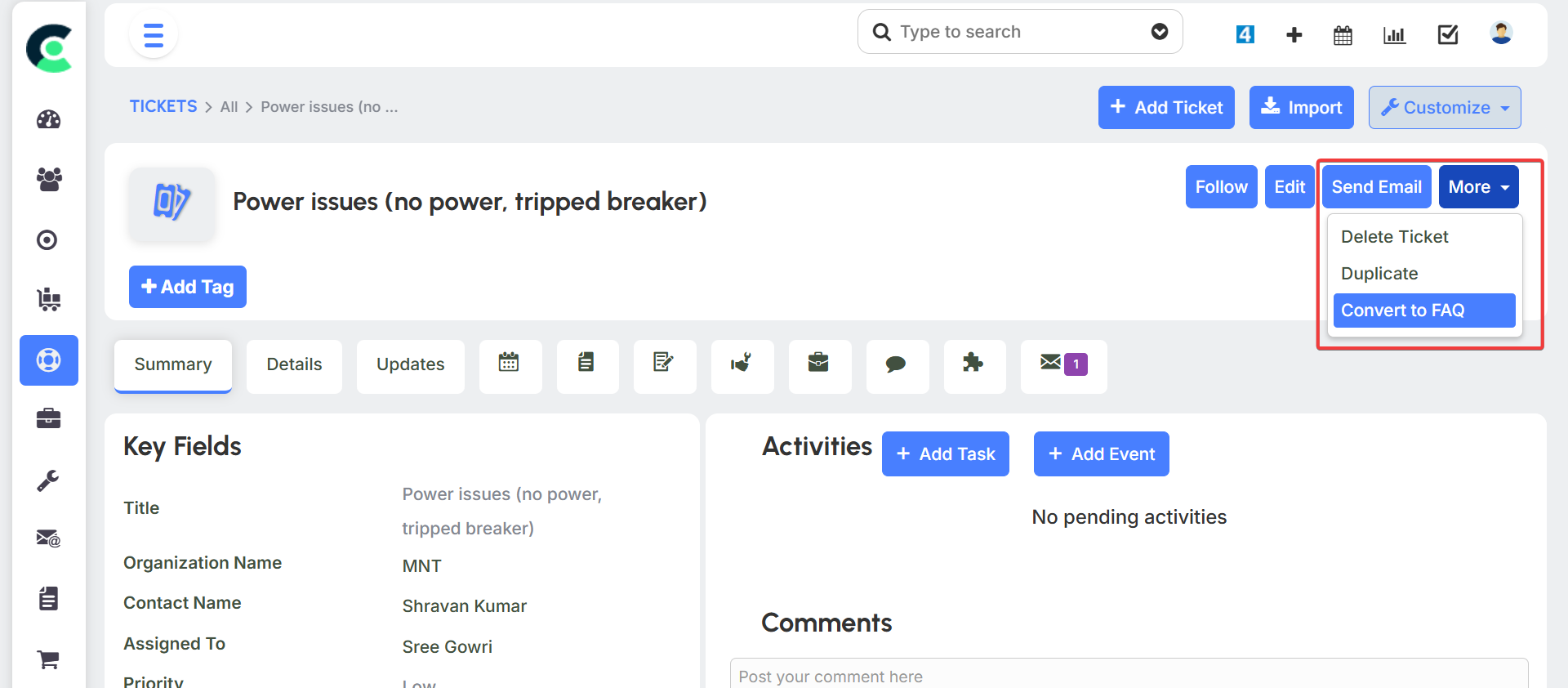
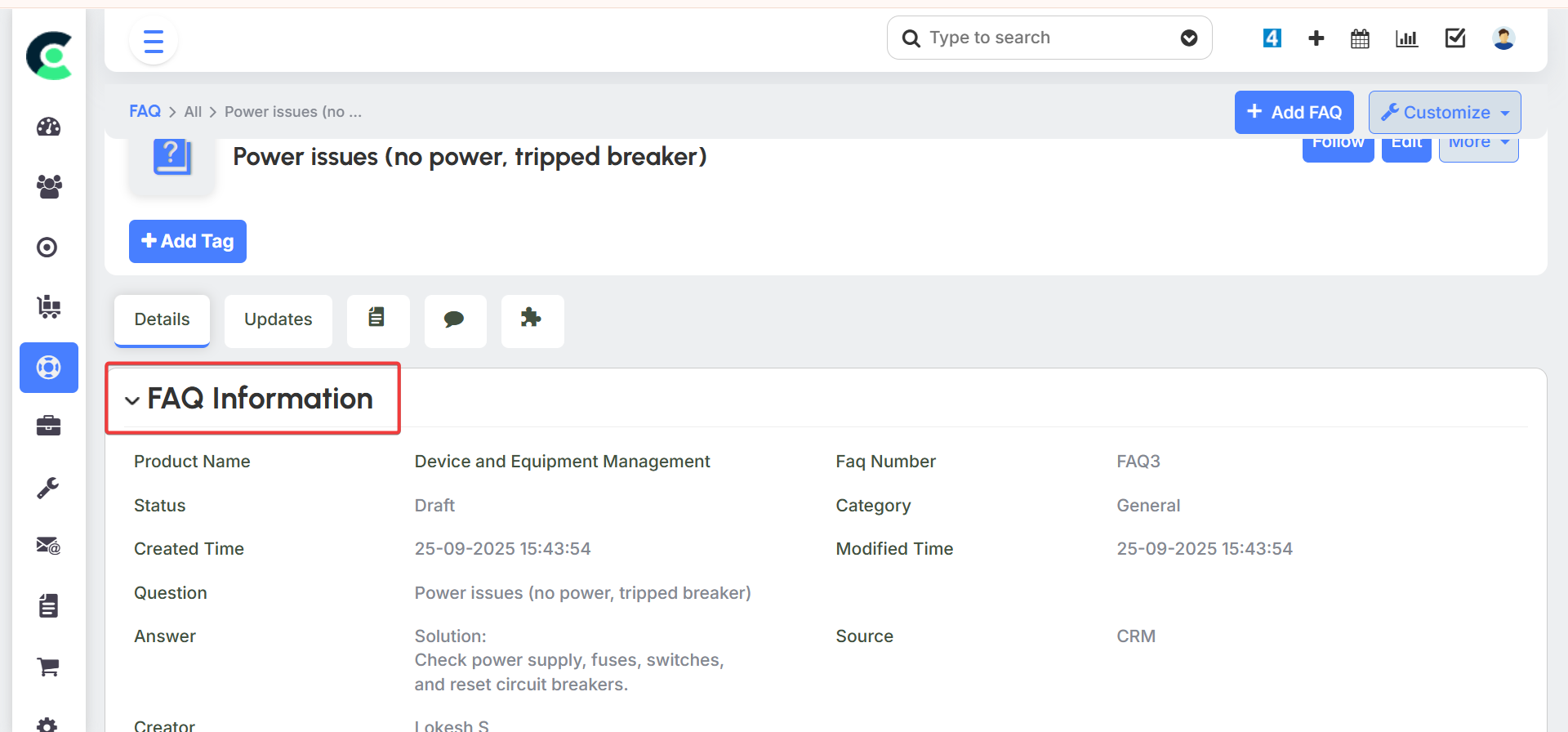
Knowledge Base & FAQ: The system allows you to build a knowledge base, converting resolved tickets into FAQs. This knowledge base can be used to provide self-help answers to common customer questions, reducing the overall support load. These FAQs can be made either internal for your team or public for your customers on the Customer Portal.
Customer Portal
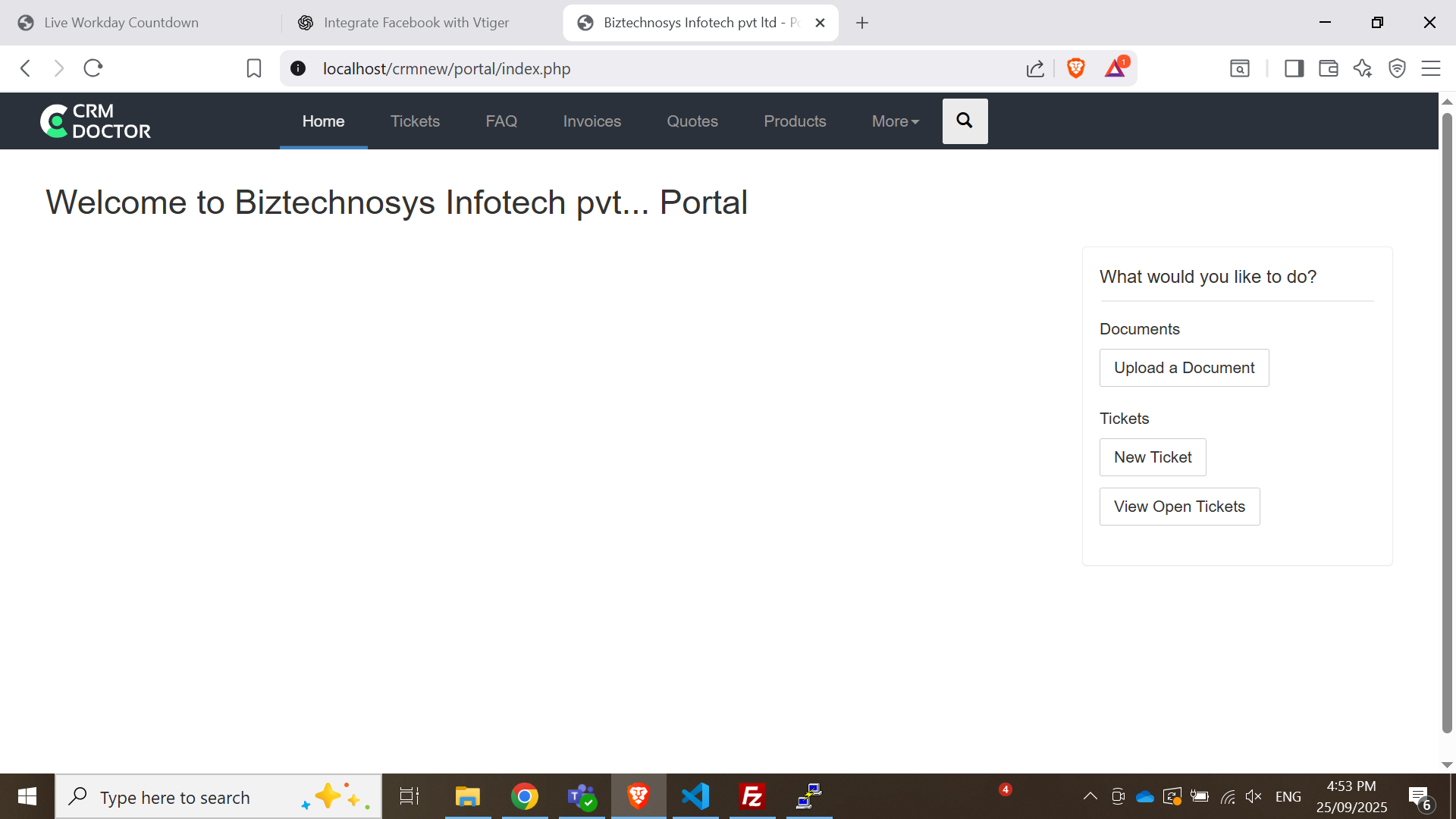
The Customer Portal is a dedicated space where customers can interact directly with your support team. It provides a transparent and convenient way for them to manage their service requests.
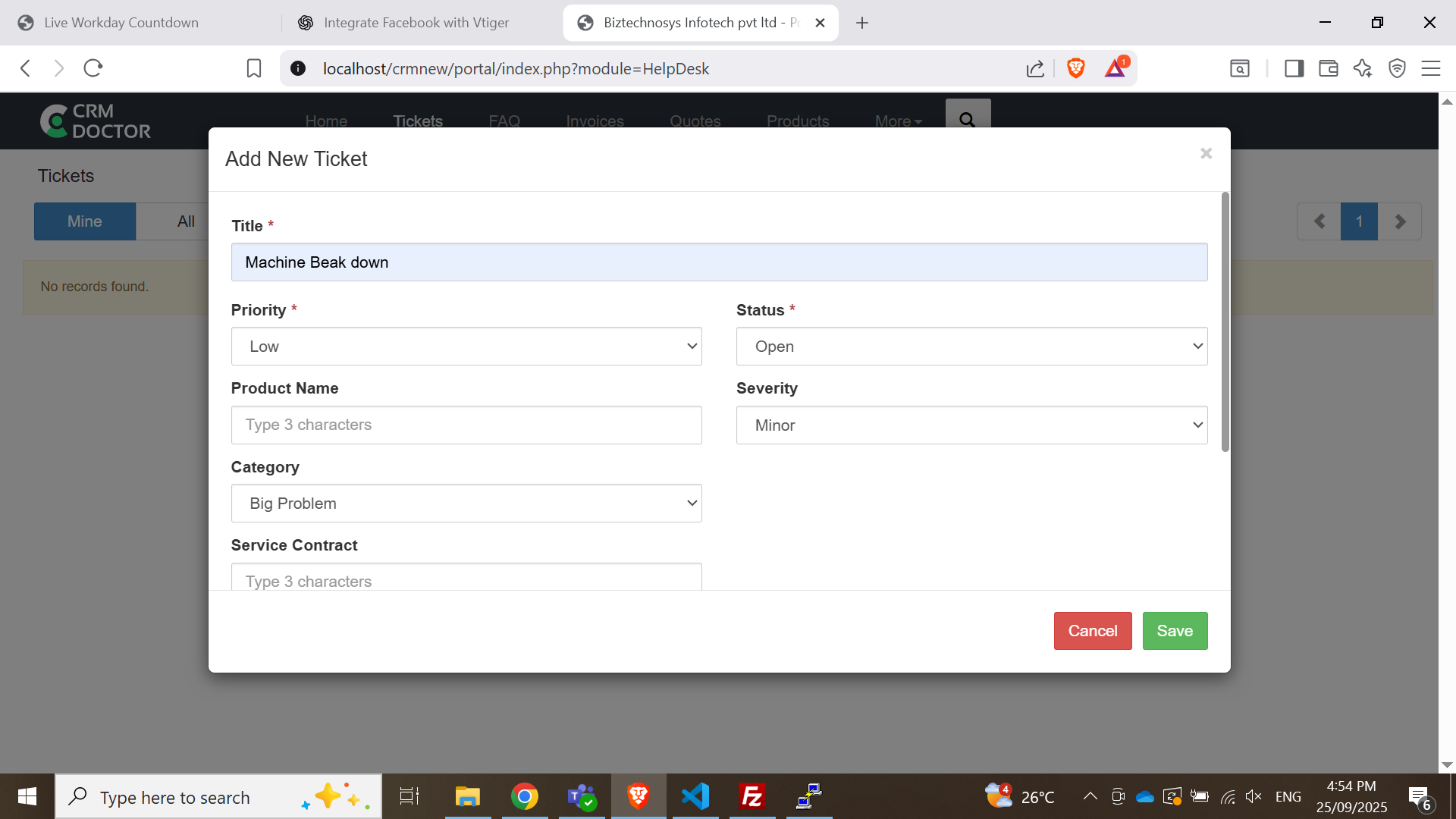
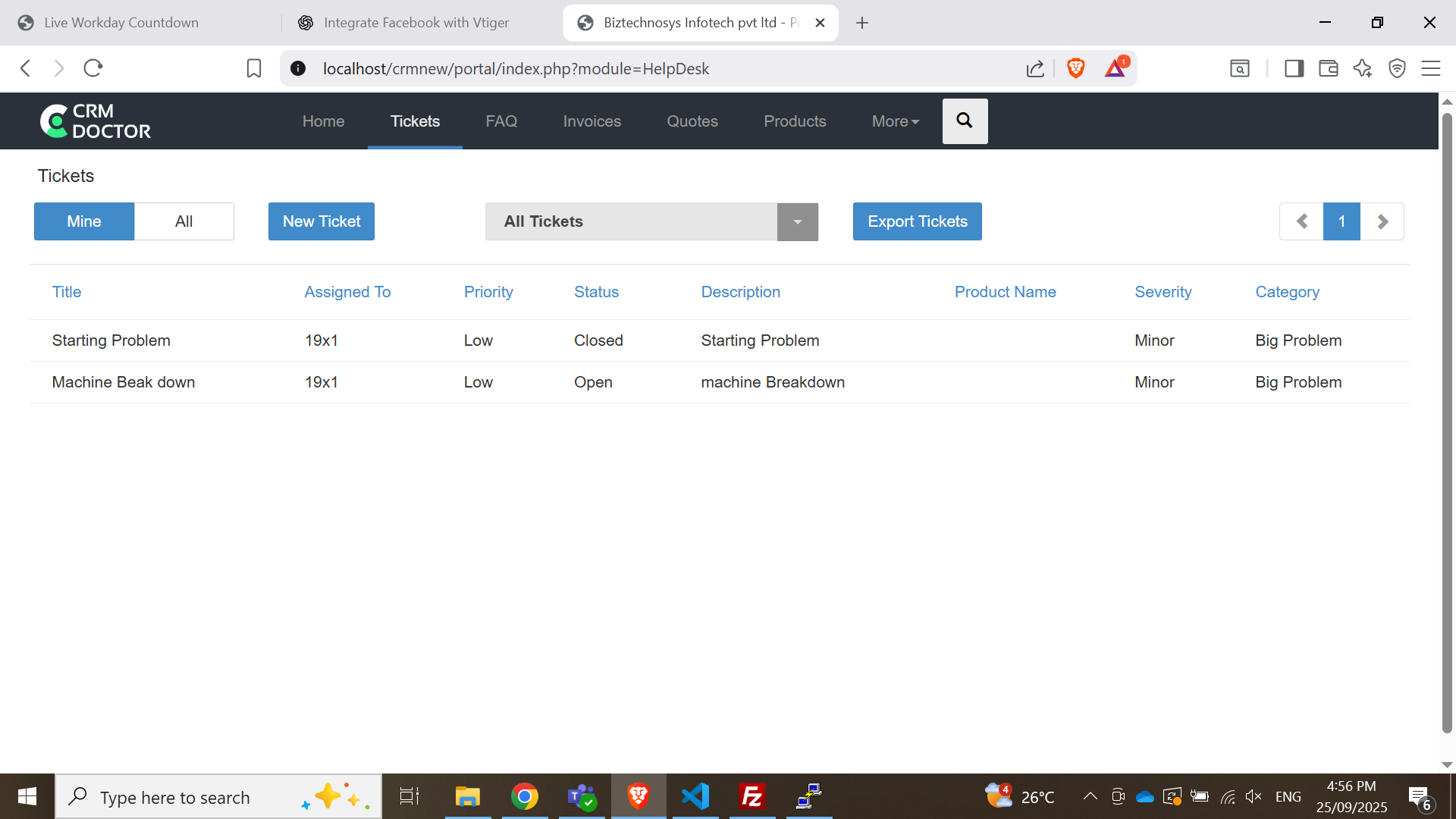
- Ticket Creation and Tracking: Customers can create new tickets and track the status of their existing ones in real-time.
- Access to Information: The portal provides customers with access to a knowledge base, allowing them to find answers to common questions and download documents.
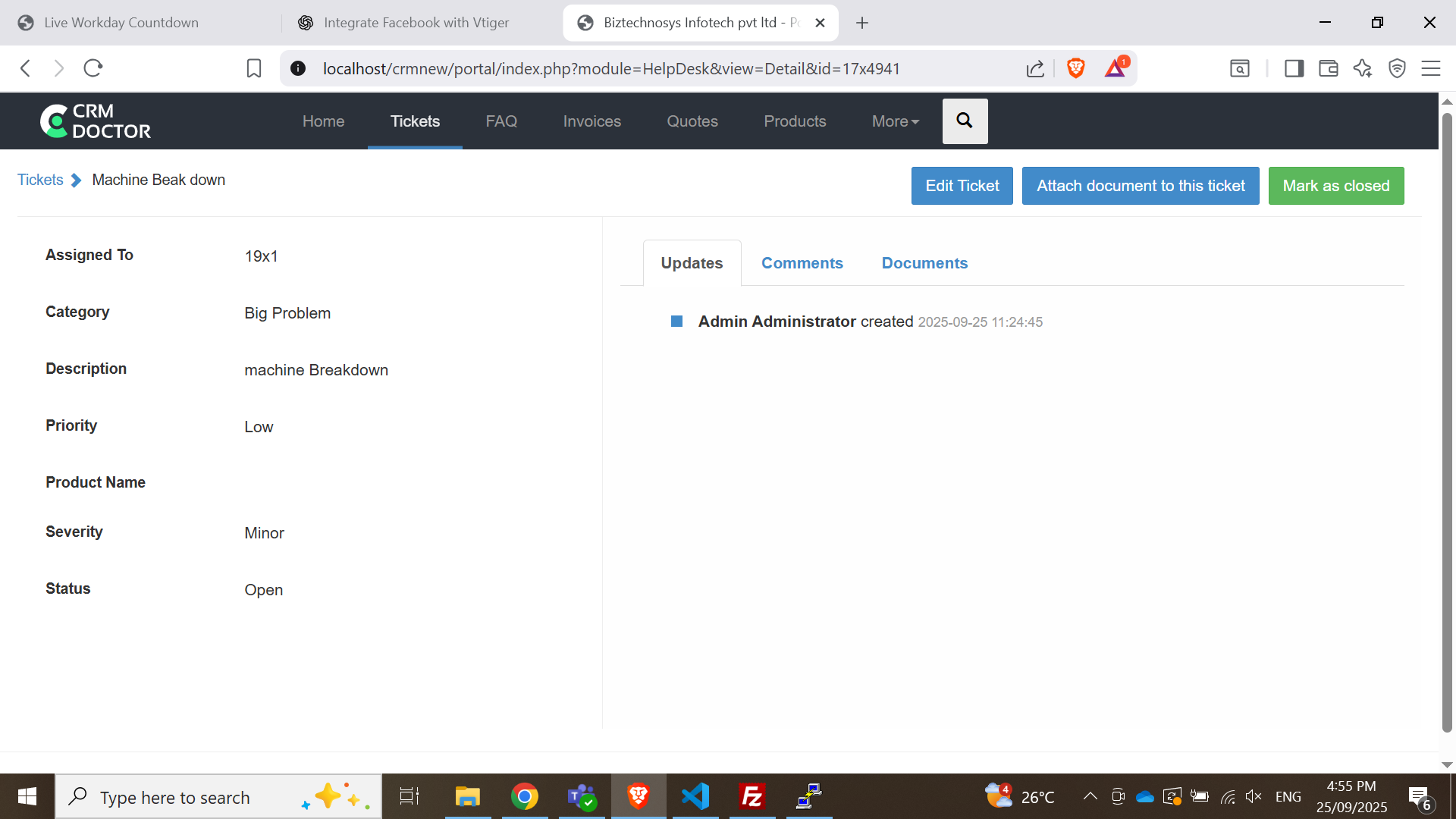
Administrators have full control over the Customer Portal, deciding which fields customers can see and edit during ticket creation. They can also customize what documents and information are accessible.