Table of Contents
Ready to Get Started?
Get the latest CRM insights and resources delivered directly to your inbox.
Start Free Trial22 Aug 2025
5 min read
Settings
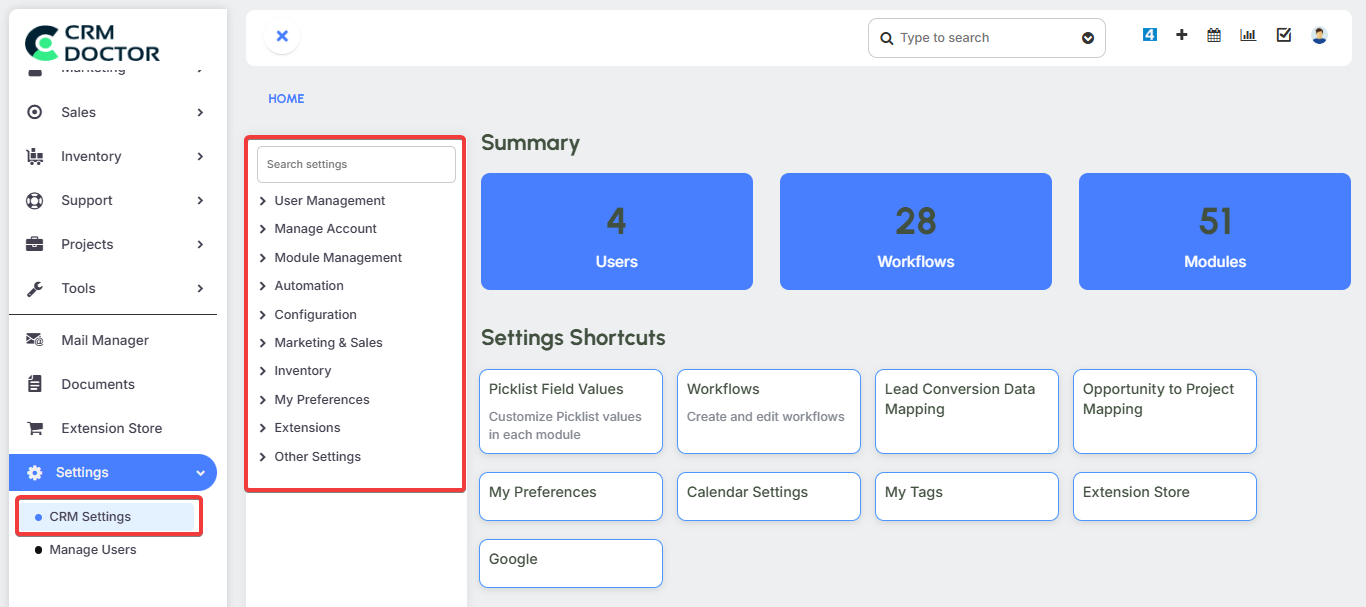
The Settings module in CRM Doctor is the administrative backbone of your entire CRM system. As "the wiring" of your business operations, this module is where you configure global defaults, manage user access, customize module layouts, and set up powerful automations. It is here that you define how all the other modules - Marketing, Sales, Inventory, and Support - function and interact with each other.
User Administration
This section is where you manage your team's access to the CRM and define their roles and permissions within your organization.
User Management
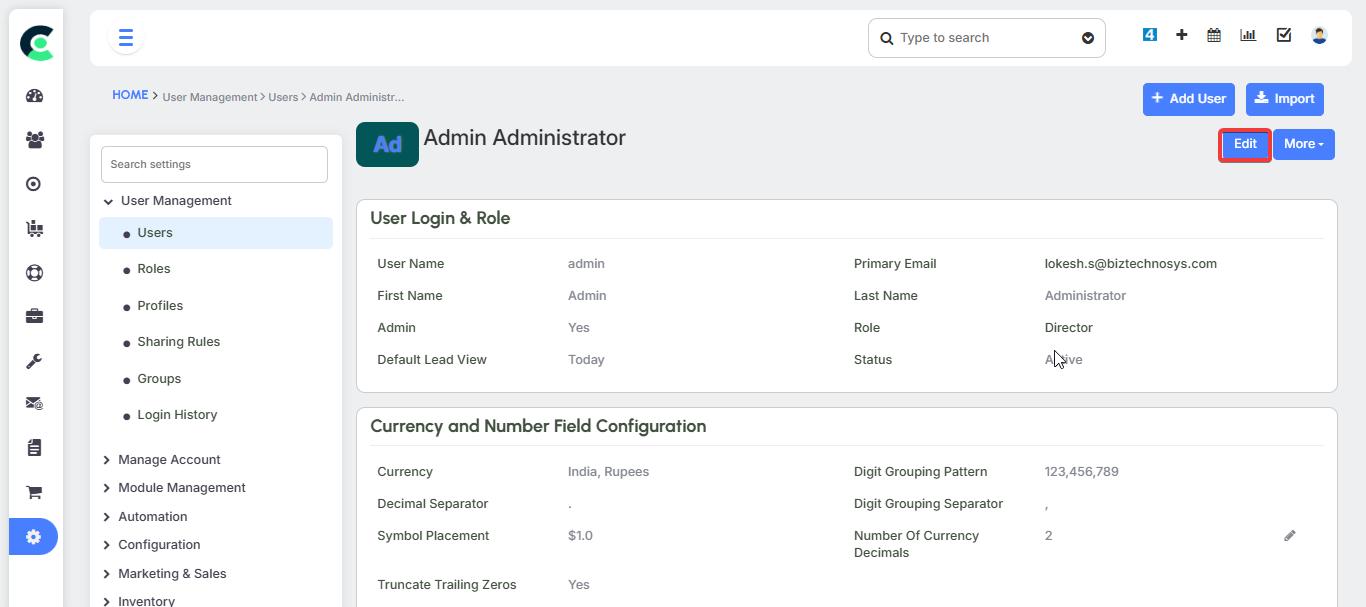
This feature allows you to manage all user accounts within CRM Doctor.
- User Status: You can create new users, make them active or inactive, and manage their personal preferences and details.
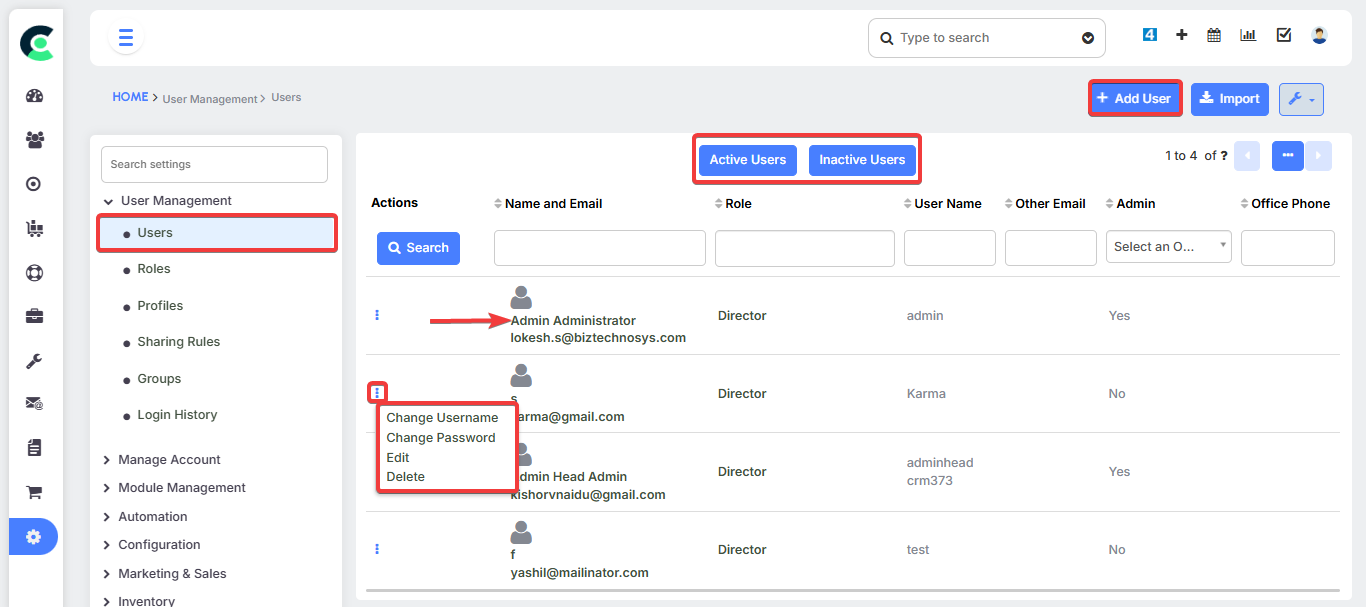
- User Data: You can also reset passwords and associate users with a specific role, which determines their access privileges.
Roles & Hierarchy
Roles define a user's position in the organizational hierarchy and control data visibility.
- Data Hierarchy: The system operates on a clear hierarchy where users at a higher level can view the data of those below them, but not vice versa. For instance, a CEO can see all sales records and opportunities, but a salesperson cannot view the CEO's client data. This is essential for maintaining data privacy and a clear chain of command.
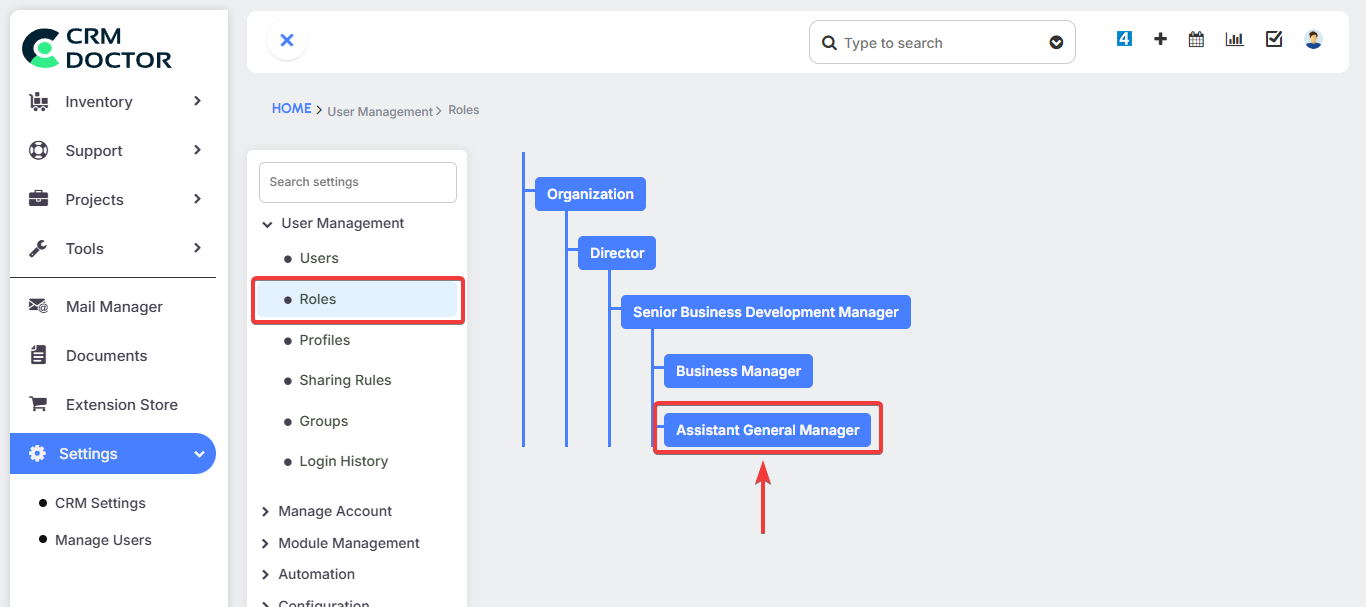
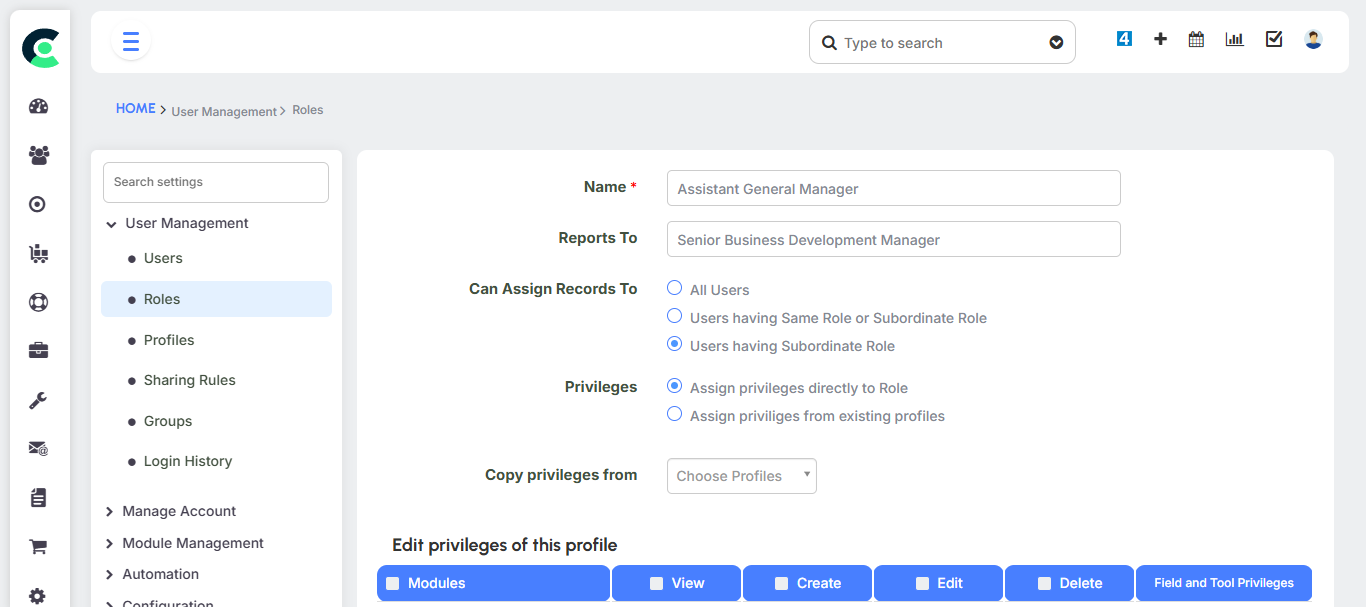
- Specialized Roles: You can define specific roles for different departments, such as a "sales manager" or "service engineer"
Profiles
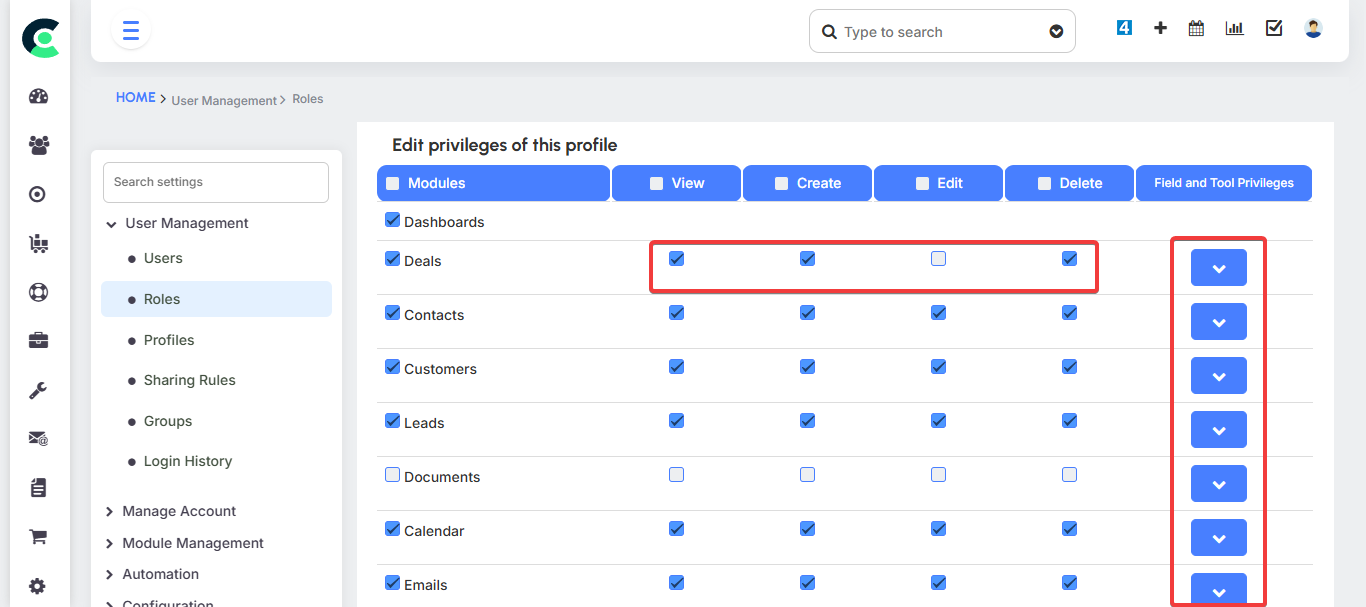
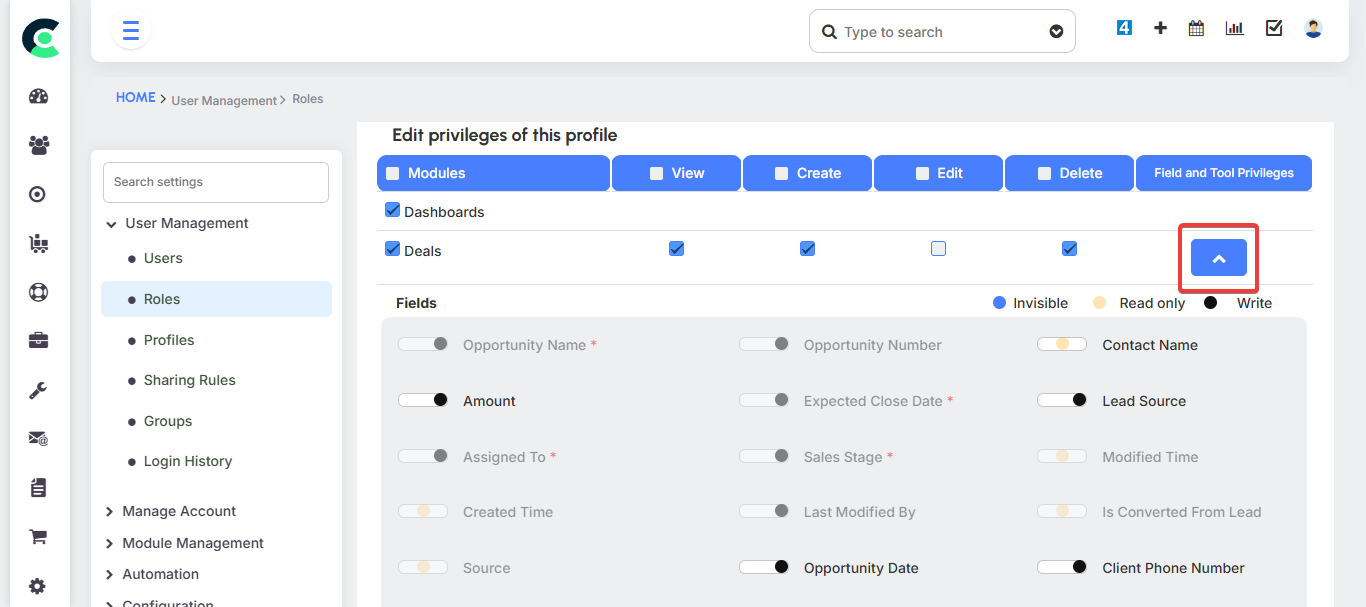
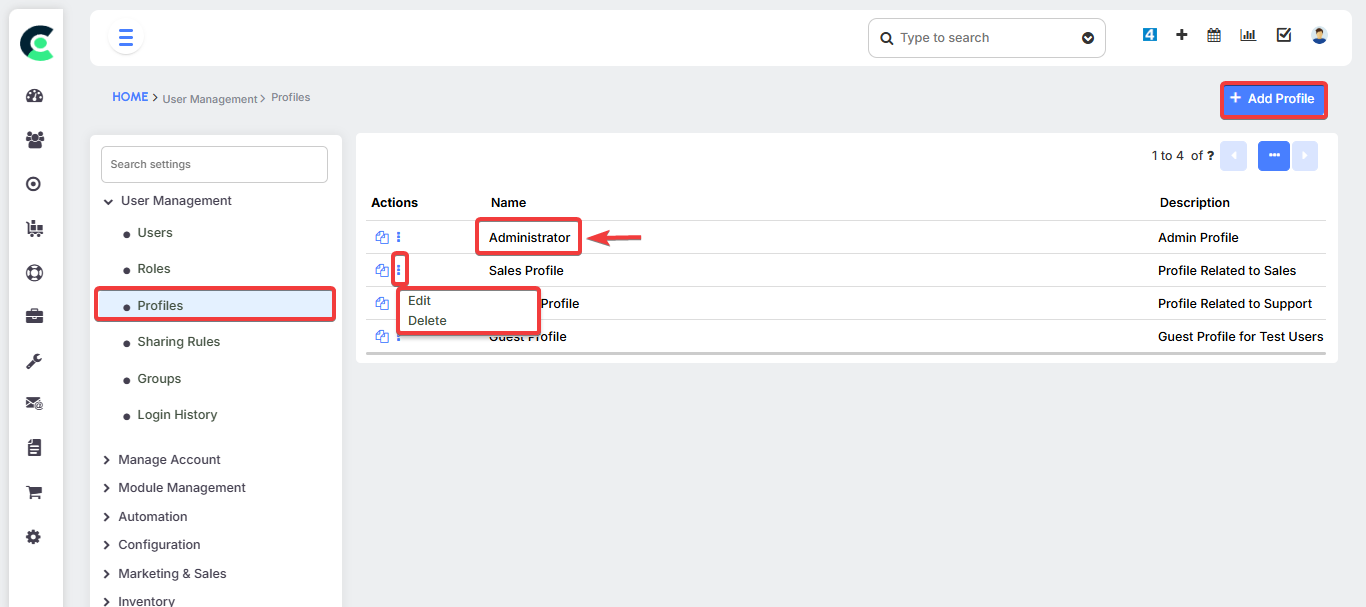
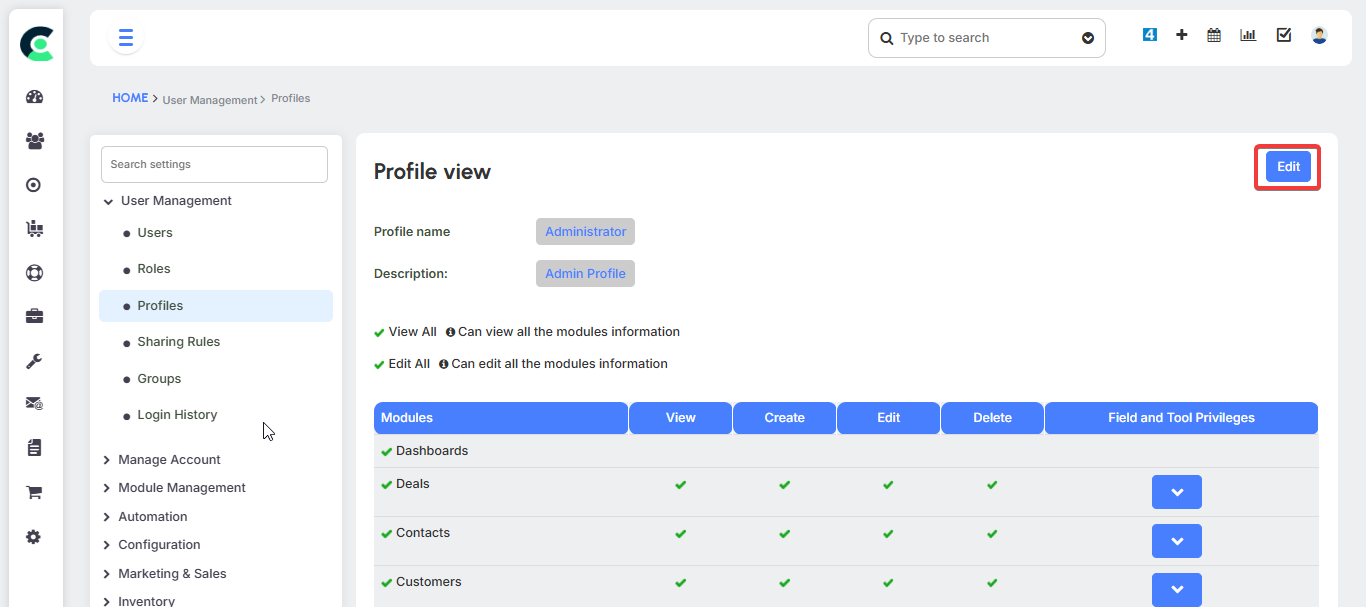
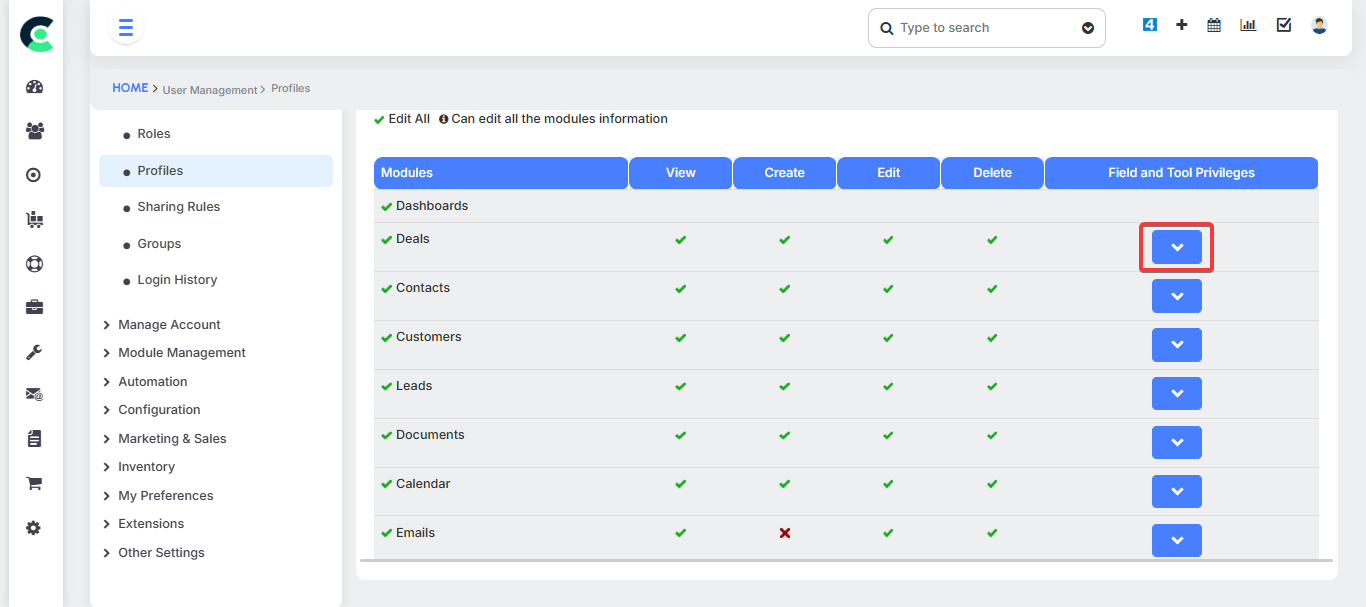
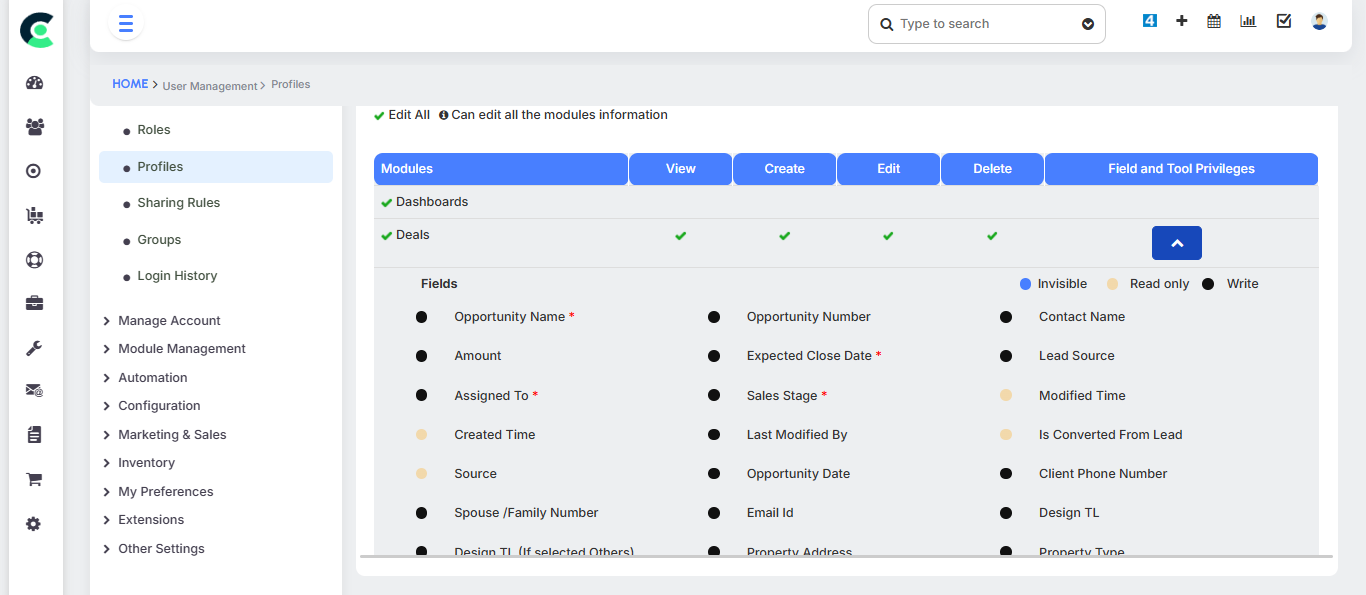
A profile is a template that contains a predefined set of access rules and permissions.
- Rule Templates: Instead of setting individual permissions for every user, you can create a single profile (e.g., a "Sales Profile") and associate it with multiple users who share the same job function. This makes administration more efficient.
- Role Association: A profile is associated with a specific role. For example, a single "Sales Profile" can be assigned to different roles like a "salesperson" or a "junior sales person".
Sharing Rules
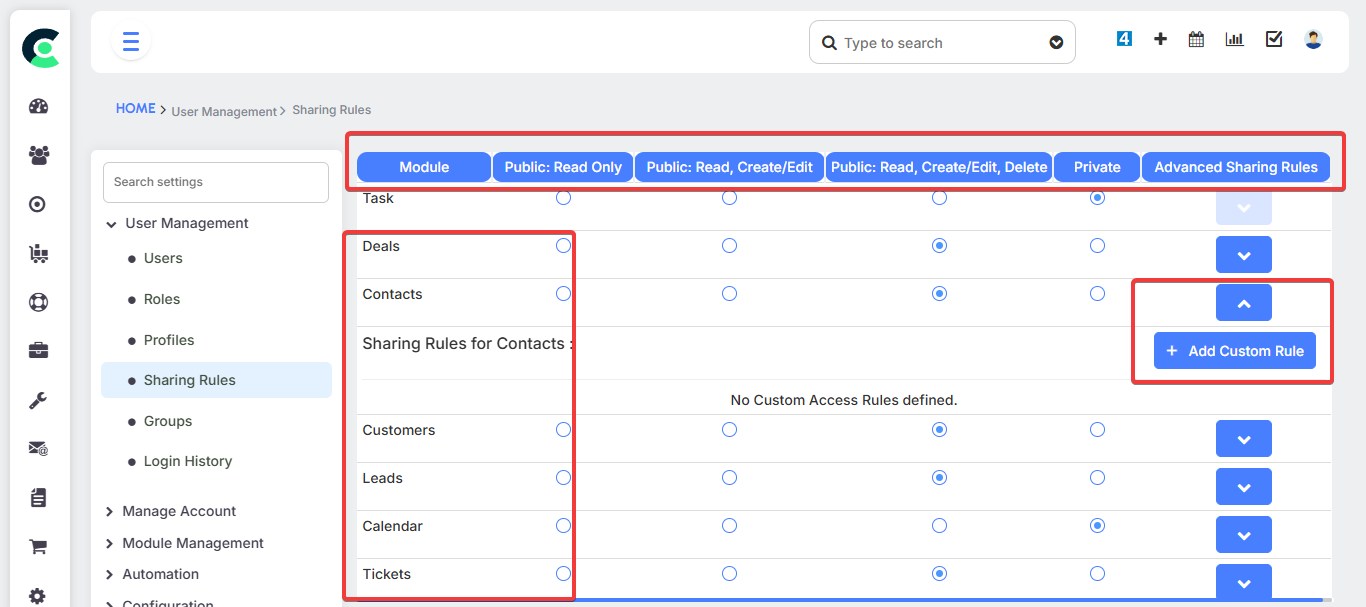
Sharing Rules are a crucial feature for special cases where a user needs access to data that is not part of their standard role hierarchy.
- Custom Rules: You can create a custom rule to allow a salesperson to access a CEO’s records for a specific reason, such as for a particular region.
- Access Levels: You can define different levels of access for data sharing:
- Private: Data visibility is strictly limited to the record owner and users above them in the hierarchy.
- Public Read Only: All users can view the data, but only the owner and higher-level users can edit it.
- Public Read, Create, Edit, Delete: All users in the CRM can perform all actions on the data.
Groups
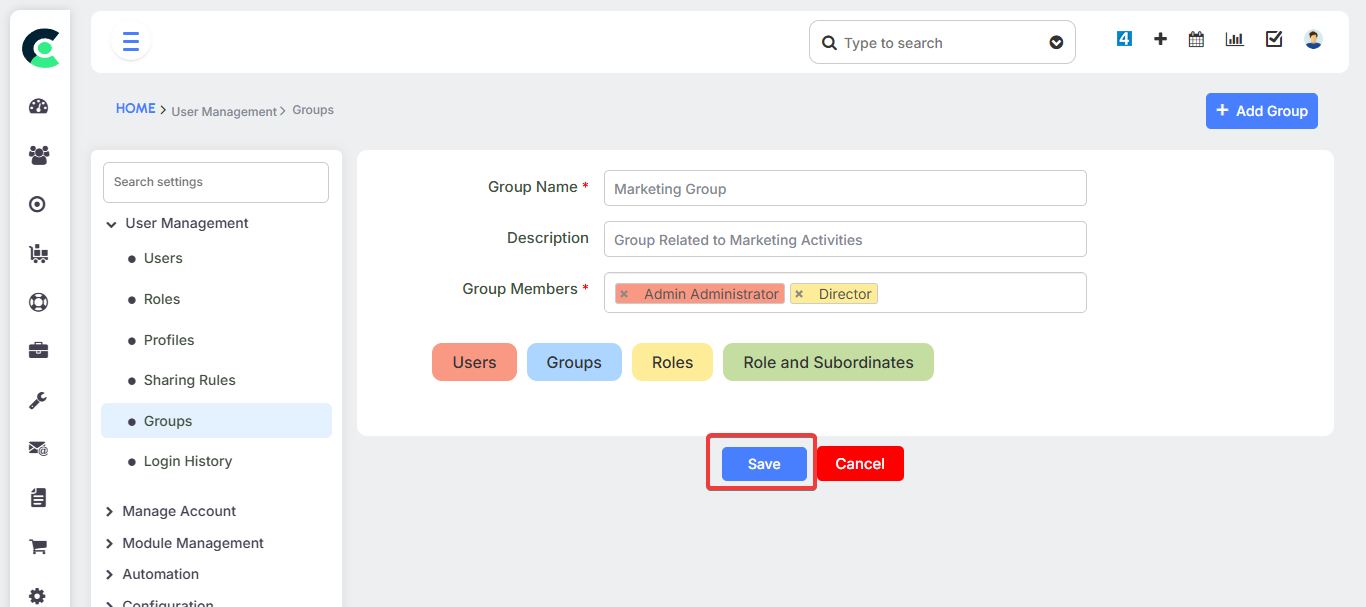
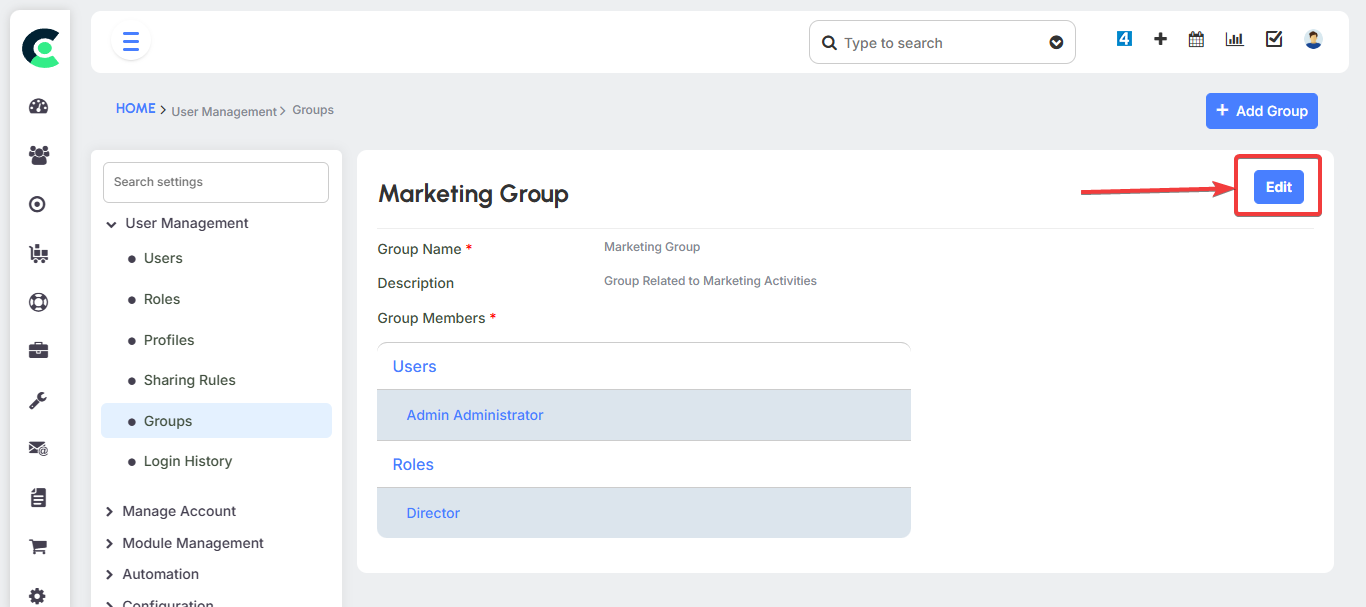
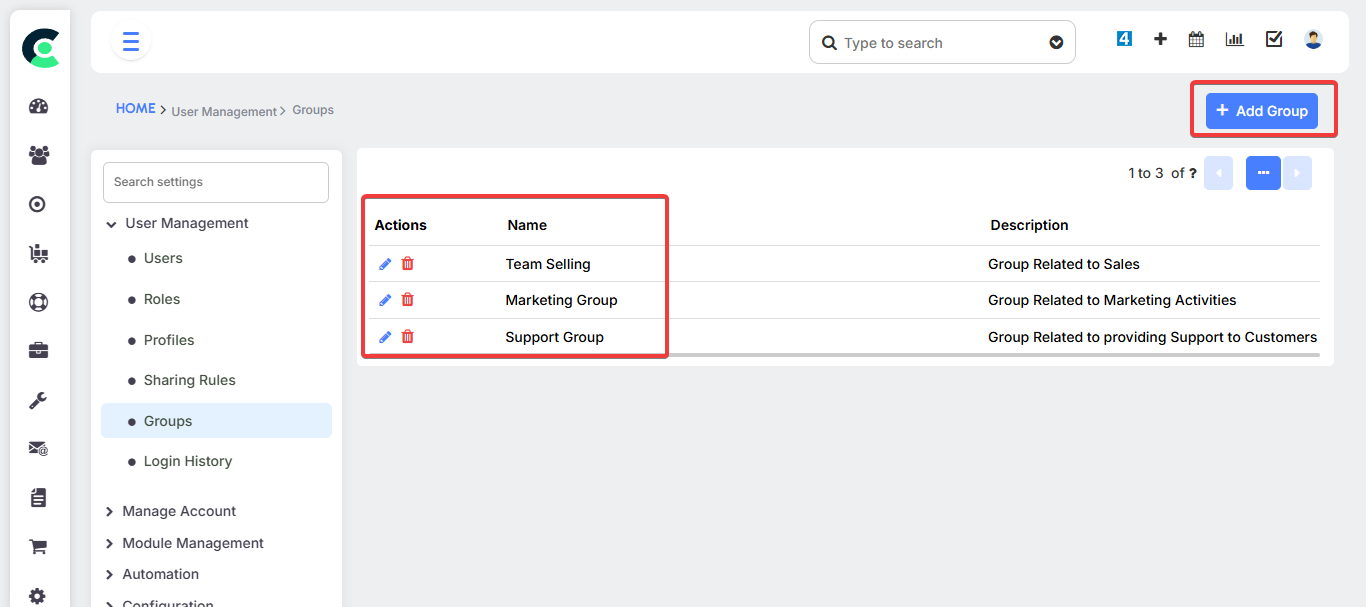
Groups allow you to logically organize users for team-based access and collaboration.
- Team Access: You can group users based on their roles or other criteria. If you assign a record to a group, every member of that group automatically gets access to it.
Customization & Layouts
This section gives you the power to customize the CRM interface and data structure to match your business needs.
Module Management
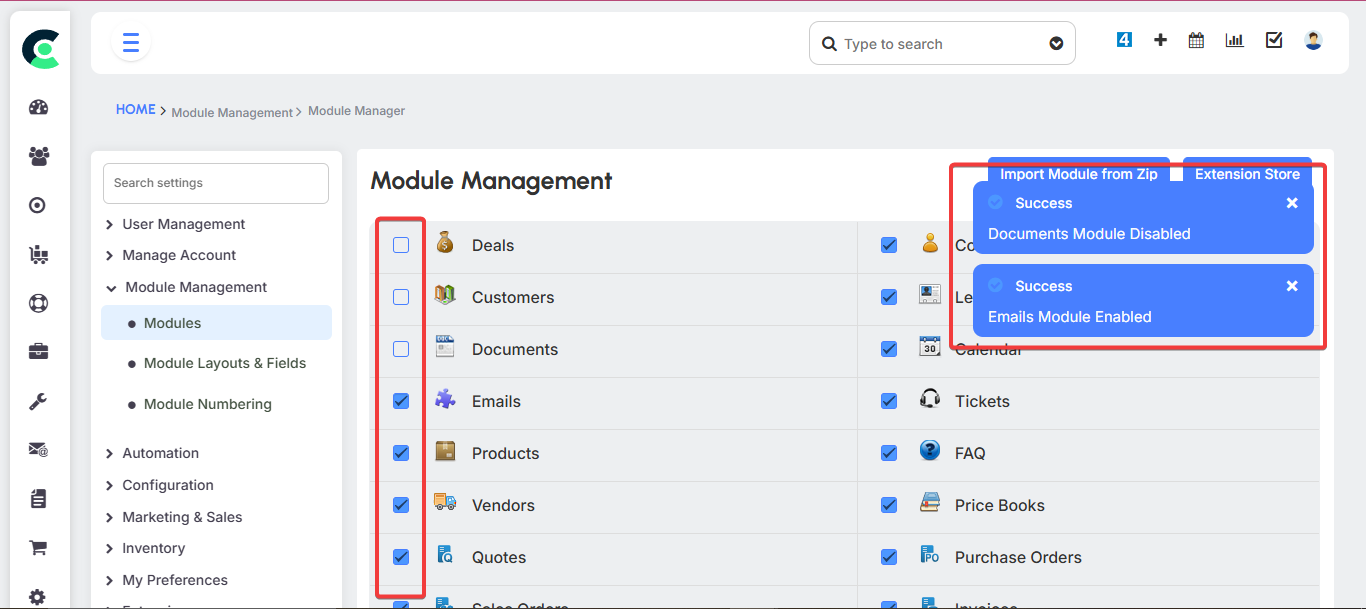
This is where you can enable or disable entire modules based on your company’s requirements.
Module Layouts & Custom Fields
You can customize the layout of any module by adding or removing fields.
- Customization: You can add a new custom block or a custom field to a module to capture specific information relevant to your business.
- Field Removal: If a standard field, such as a middle name or last name in the Leads module, is not required for your business, you can remove it.
Picklist Editor
This feature allows you to customize the values that appear in the drop-down menus (picklists) throughout the CRM.
- Value Customization: You can add new drop-down values and assign them to specific roles, ensuring that users only see the options relevant to their job.
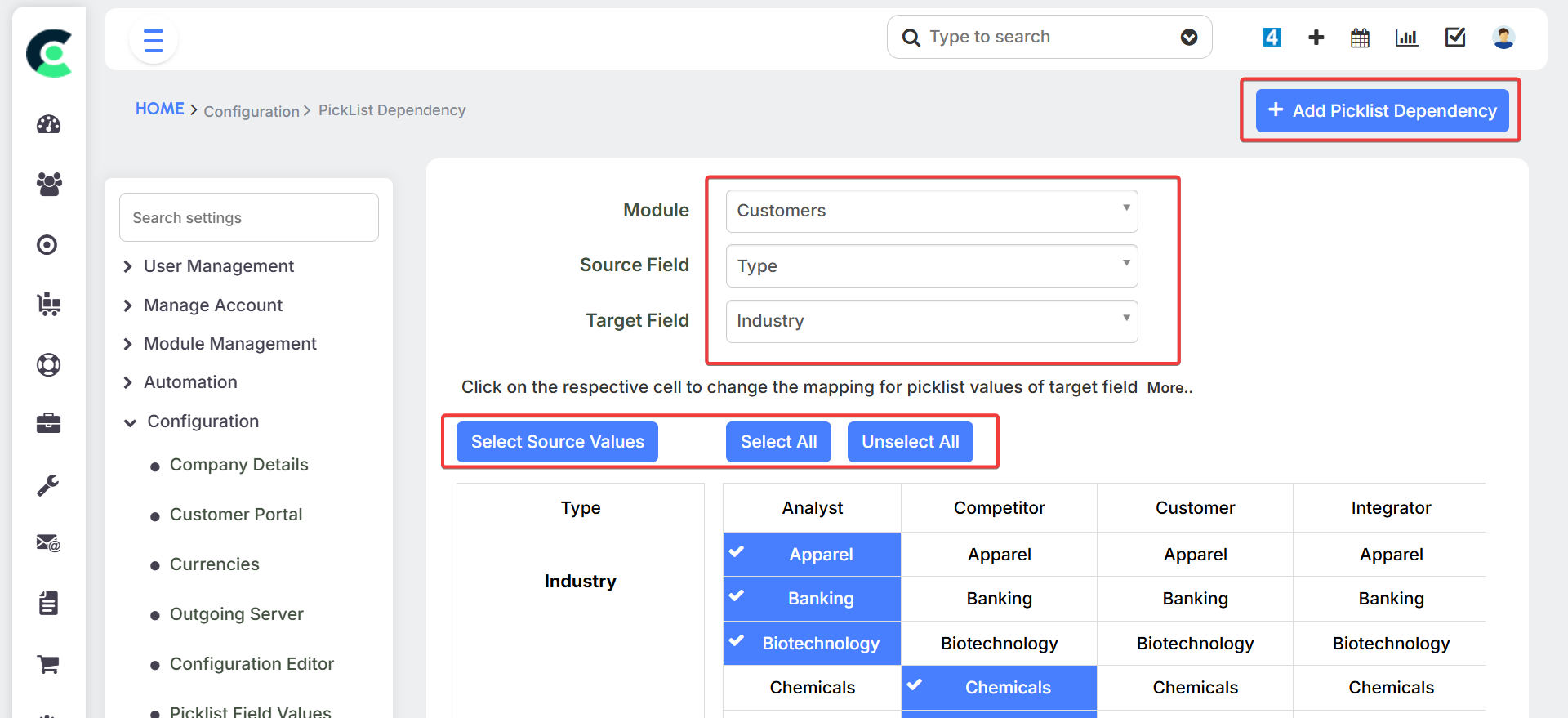
- Picklist Dependency: You can also create dependencies where the values in one picklist change based on the selection made in another (e.g., selecting a state updates a list of districts).
Record Numbering
This setting allows you to define the numbering scheme for records within each module. This is particularly important for documents like invoices and quotes, as it ensures that each record has a unique and sequential number.
Duplicate Prevention
You can enable duplicate prevention based on specific fields, such as a customer's phone number or email address, to ensure you don't create multiple records for the same person or company.
Automation & Workflows
This section is one of the most powerful aspects of the CRM, allowing you to automate routine tasks and notifications. This is a crucial area for customers who want to make their lives easier through automation and notifications.
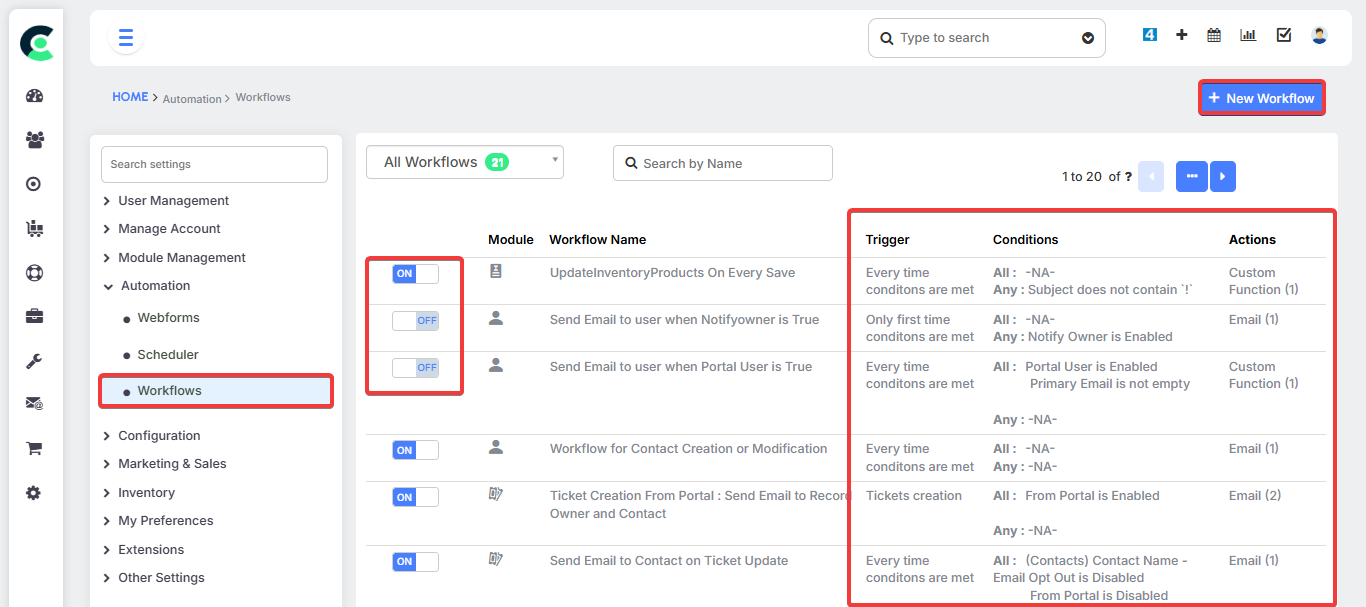
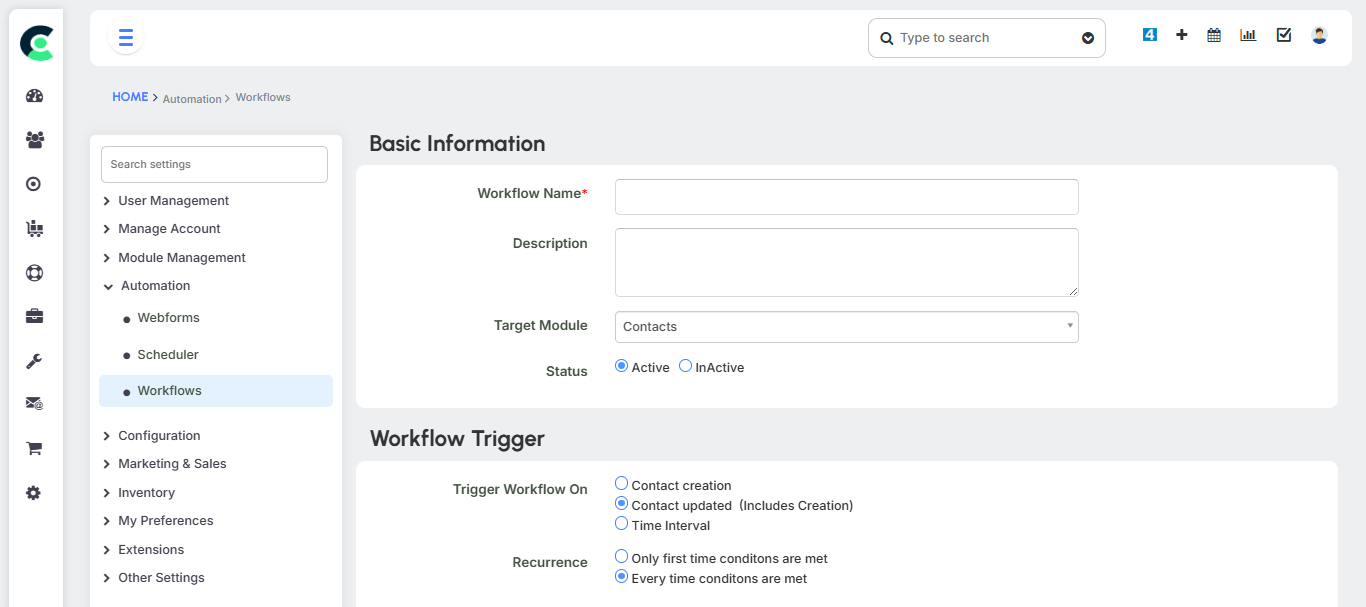
Workflow Automation
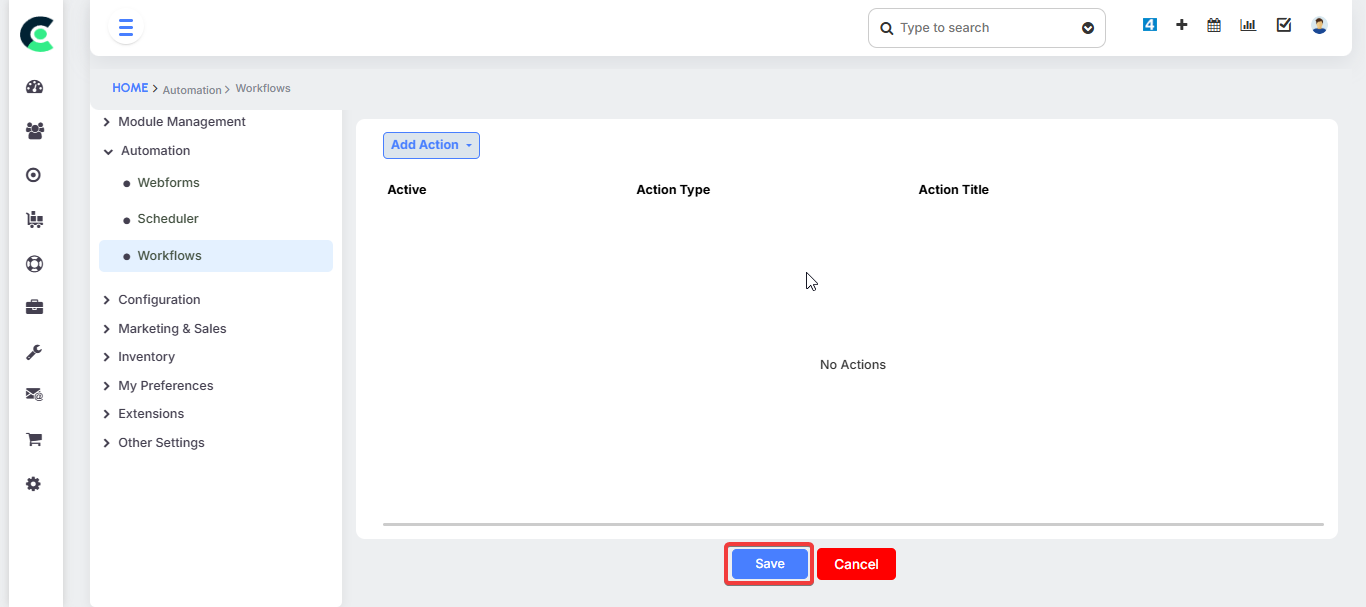
Workflows can be triggered to perform various actions automatically.
- Automated Actions: Workflows can be used to send an e-mail, send an SMS notification, or create a task when a specific event occurs.
- Email Sequences: You can set up email sequences that automatically send a series of emails over time. For instance, when a lead is created from a website form, an introduction email can be sent immediately, followed by a second email after a few days if they haven't responded.
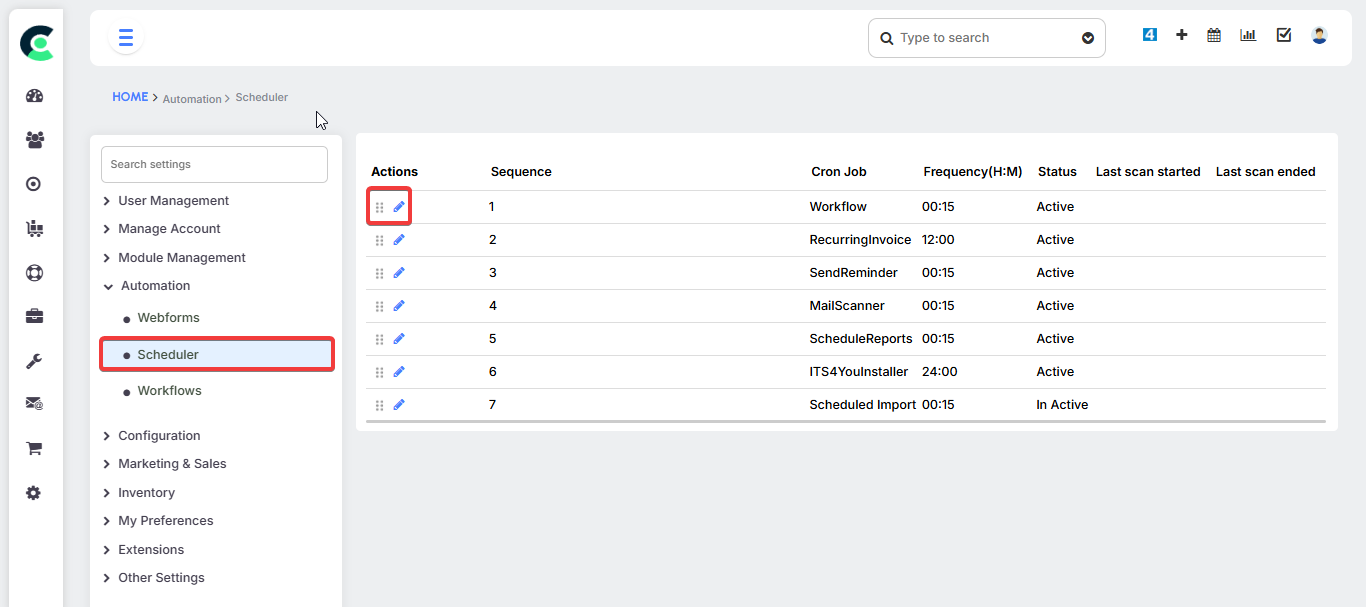
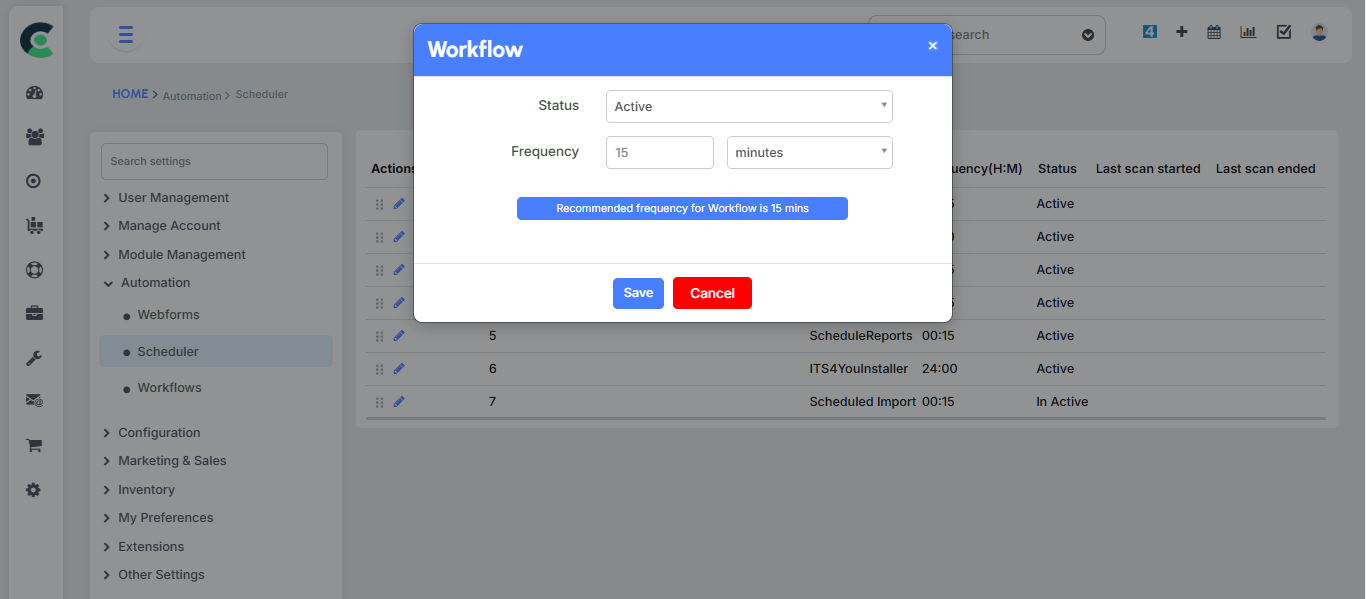
Scheduler
The Scheduler handles background jobs that run at predetermined intervals. This prevents the system from slowing down by processing complex tasks in real-time. For example, emails from a workflow are placed in a queue and sent by a "Cron job" that runs in the background every five minutes.
Web Forms
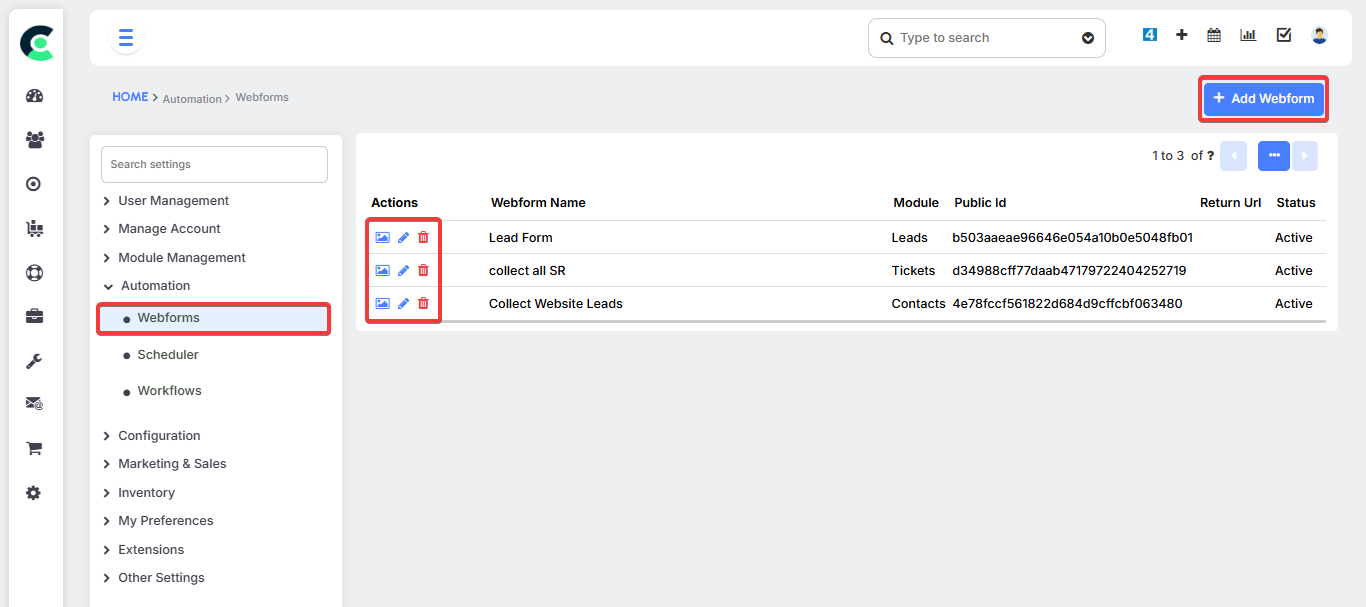
While web forms are part of the Marketing Module, their creation and configuration happen here in the Settings module. You can design web forms to capture lead information from your website and automatically save it to the CRM's database.
Configuration & Integrations
This section is where you manage the core settings of your CRM and integrate with external tools.
Company Details
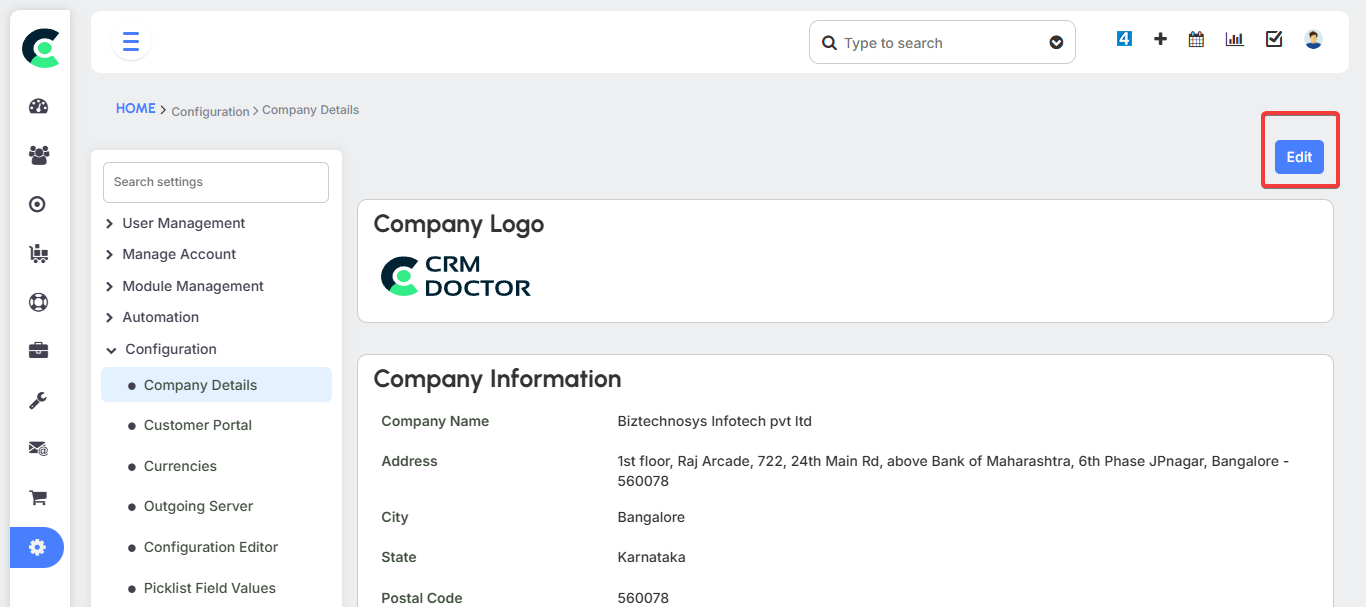
This is where you can upload your company's logo, enter the address, and other information that will appear on documents like invoices and quotation templates.
Outgoing Server
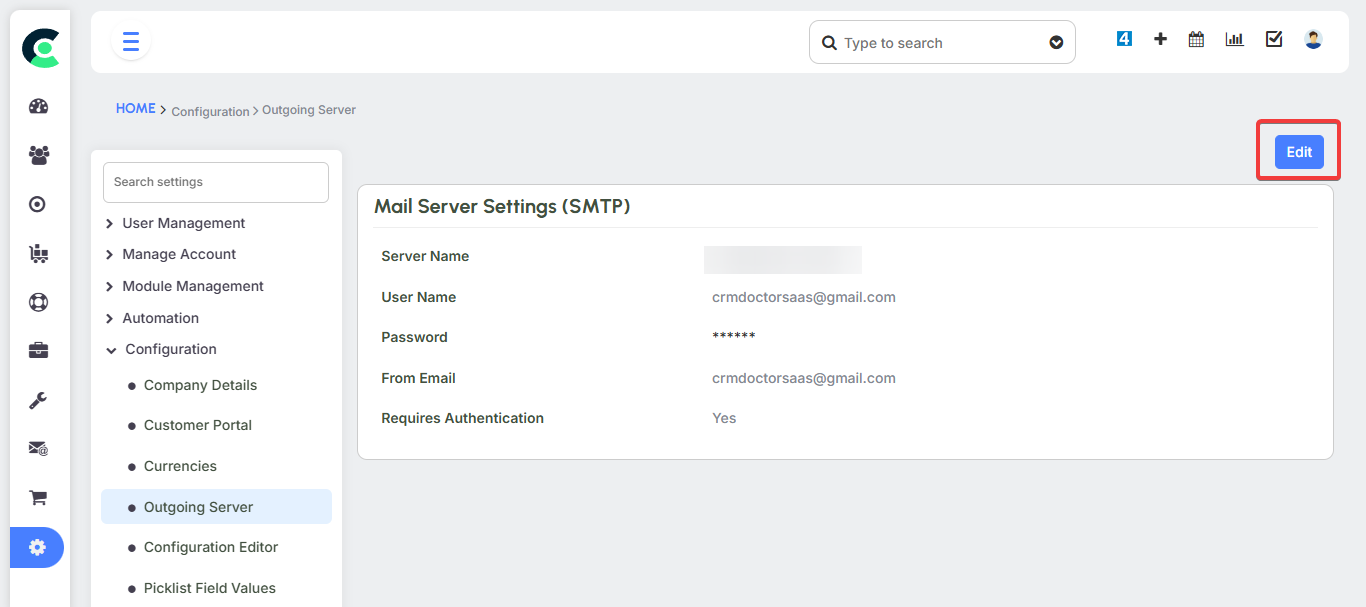
You must configure your outgoing email server details here to enable the CRM to send emails and notifications to customers and team members.
Currencies
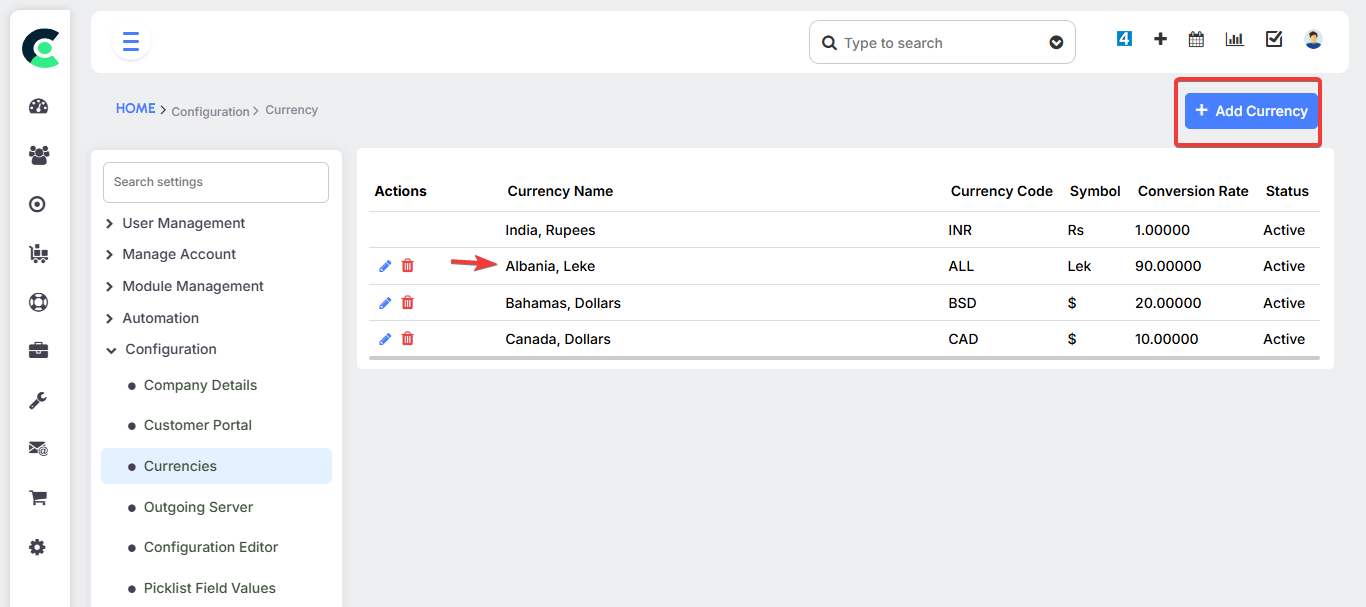
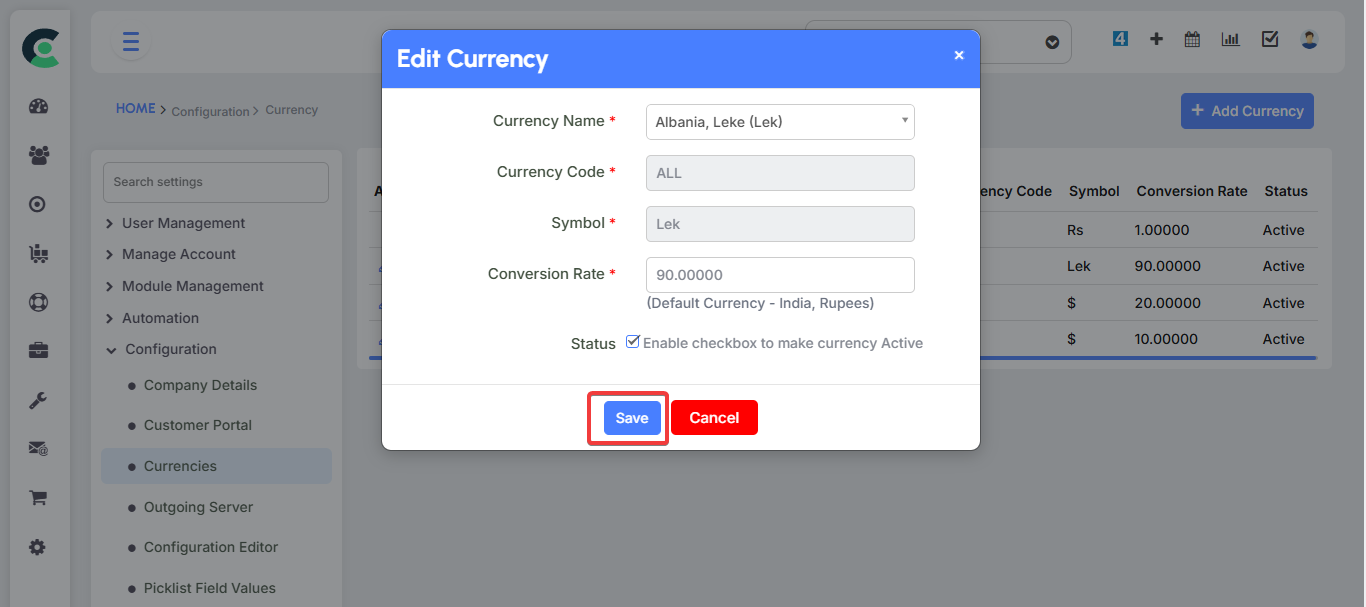
This feature allows you to manage the currencies used in the CRM. You can add new currencies (e.g., Indian Rupee, Euro), define the currency symbol, and set the conversion rate. The system's currency conversion is not dynamic, so conversion rates must be updated manually.
Mail Converter
The Mail Converter is a powerful tool that automatically converts incoming emails into CRM records. For instance, an email from a customer can be set up to automatically create a new support ticket in the Support Module.
Integrations
You can also configure integrations with other platforms here, such as synchronizing your Google Contacts.
Connecting the Modules: A Complete Circle
The Settings module is where the entire CRM Doctor system is tied together. It defines the rules that govern all other modules, creating a complete and cohesive workflow.
- Marketing & Sales: The user administration settings control who can see and work on leads and opportunities. Web forms, configured in Settings, automate the capture of new leads.
- Inventory: The record numbering system ensures that all sales orders and invoices have a unique number, which is crucial for inventory tracking.
- Support: The Customer Portal, configured in Settings, provides a transparent way for customers to interact with your support team, while the Mail Converter automatically creates new tickets from customer emails.
- Projects: Task escalation rules, deadlines, and project notifications are all configured in the Settings module to ensure projects stay on track.
This concludes the final section of the CRM Doctor user manual.