Table of Contents
Ready to Get Started?
Get the latest CRM insights and resources delivered directly to your inbox.
Start Free Trial20 Aug 2025
4 min read
Marketing Module
The Marketing Module in CRM Doctor is your central hub for managing the initial stages of the customer journey. Its primary function is to help you capture and nurture potential prospects, converting them from raw inquiries into qualified opportunities, and eventually, into paying customers. This process is often a seamless, automated workflow that feeds your sales team with valuable, ready-to-engage contacts.
The Marketing Workflow
The marketing process within CRM Doctor follows a clear, multi-stage path, allowing you to track a prospect's journey from their first interaction with your company to becoming a customer.
1. Lead Capture: The journey begins when a potential prospect's information is captured as a Lead. This raw data can come from various channels like your website, social media ads, or third-party applications.
2. Lead Nurturing: You use Campaigns to engage with these leads by sending them promotional materials, product brochures, or informational emails. This helps you gauge their interest and maintain communication.
3. Lead-to-Opportunity Conversion: Once a lead shows concrete interest - for example, by inquiring about a specific product or service, deciding how many units they want, and entering negotiations - they are converted into an Opportunity. This marks the point where the sales process officially begins.
4. Creating Contacts and Customers: After the opportunity successfully closes with a paid invoice, the prospect's company becomes a customer, and the specific individuals you interacted with at that company become Contacts.
By following this circular workflow, you maintain a complete, organized record of every interaction, ensuring a smooth hand-off from marketing to sales.
Web Forms (Lead Capture)
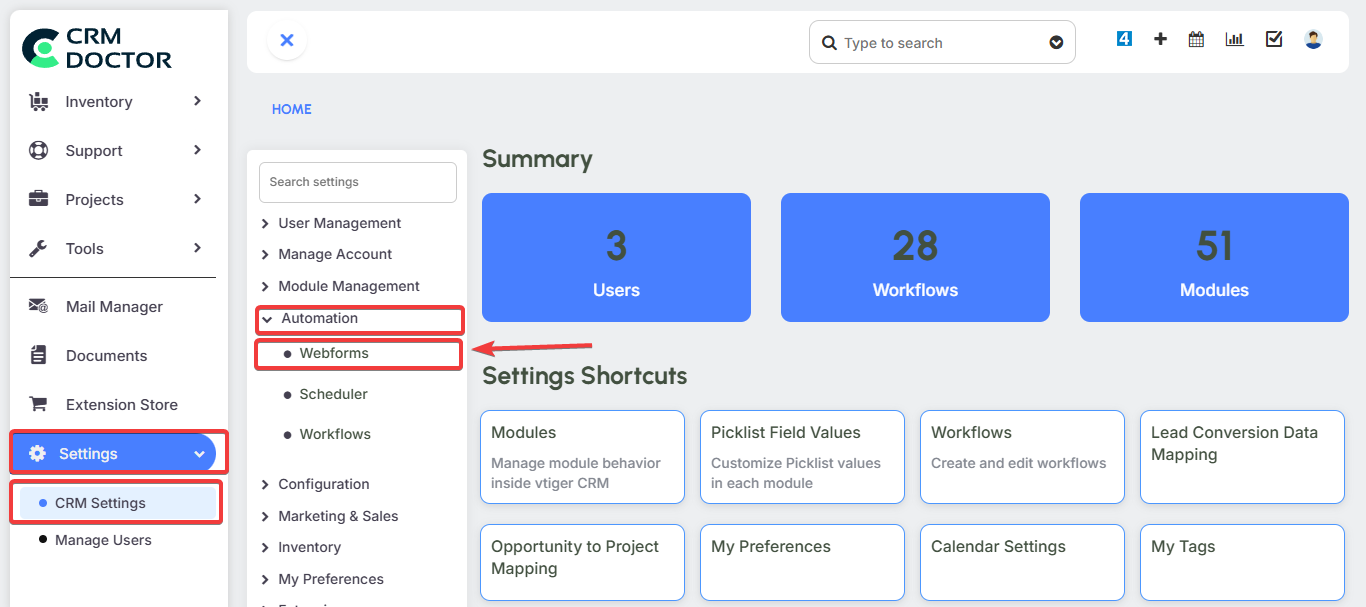
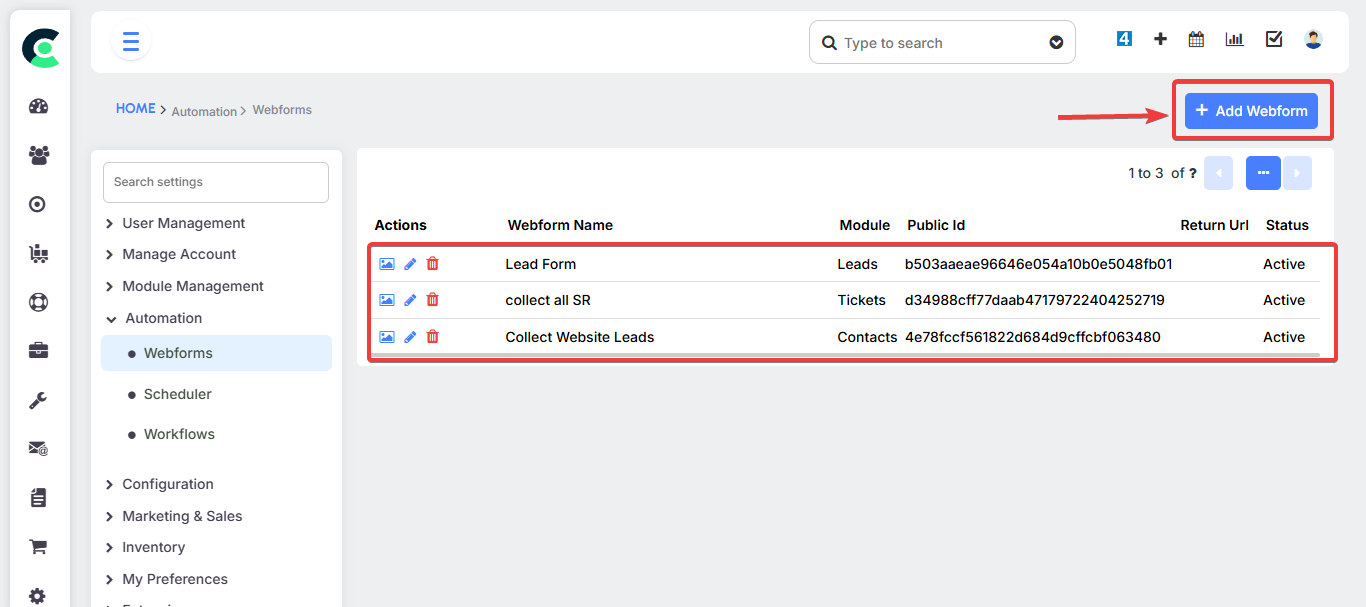
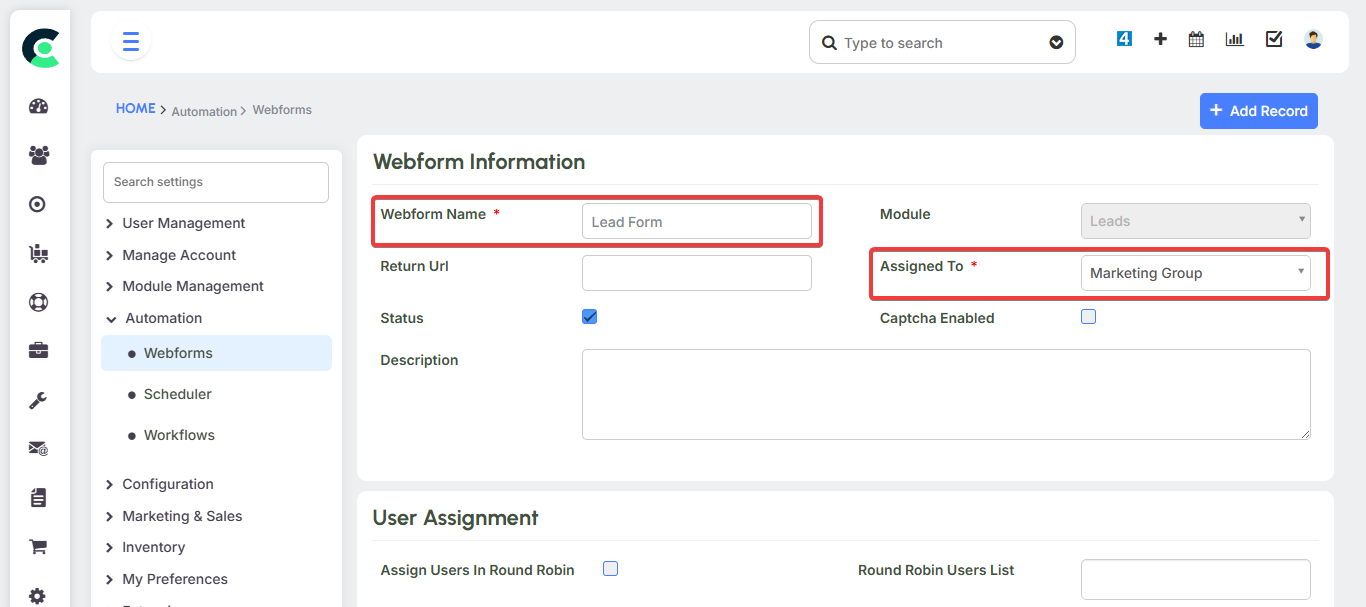
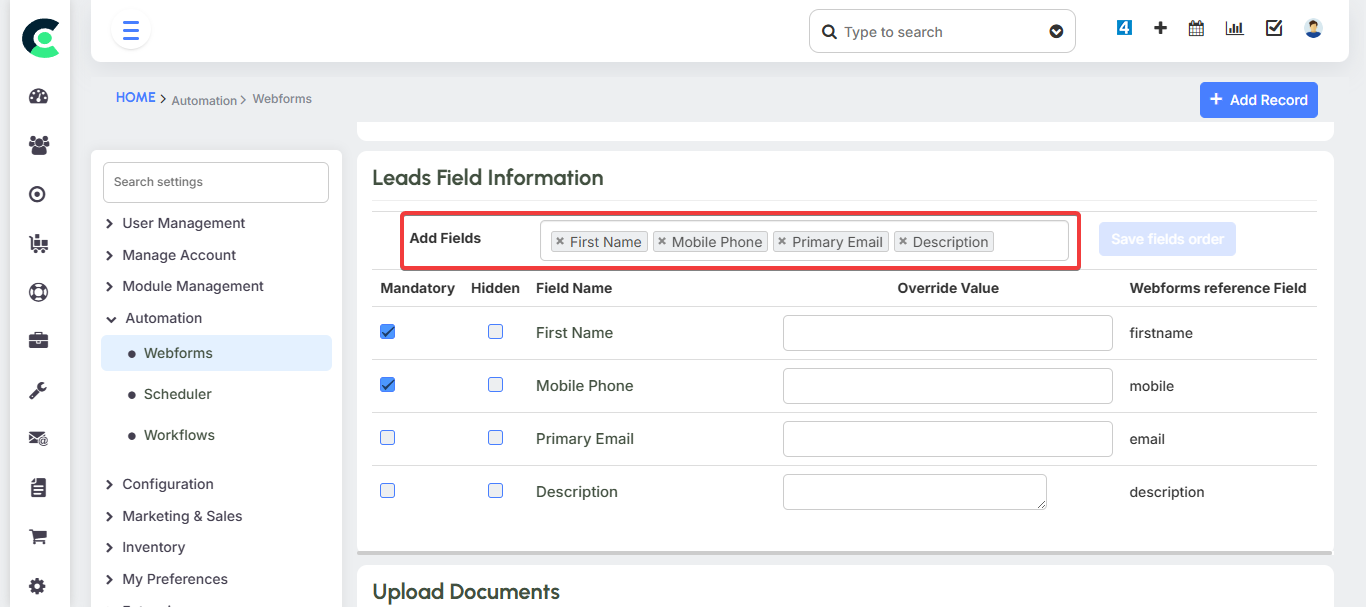
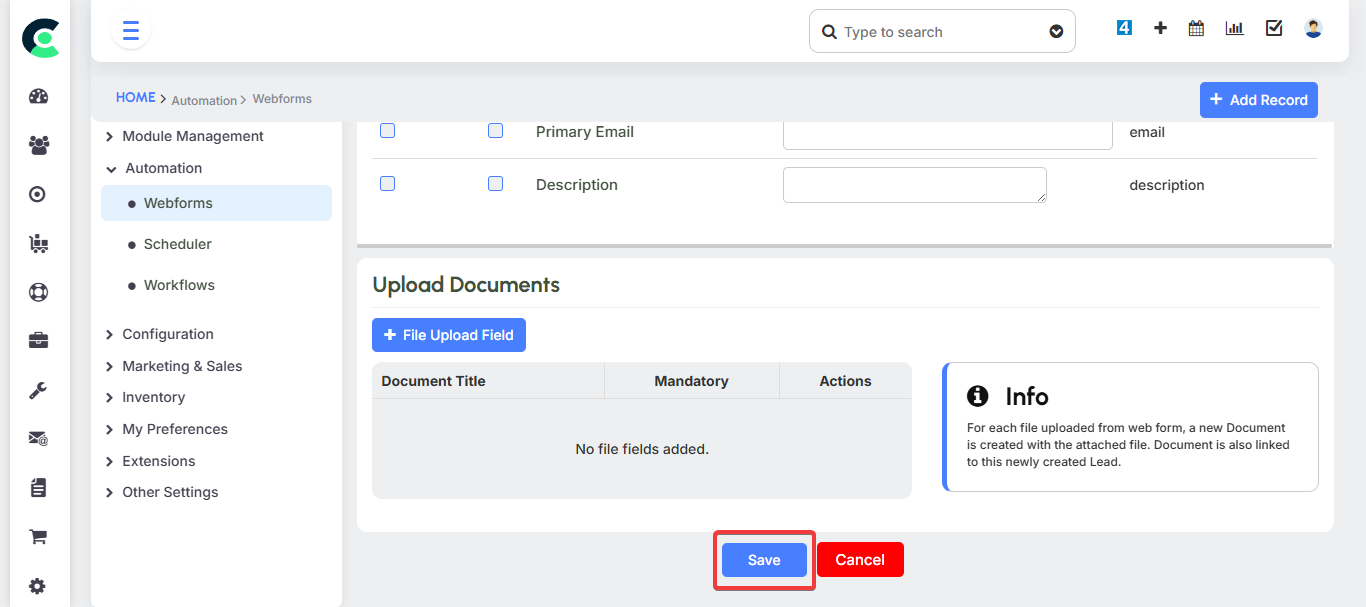
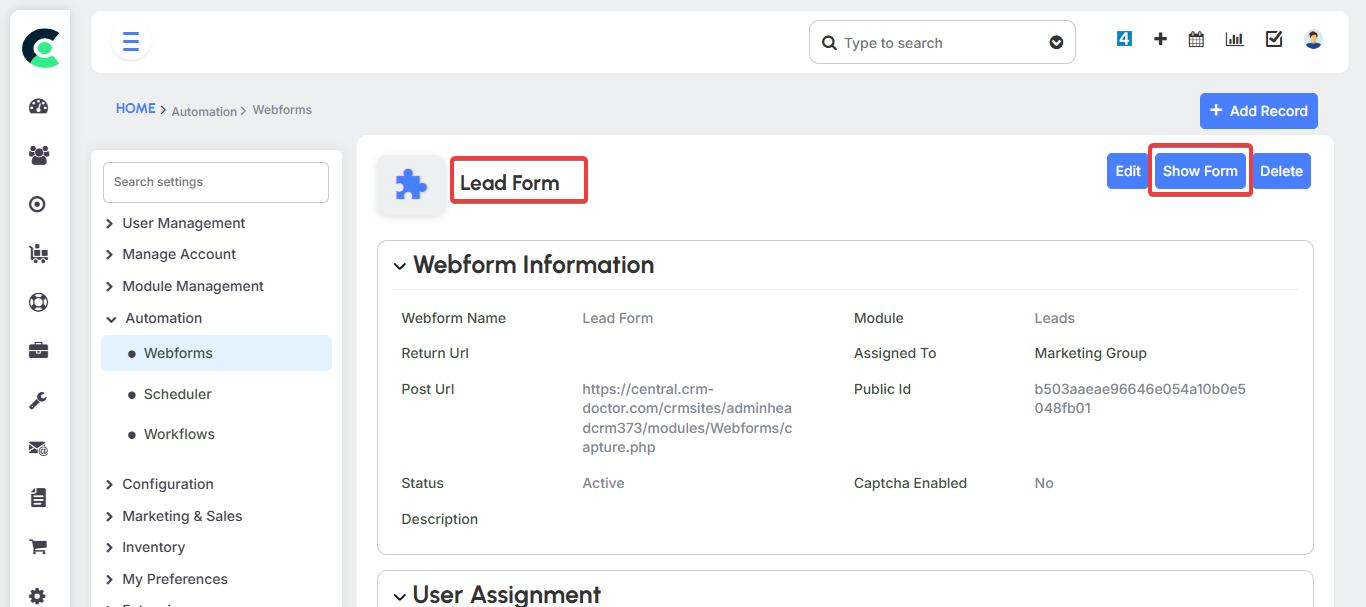
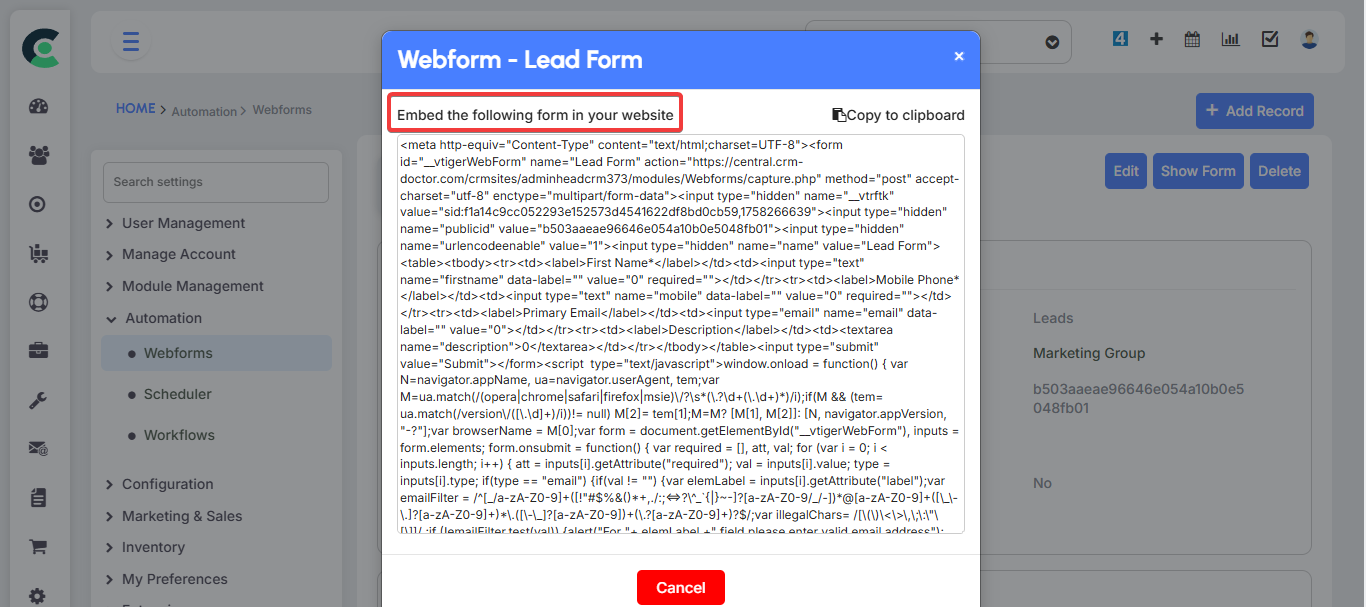
One of the most powerful features of CRM Doctor is its ability to automatically capture leads from your website using customizable web forms. Instead of manually entering information from your website's "Contact Us" or "Feedback" form, you can create a web form in the Settings menu, generate a code snippet, and embed it on your website.
When a visitor fills out the form on your website, their information is automatically saved as a new lead record in your CRM. This automates the data collection process and helps you organize all your potential leads in one central location.
Leads
The Leads module is where you manage all unqualified prospects. A lead is simply the name and contact information of a person or company who may or may not be interested in your product. You can collect leads from multiple sources, such as website forms, India Mart, Sulekha, and social media platforms like Facebook and Instagram.
Creating a New Lead
You can either create leads manually or have them automatically captured from external sources.
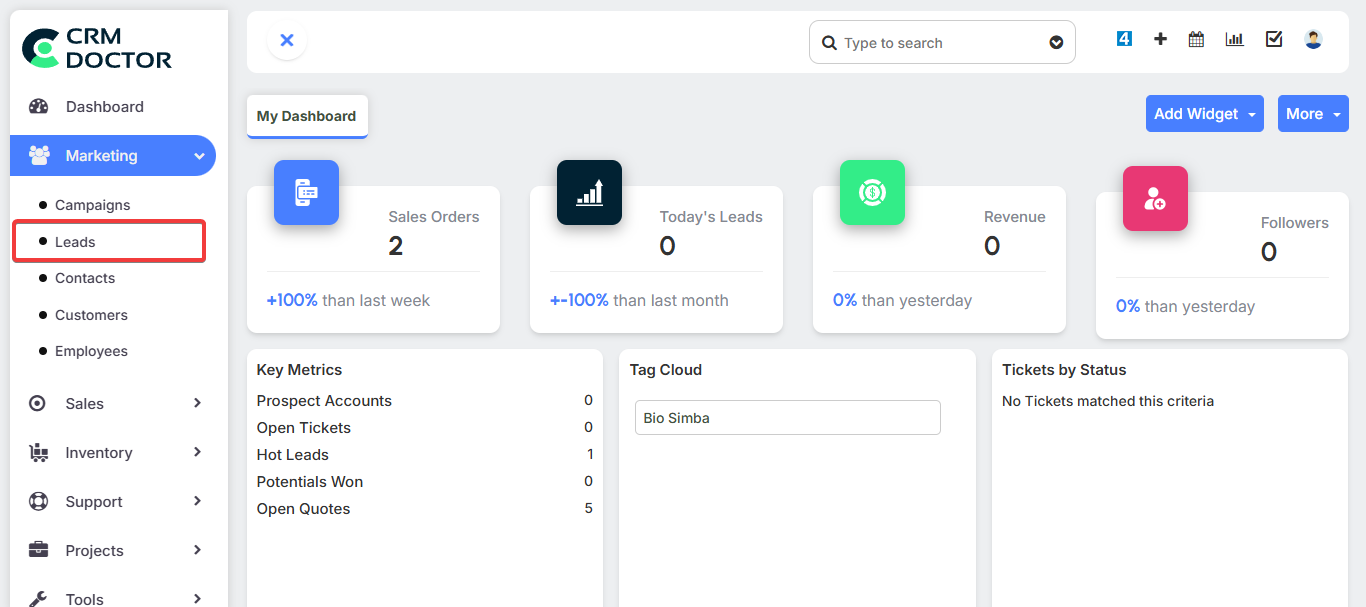
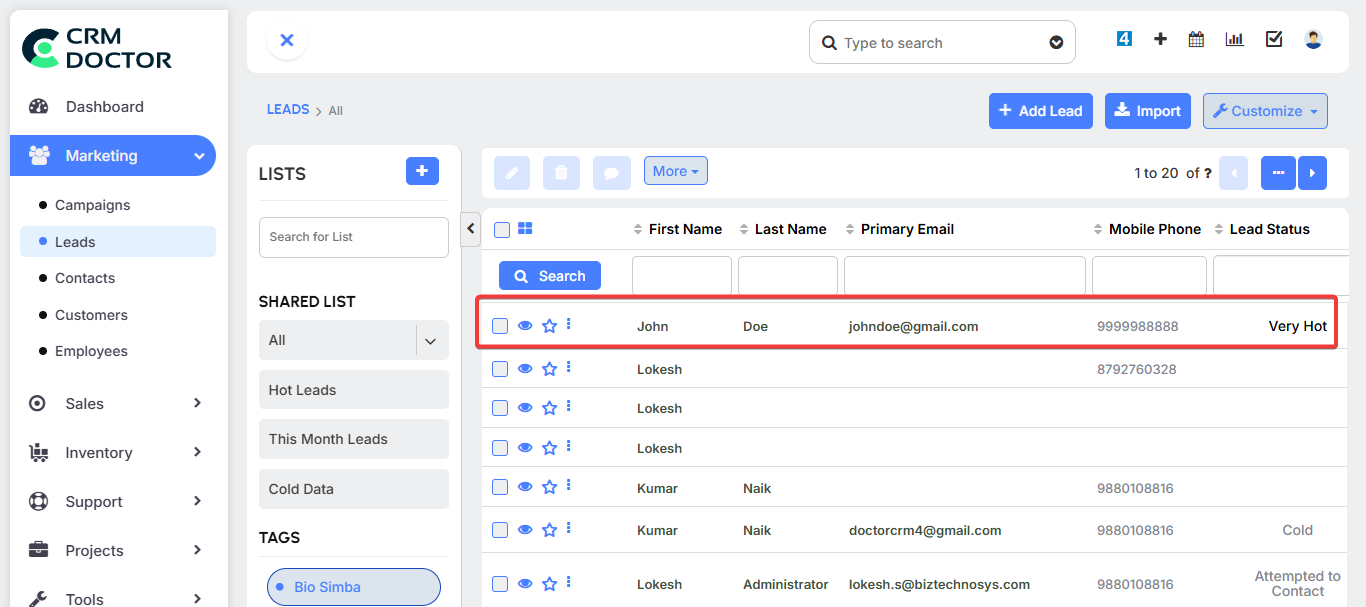
1. From the Lead List View: Navigate to the Marketing > Leads menu to see a list of all your current leads.
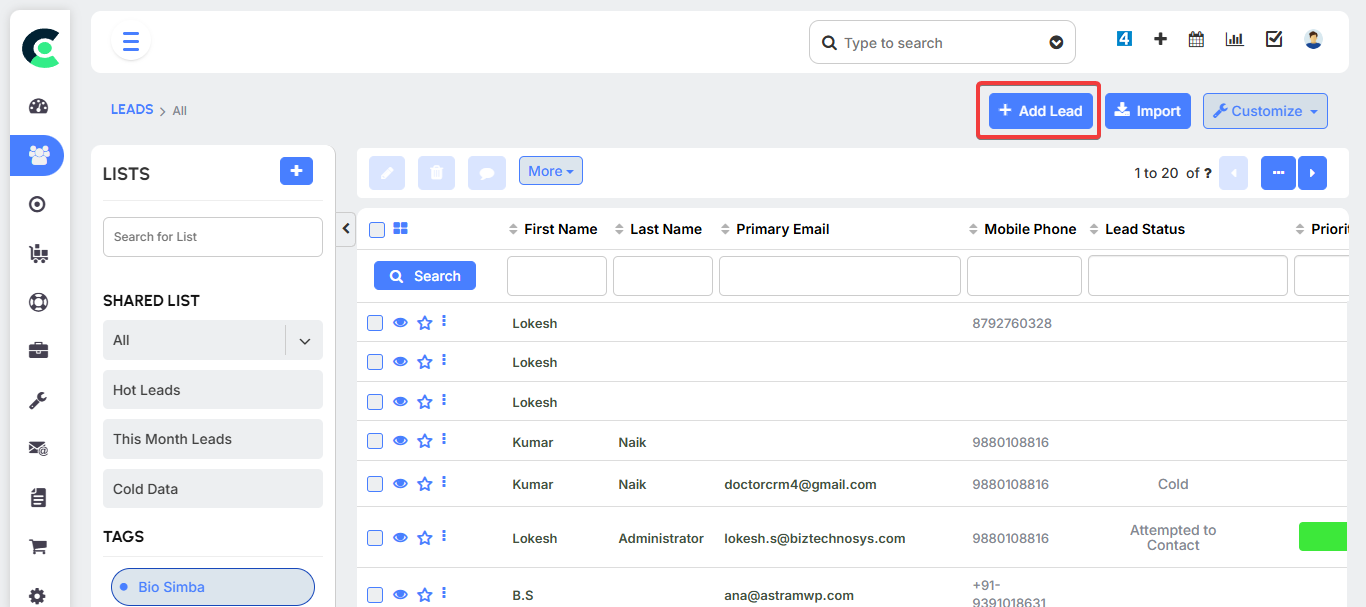
2. Click the 'Add New Lead' Button: Click on the button to open the lead creation form.
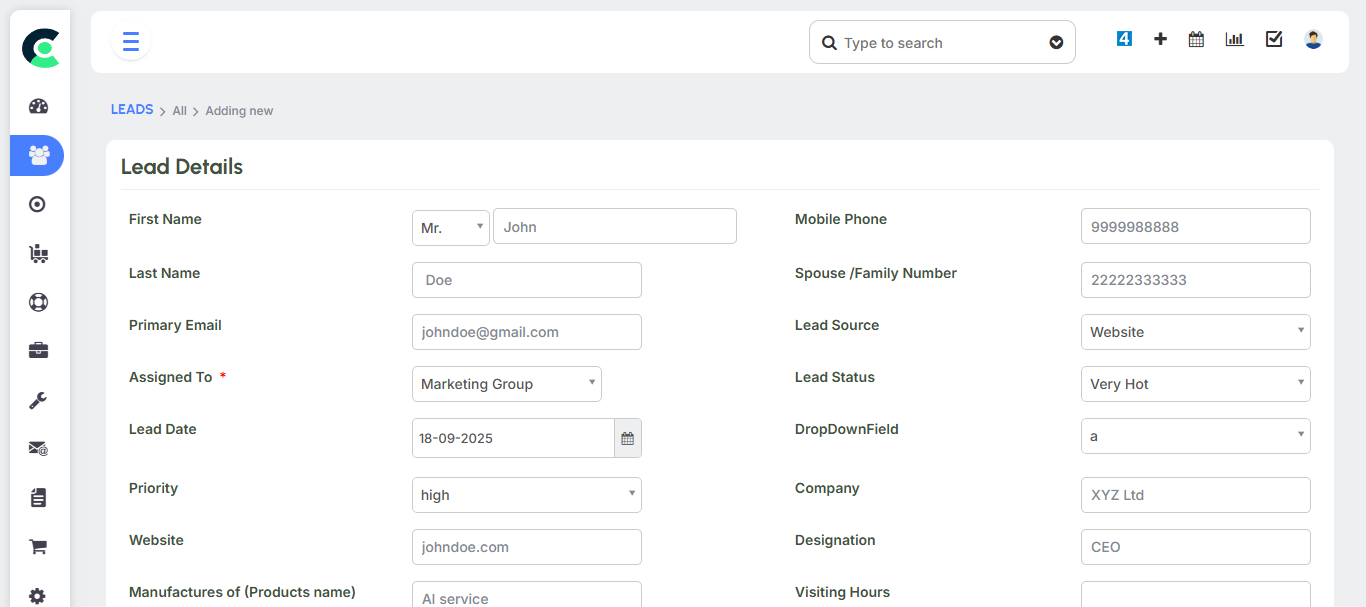
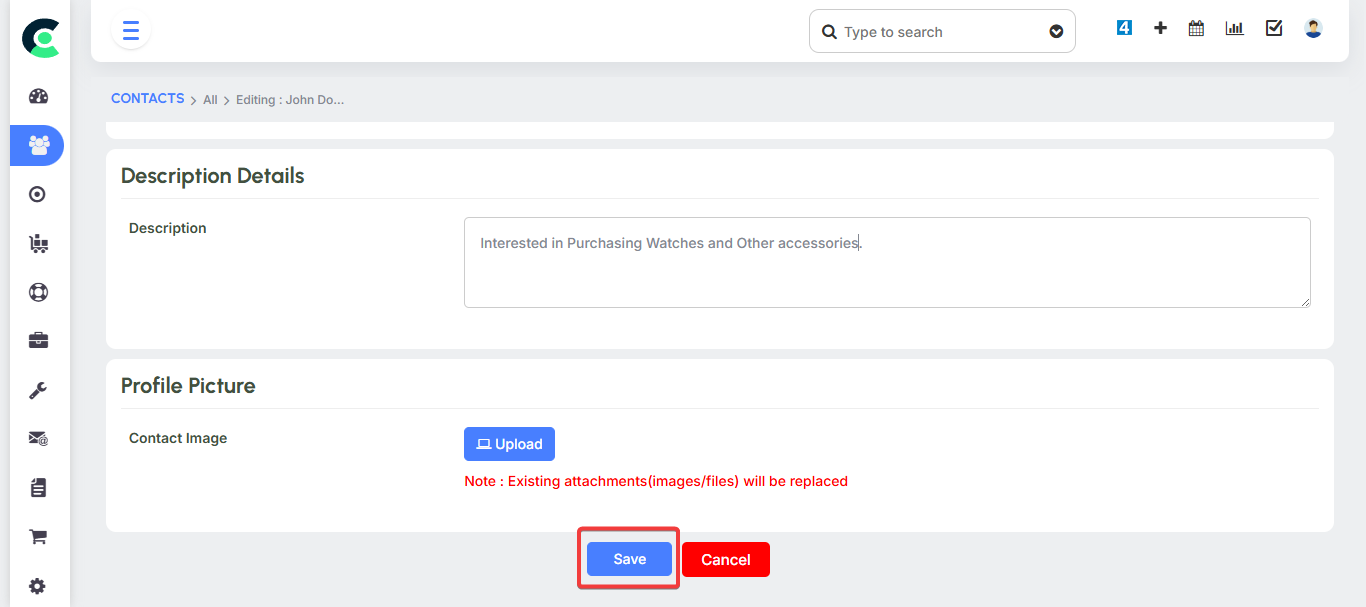
3. Fill in the Lead Information: Enter the prospect’s name, contact details, and any other relevant information.
4. Save the Lead: Click Save to add the new lead to your database.
Managing Leads
The Lead List View allows you to see all your leads in one place. From here, you can:
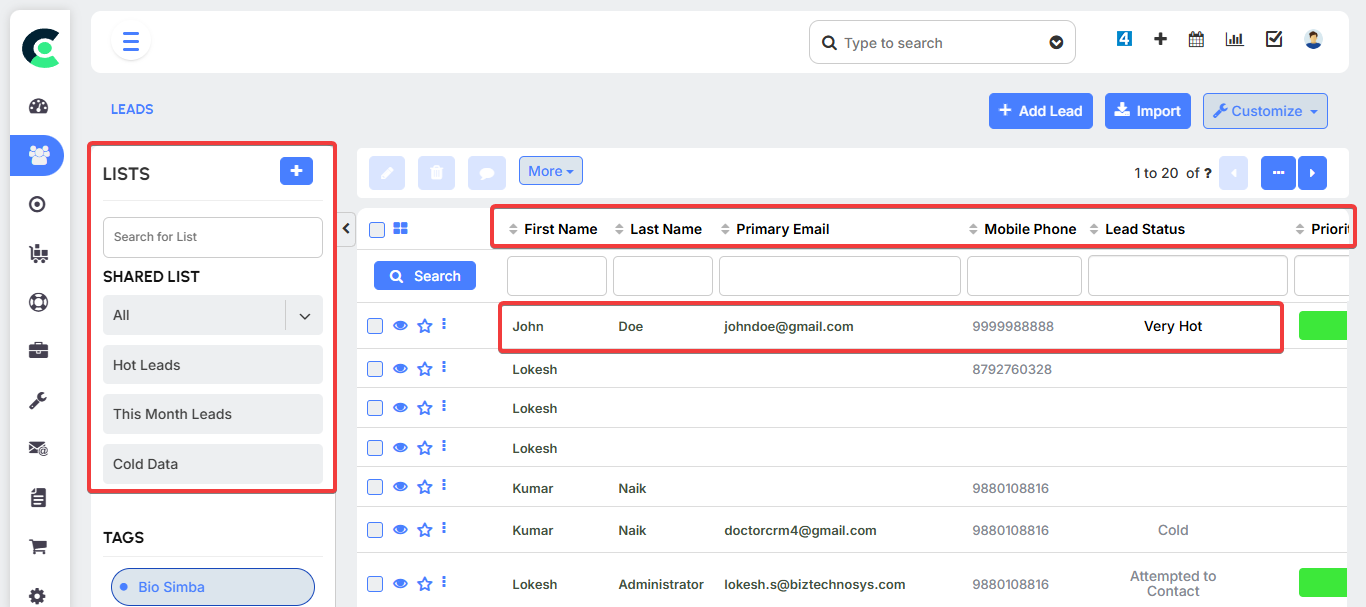
- View all the leads and their information.
- Group leads from different sources (e.g., all leads from Facebook ads or all leads from your website) to run targeted campaigns.
- Filter out specific leads based on criteria you define.
Campaigns
A Campaign is your launchpad for engaging and nurturing your leads. It allows you to run targeted outreach efforts, such as email campaigns or promotions, to a specific group of leads. Campaigns are crucial for moving prospects from the initial interest stage to the point where they are ready for a sales conversation.
Creating a New Campaign
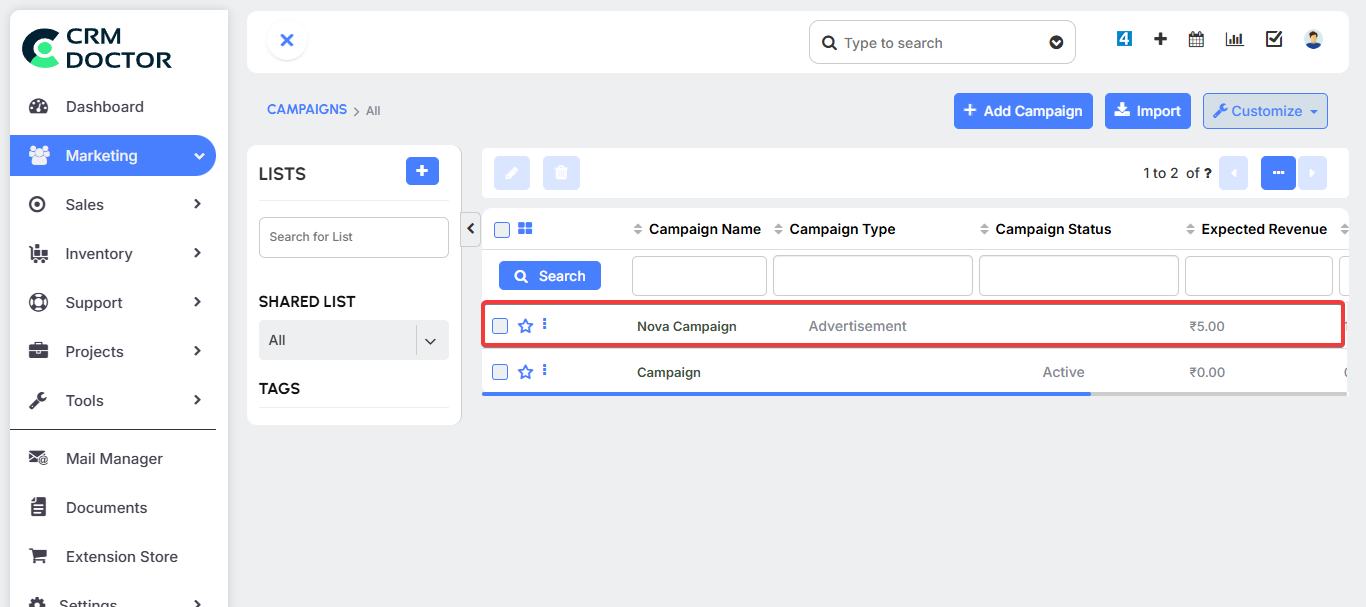
Navigate to Campaigns: Go to the Marketing > Campaigns menu.
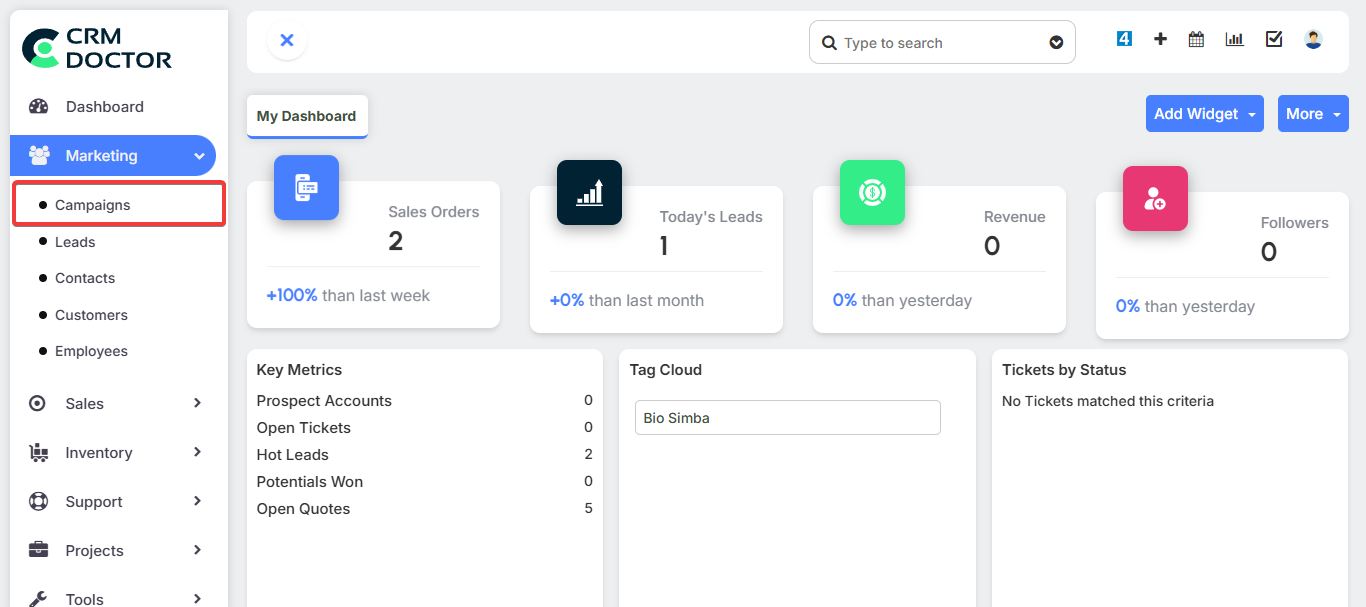
- Click 'Add New Campaign': This will open the campaign creation screen.
Define Campaign Details:
- Campaign Name: Give your campaign a clear, descriptive name.
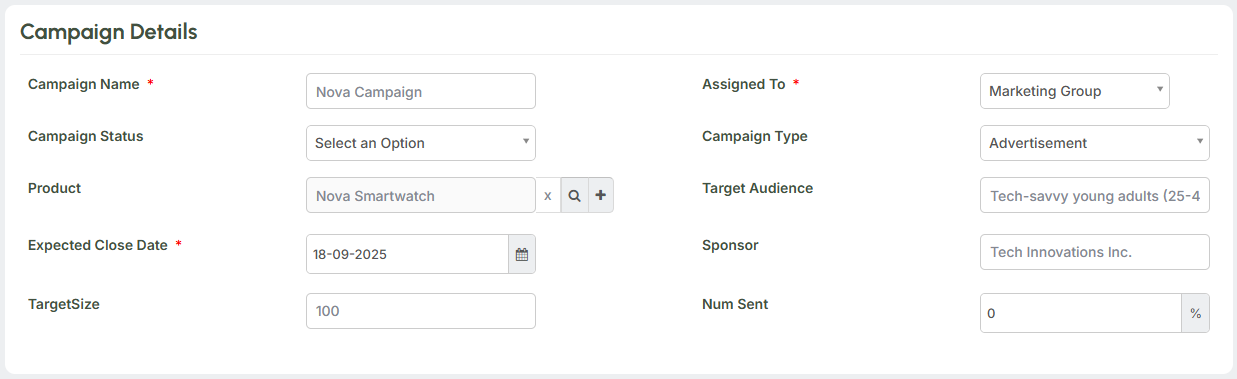
Campaign Type: Select the type of campaign you're running (e.g., Email, Ad, Promotion).
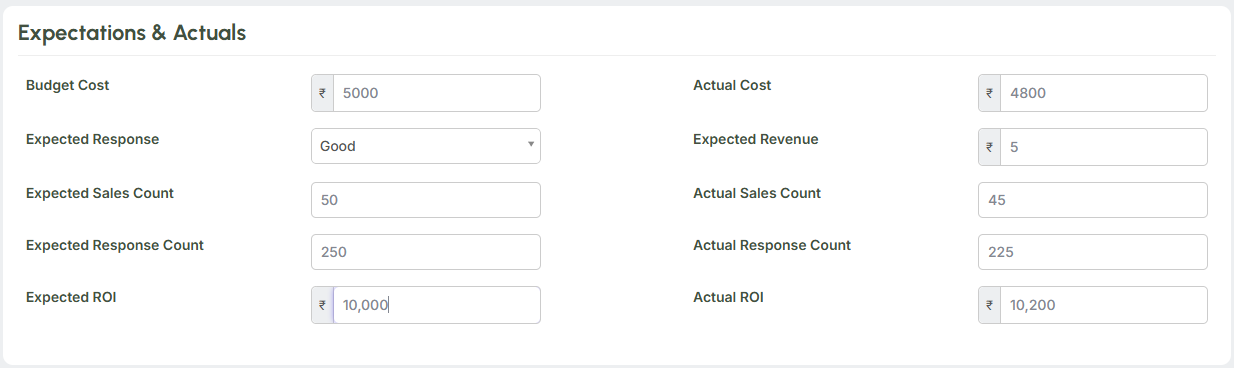
- Budget Cost: Enter the budget for this campaign to track your spending.
- Expected Revenue: Estimate the revenue you expect to generate from this campaign.
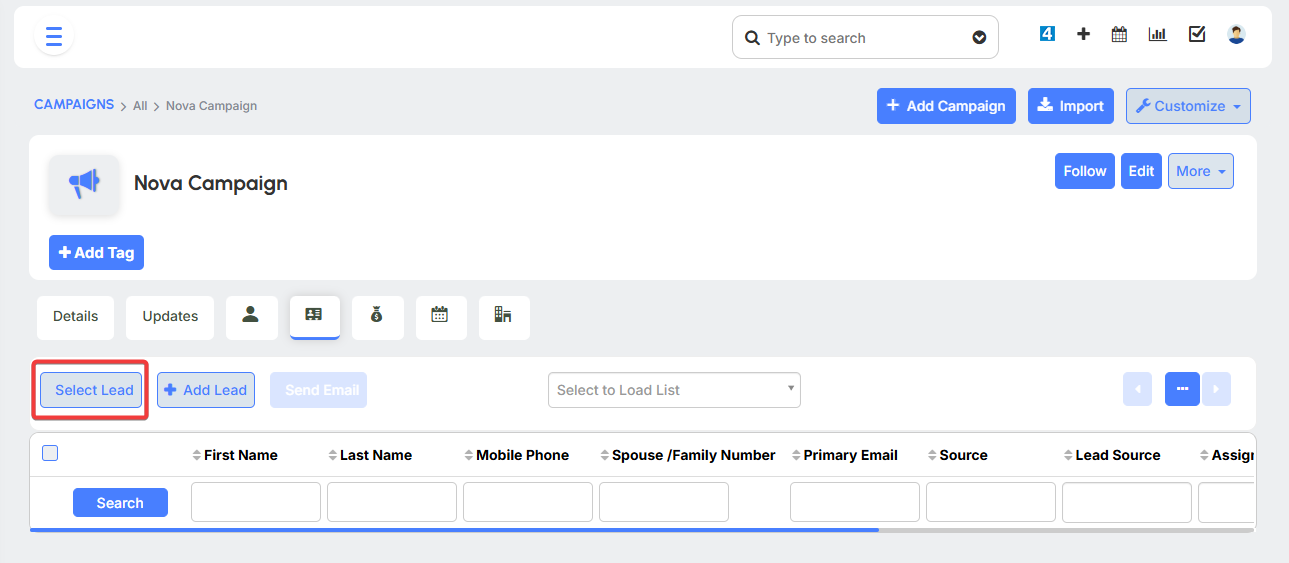
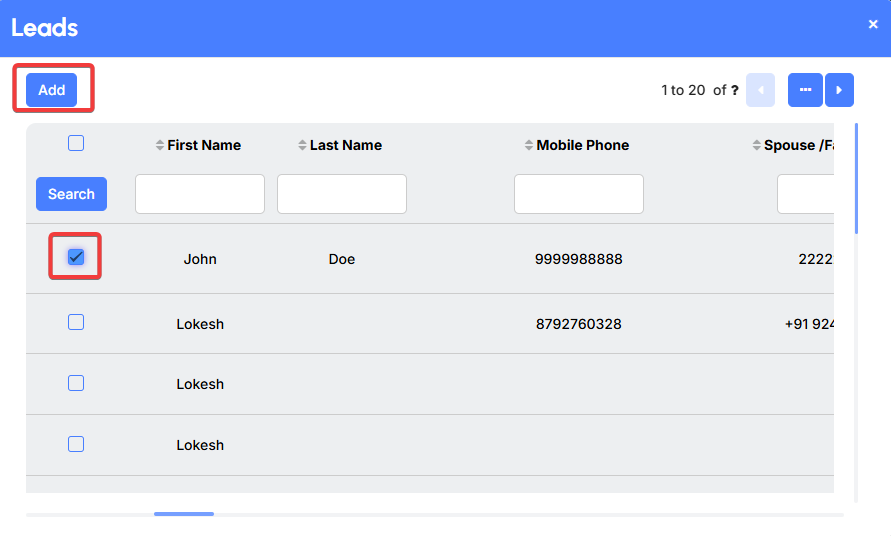
Add Leads to the Campaign: From the campaign details page, you can select specific leads from your database to include in this campaign. This is how you create a targeted audience for your outreach.
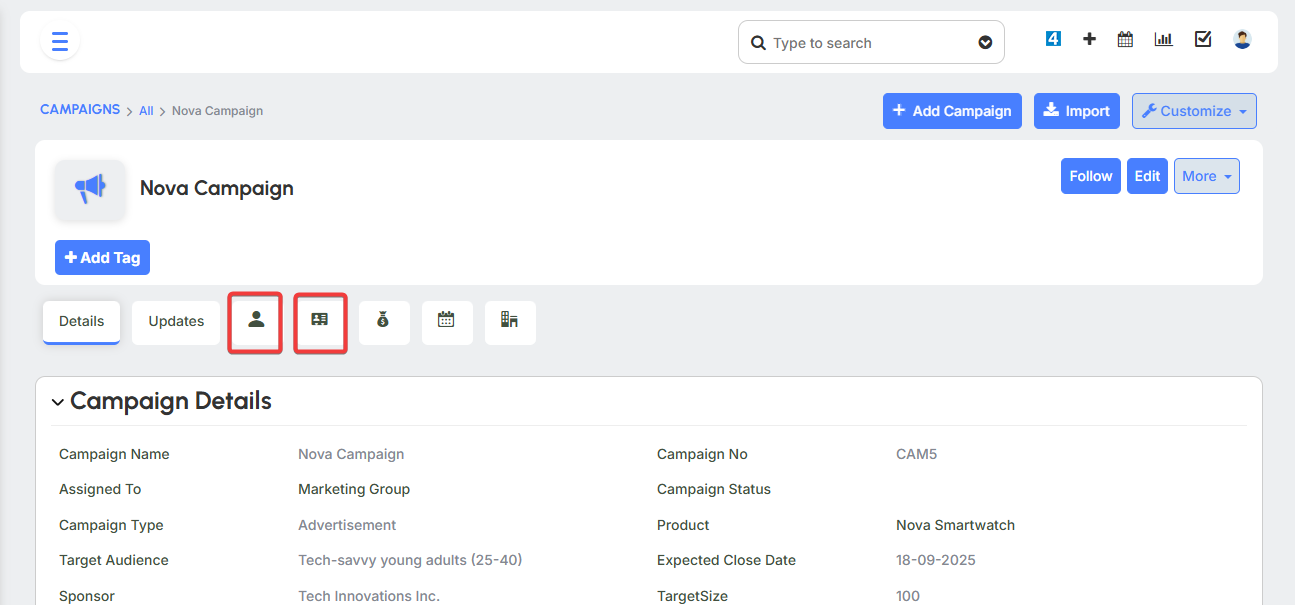
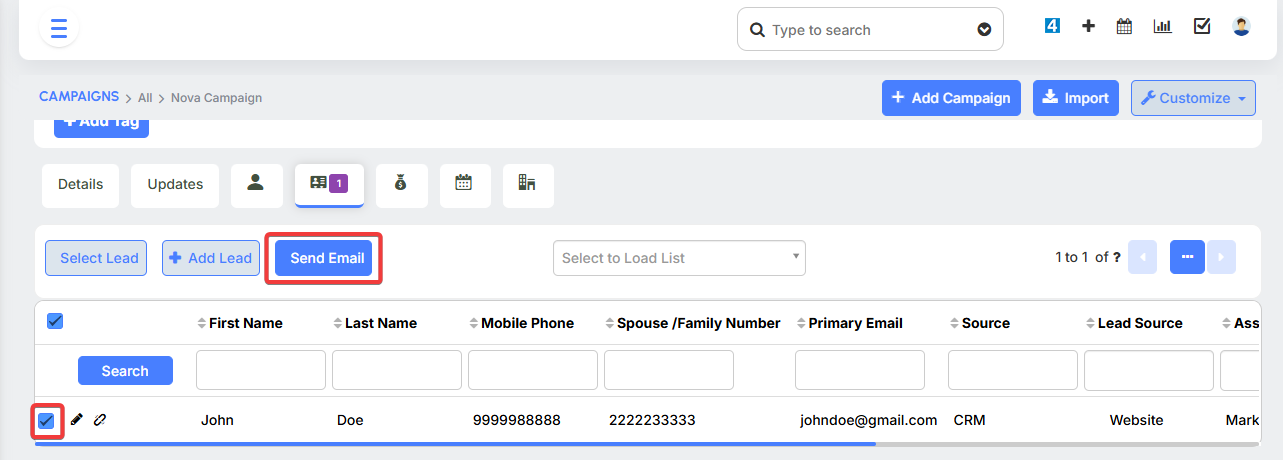
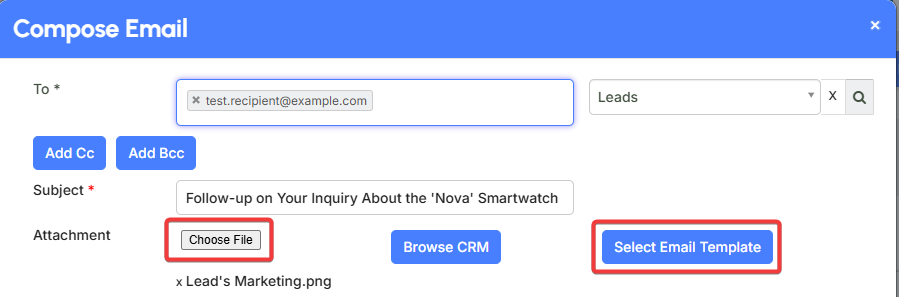
5. Initiate the Campaign: Once the campaign is configured, you can initiate it, for example, by sending an email blast to all the selected leads.
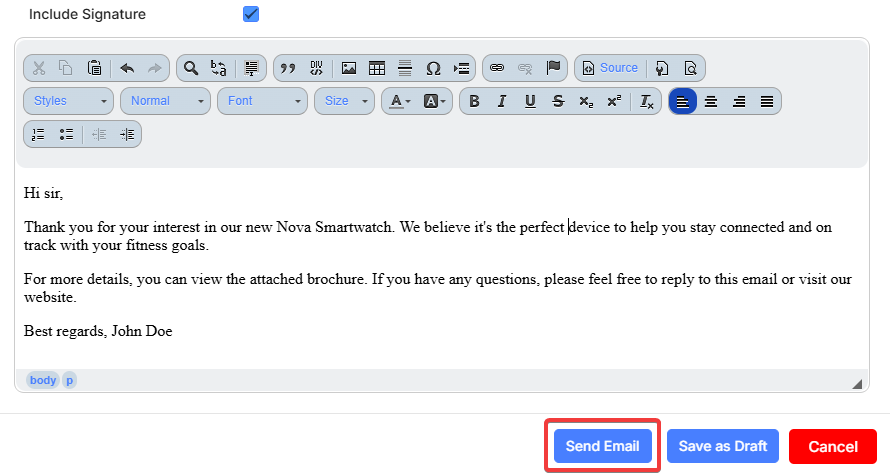
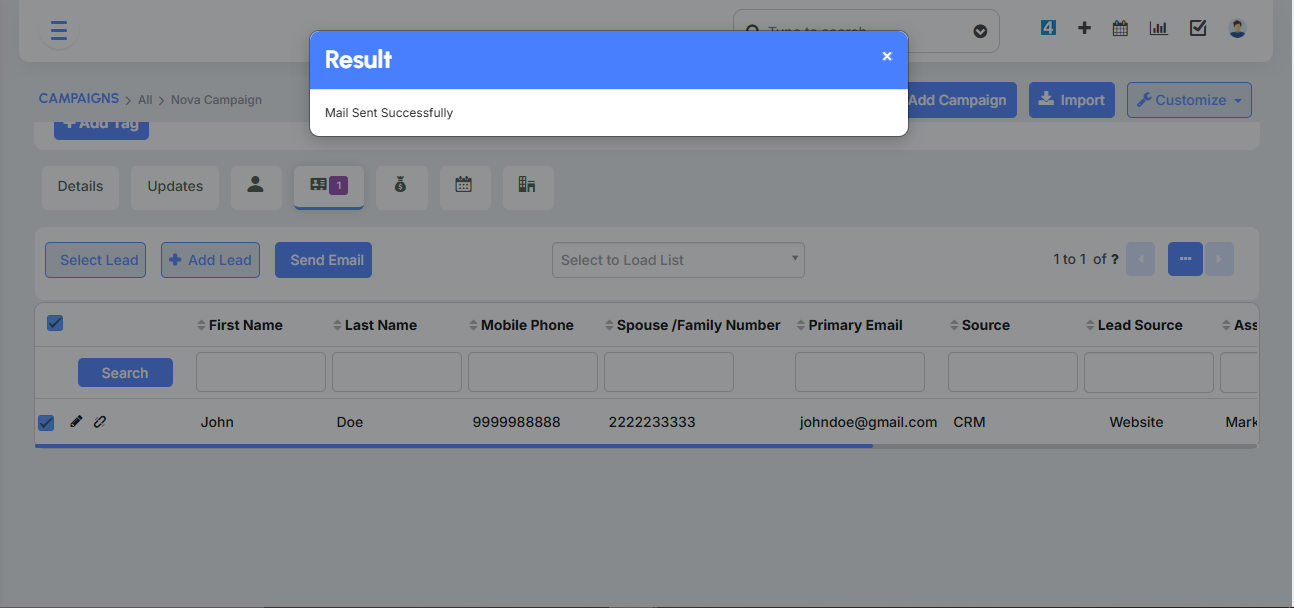
Email Templates:
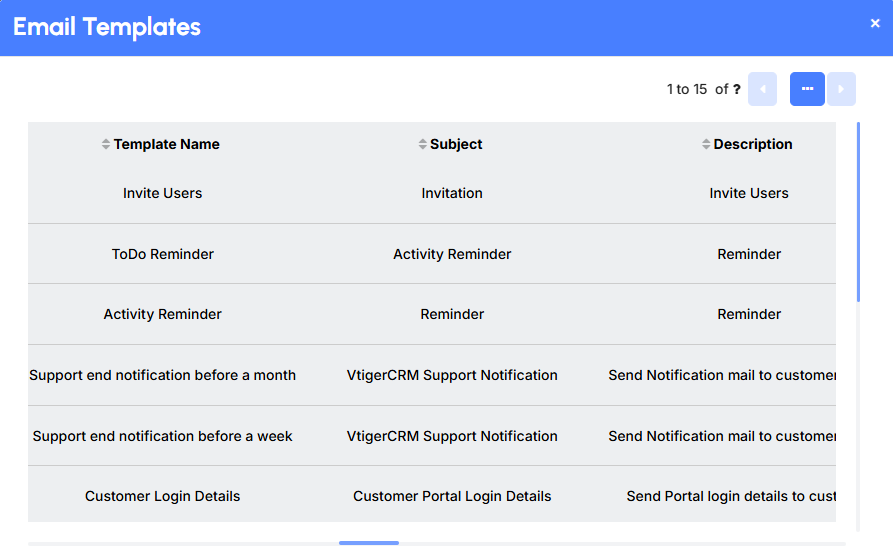
You can create email templates with a rich text editor to design professional-looking emails that can be used for your campaigns. You can store these templates and reuse them for different campaigns, ensuring a consistent brand message.
ROI Calculation:
CRM Doctor includes an ROI (Return on Investment) calculator to help you understand the effectiveness of your marketing efforts. By tracking the
Budget Cost:
and the revenue generated from leads originating from a specific source, you can see which channels (e.g., Facebook, Instagram, your website) are the most profitable.
Conversion Process & Customers
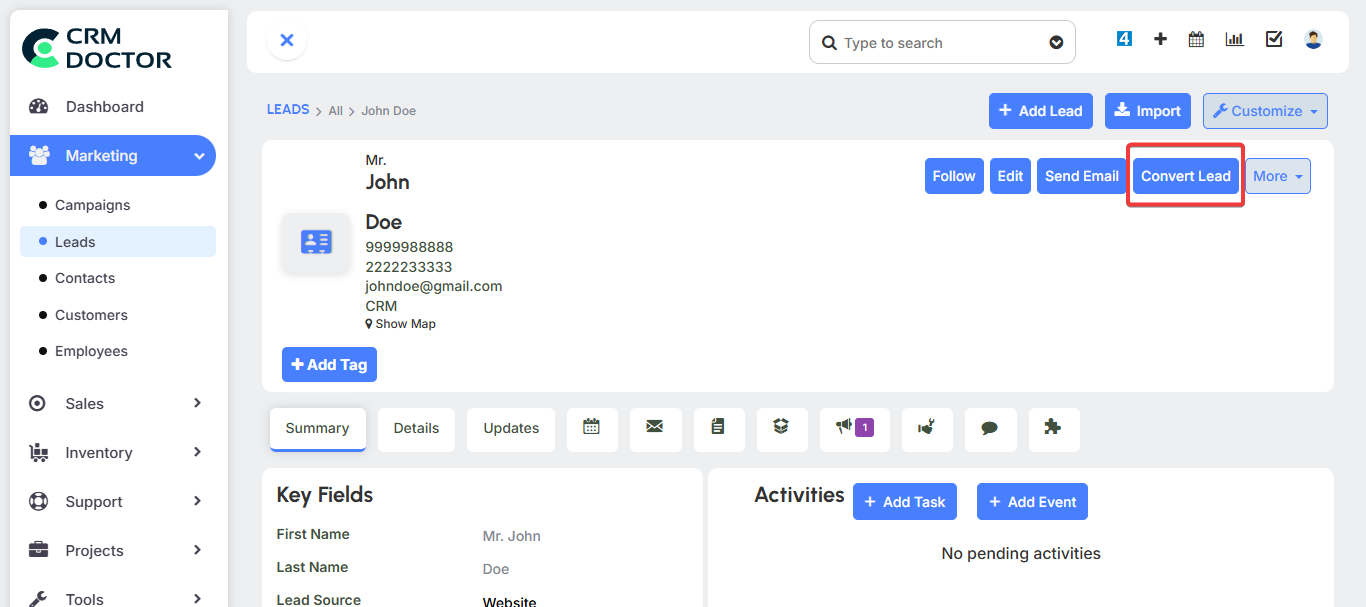
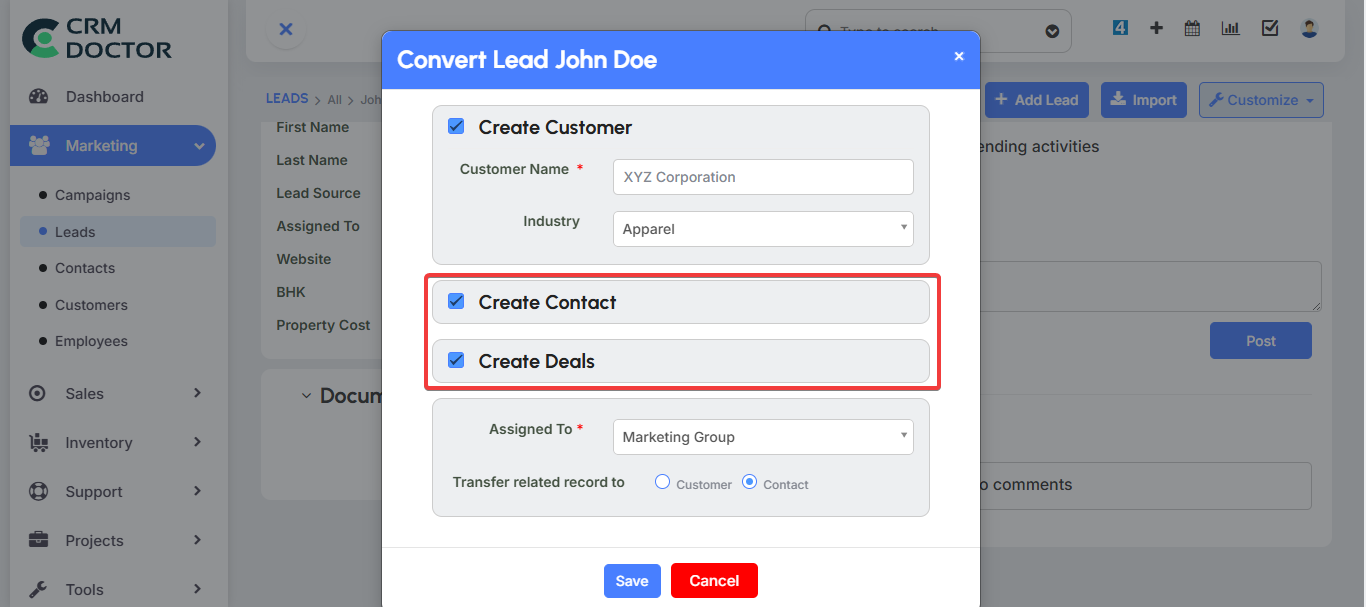
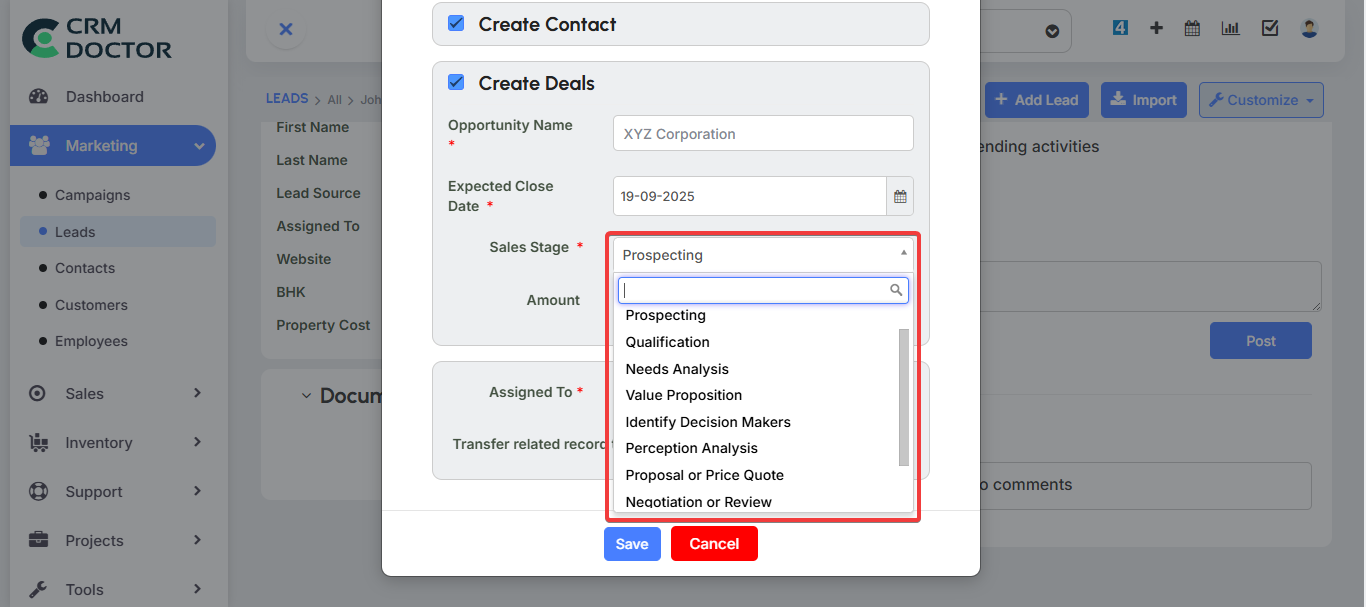
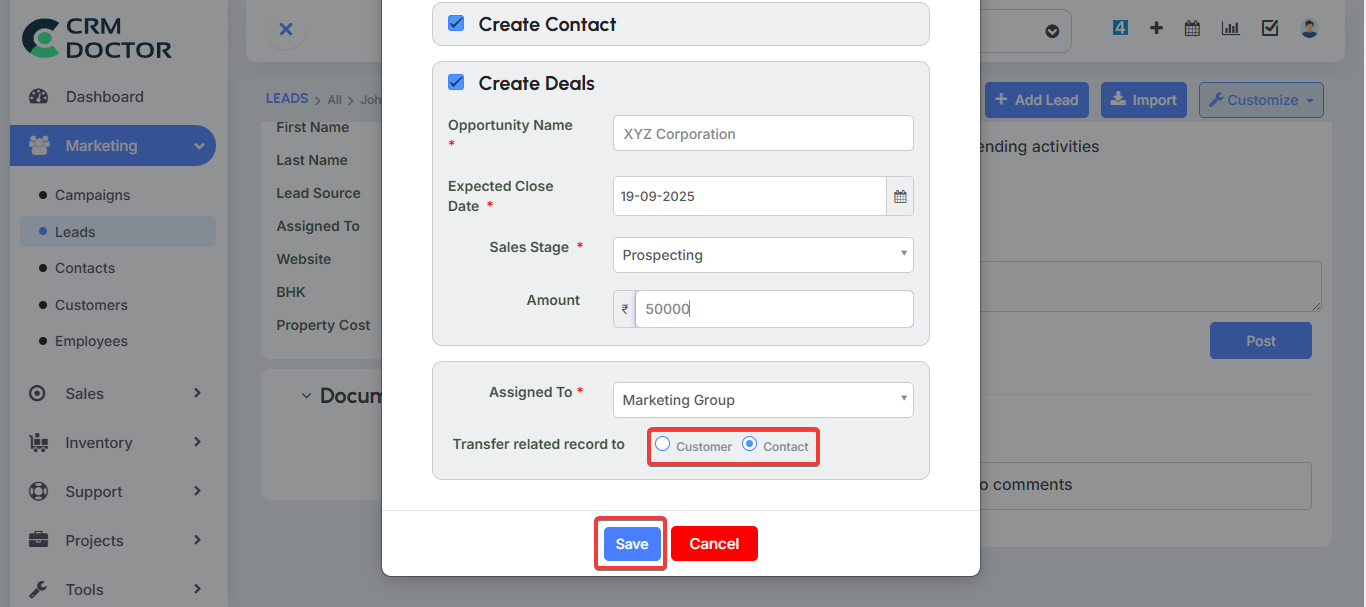
Once a lead responds to your campaign and indicates a strong interest in your products or services, they are ready to be moved into the sales pipeline. A sales representative can then convert a lead into an Opportunity, which is the sales stage where they are actively in the pipeline, it’s a record of all requirements, such as the negotiating details like the number of products they will buy number of services or the rates, quotes etc.
After the opportunity successfully closes, and the quote and invoice are paid, the company becomes a Customer. At this point, the customer can now use the Service Request Module to raise tickets if they have any issues.
Contacts
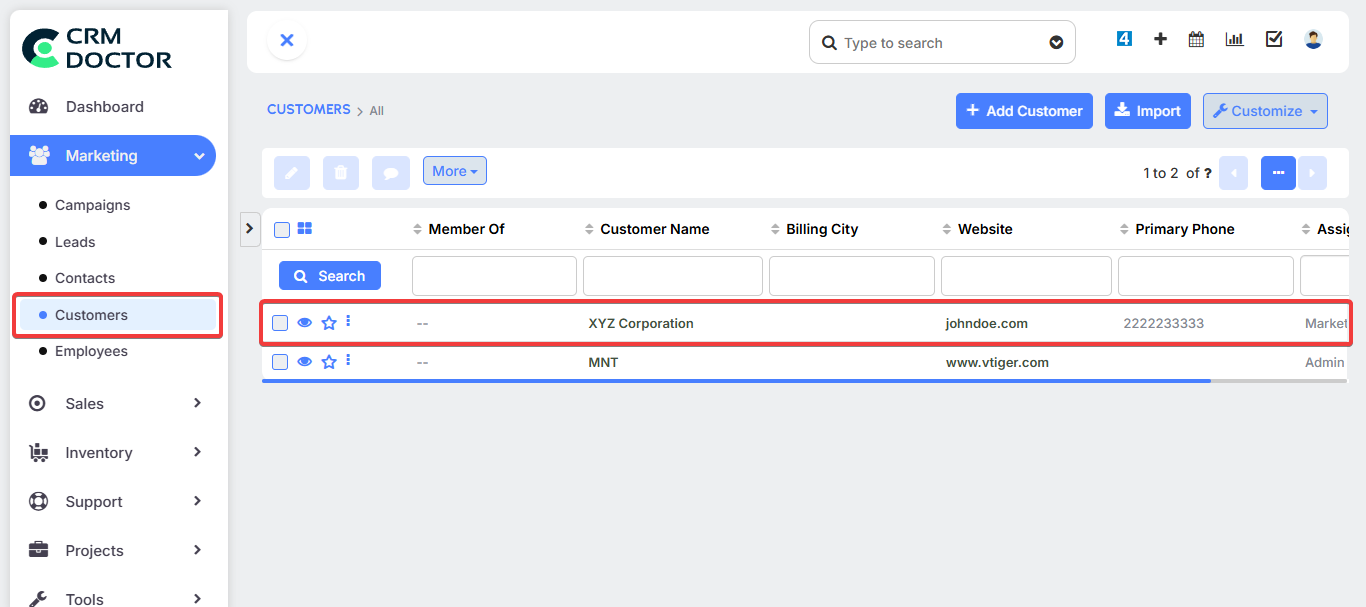
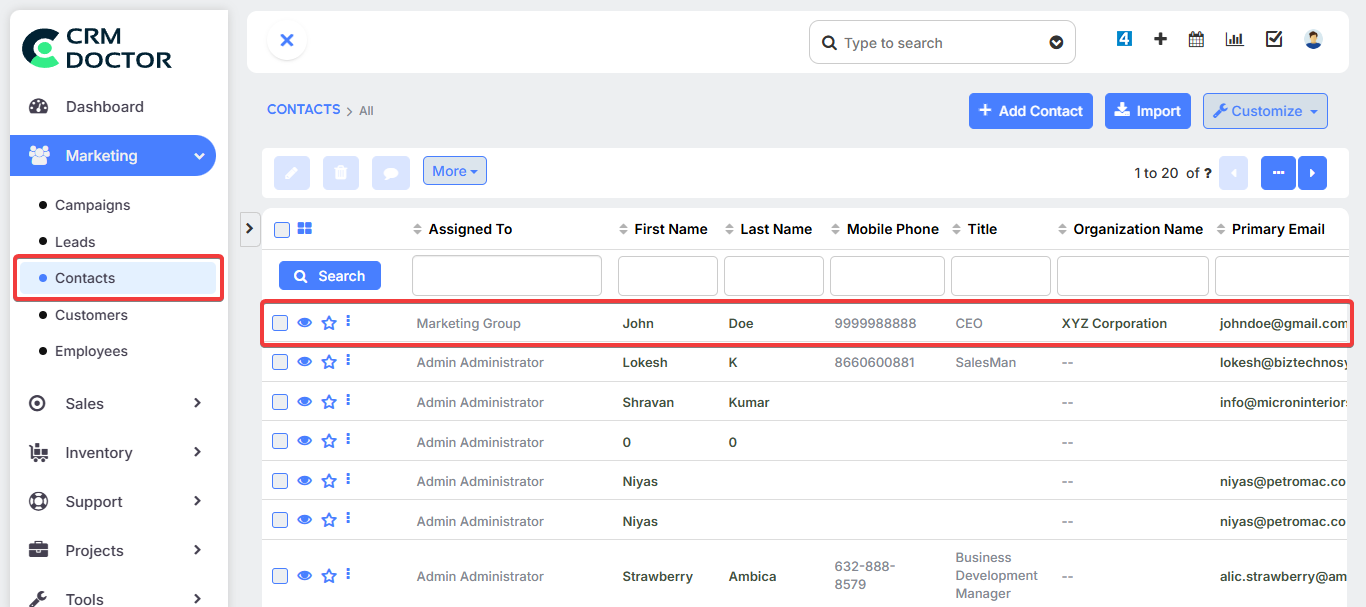
In CRM Doctor, it's important to understand the distinction between a Contact and a Customer. A Customer is an organization or legal entity that has purchased a product or service from you. A Contact is the specific individual you communicate with at that company.
For example, if the company "XYZ Corporation" buys your product, they are your Customer. The five people you interact with from their team - the CEO, a sales manager, and three engineers - are your Contacts.
These Contact records are linked to the Customer record, allowing you to see all interactions and purchase history in one place. This structure helps your team build relationships with individuals while maintaining a clear record of the business relationship with the company itself.