Table of Contents
Ready to Get Started?
Get the latest CRM insights and resources delivered directly to your inbox.
Start Free Trial20 Aug 2025
3 min read
Inventory Module
The Inventory Module in CRM Doctor is your central command center for all aspects of material management within your business. It allows you to manage raw materials, semi-finished products, final products, and all related documentation in a highly automated and accurate way. The module's primary strength is its seamless, two-way integration with the Sales and Purchase processes, ensuring that your stock levels are always up-to-date based on real-time business activities.
The inventory section contains all records related to deliveries, receipts, invoices, sales orders, purchase orders, and stock transfers.
The Inventory Workflow: An Automated System
The Inventory Module is designed to work for you. It automates key tasks to reduce manual effort and prevent errors. The core workflow is centered on a simple principle: your stock quantity automatically adjusts based on your business activities.
- Stock Inflow: When you receive products from a supplier, the system automatically increases your stock quantity.
- Stock Outflow: When you sell products to a customer and generate an invoice, the system automatically reduces the stock quantity.
This automated system ensures that your inventory count is a continuously accurate reflection of your on-hand stock.
Products / Services
The Products / Services section serves as the master catalog for all your company’s offerings.
A Product refers to a physical item (e.g., a "Nova Smartwatch"), while a Service is an intangible offering. This distinction helps in organizing your catalog and managing inventory for physical goods.
Creating a New Product
Navigate to Products: Go to the Inventory menu and select Products.
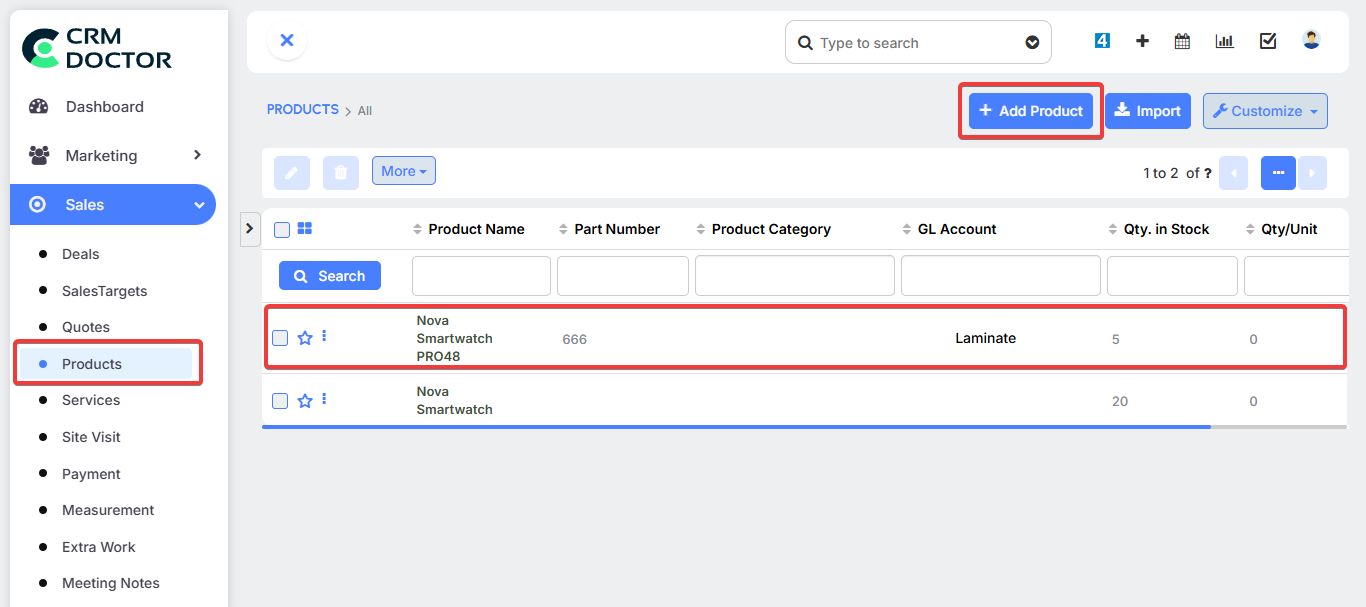
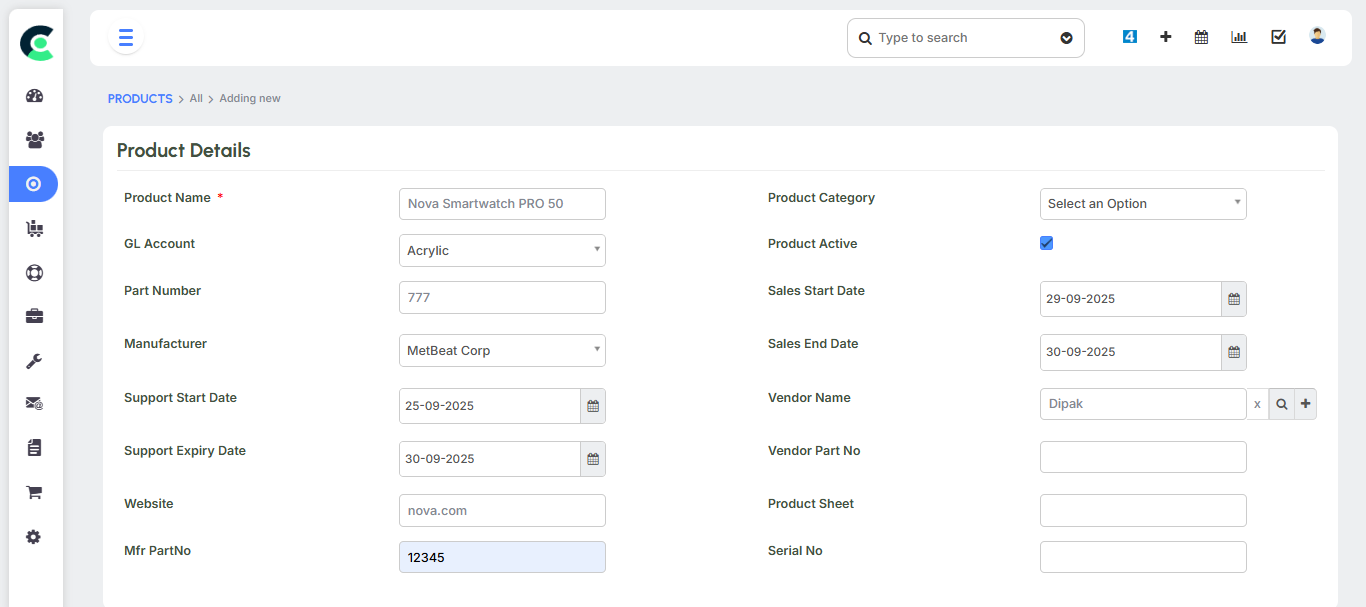
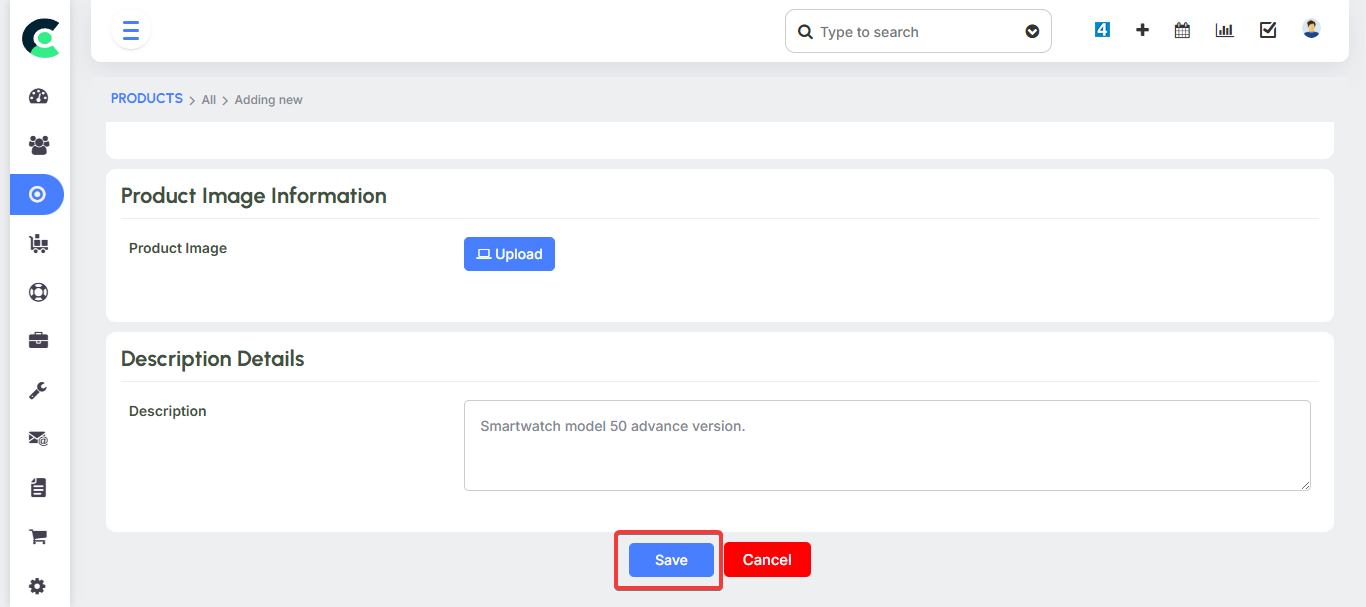
Add Product Details: When creating a product, you will be prompted to enter information such as the product name (e.g., "laptop"), manufacturer, and other relevant details.
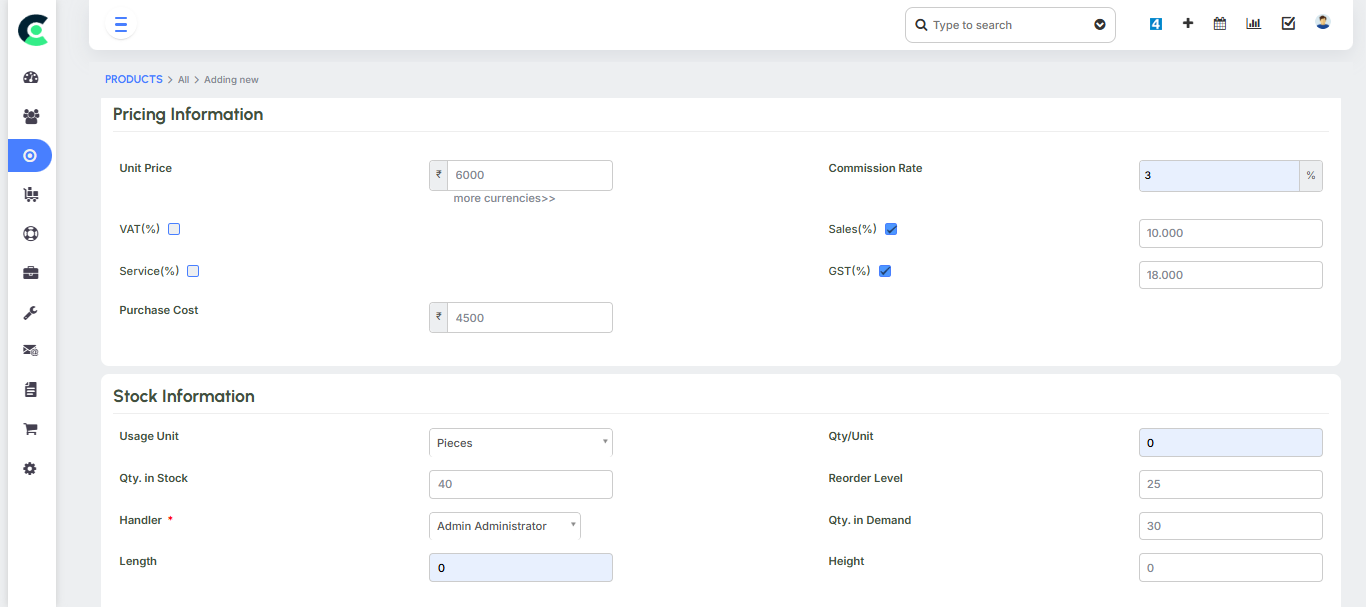
Set Initial Stock: You can specify the initial stock quantity of the product when it is first entered into the system.
Price Books
Price Books are a critical feature for businesses that use a tiered pricing strategy. They allow you to define and manage different selling prices for the same product based on the type of customer.
- Customized Pricing: Instead of having a single price, you can set different prices for different customer segments. For instance, for a laptop with a general selling price, you could create separate Price Books for an "End User" at a specific price and a "Partner" at a different, possibly discounted, price.
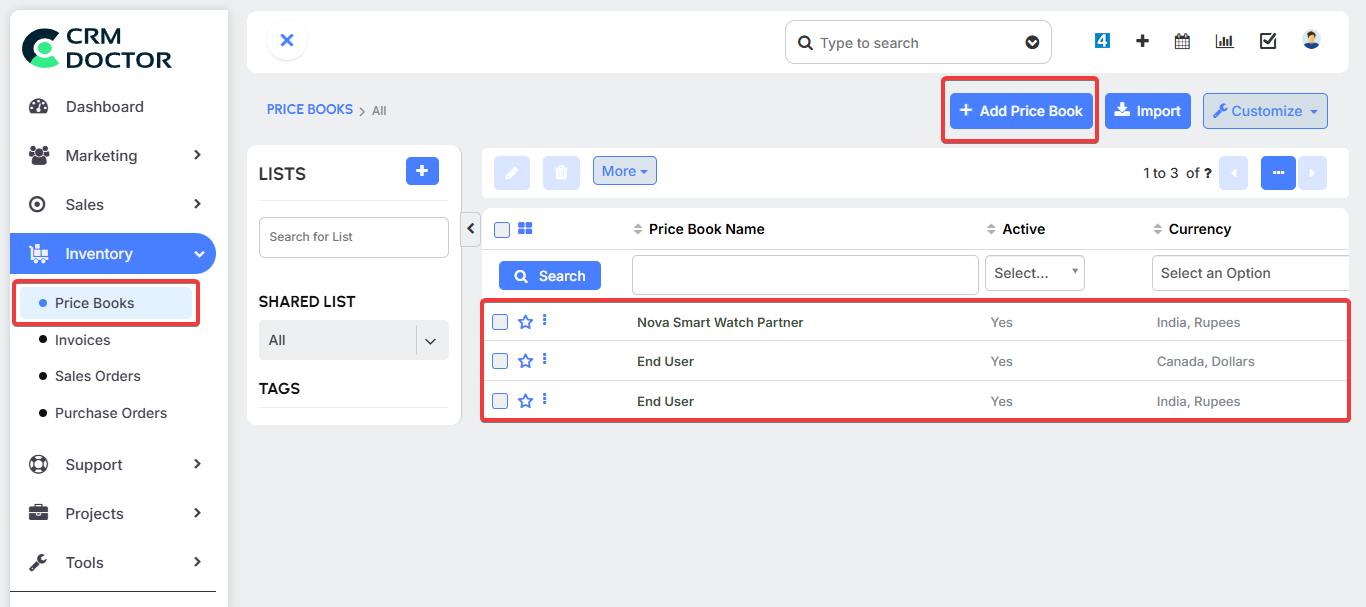
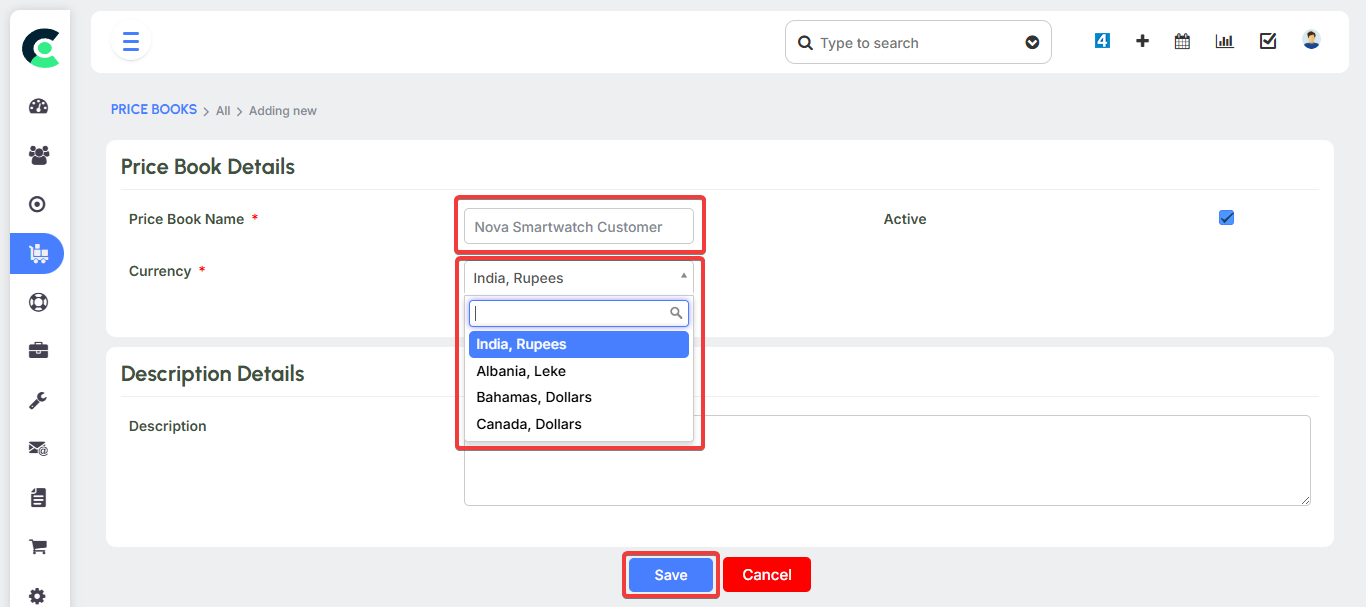
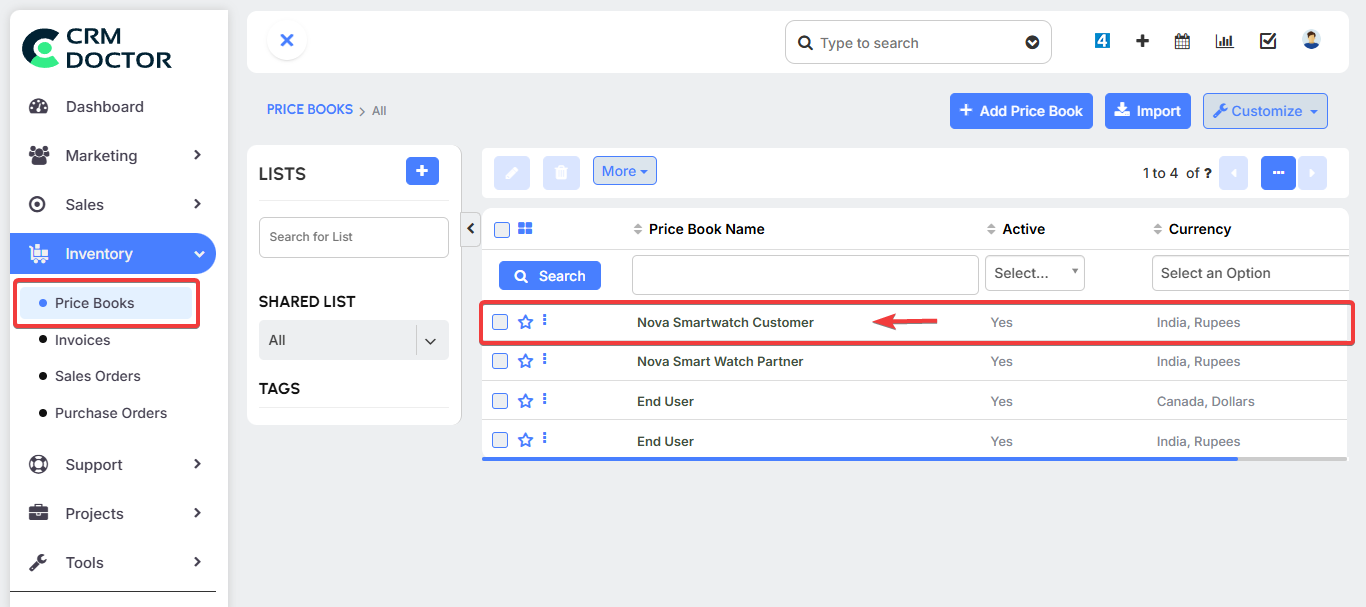
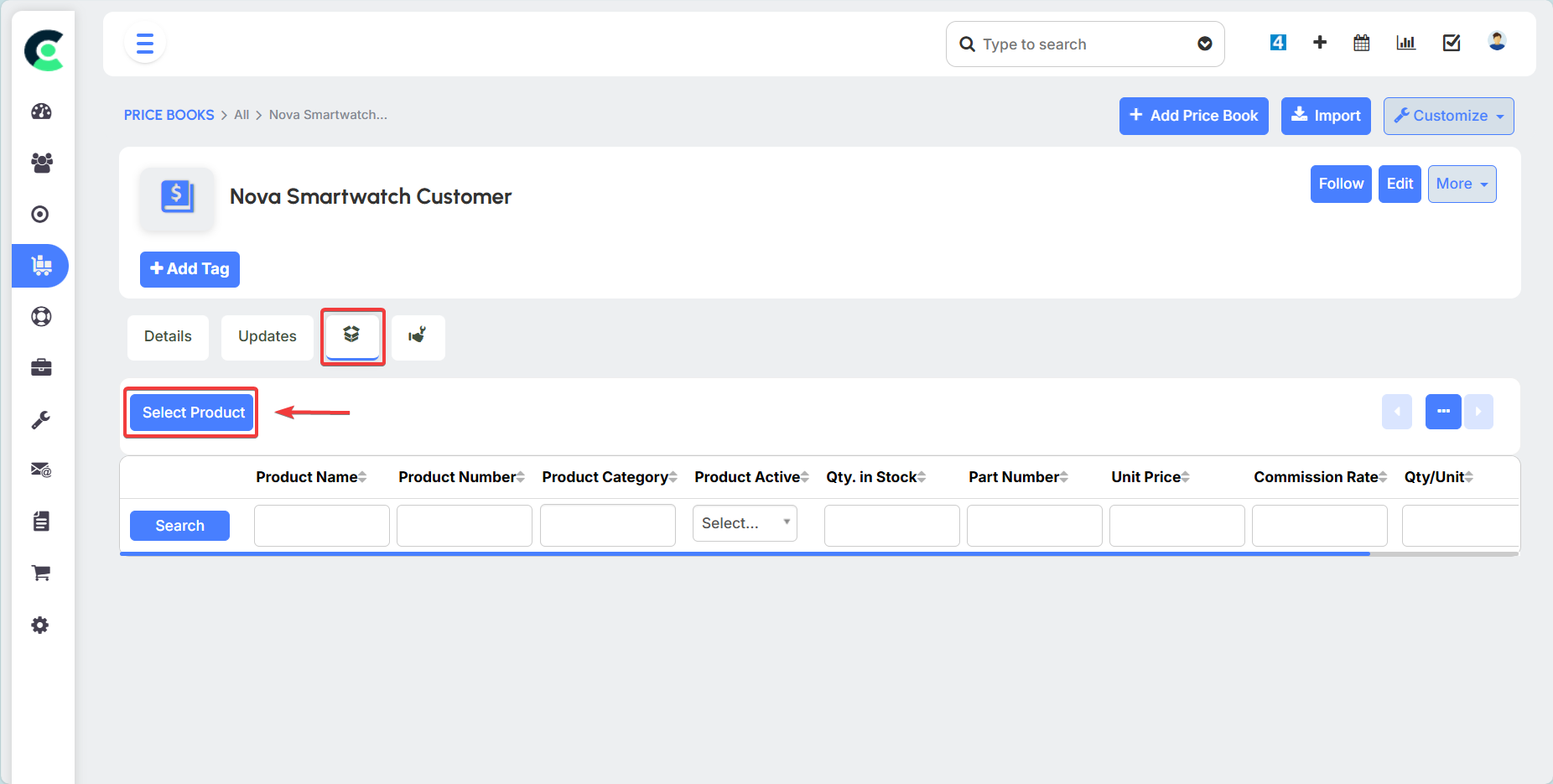
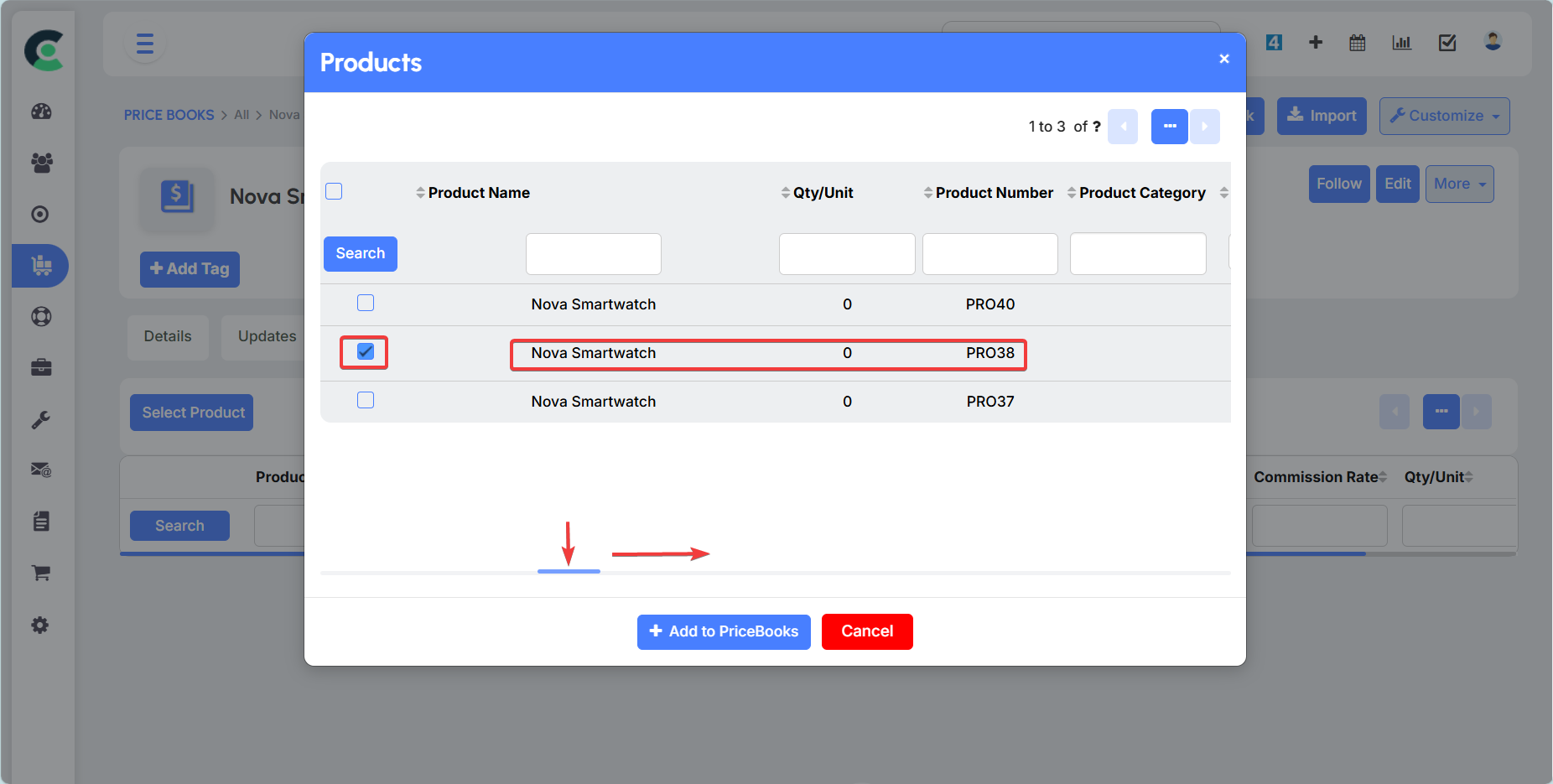
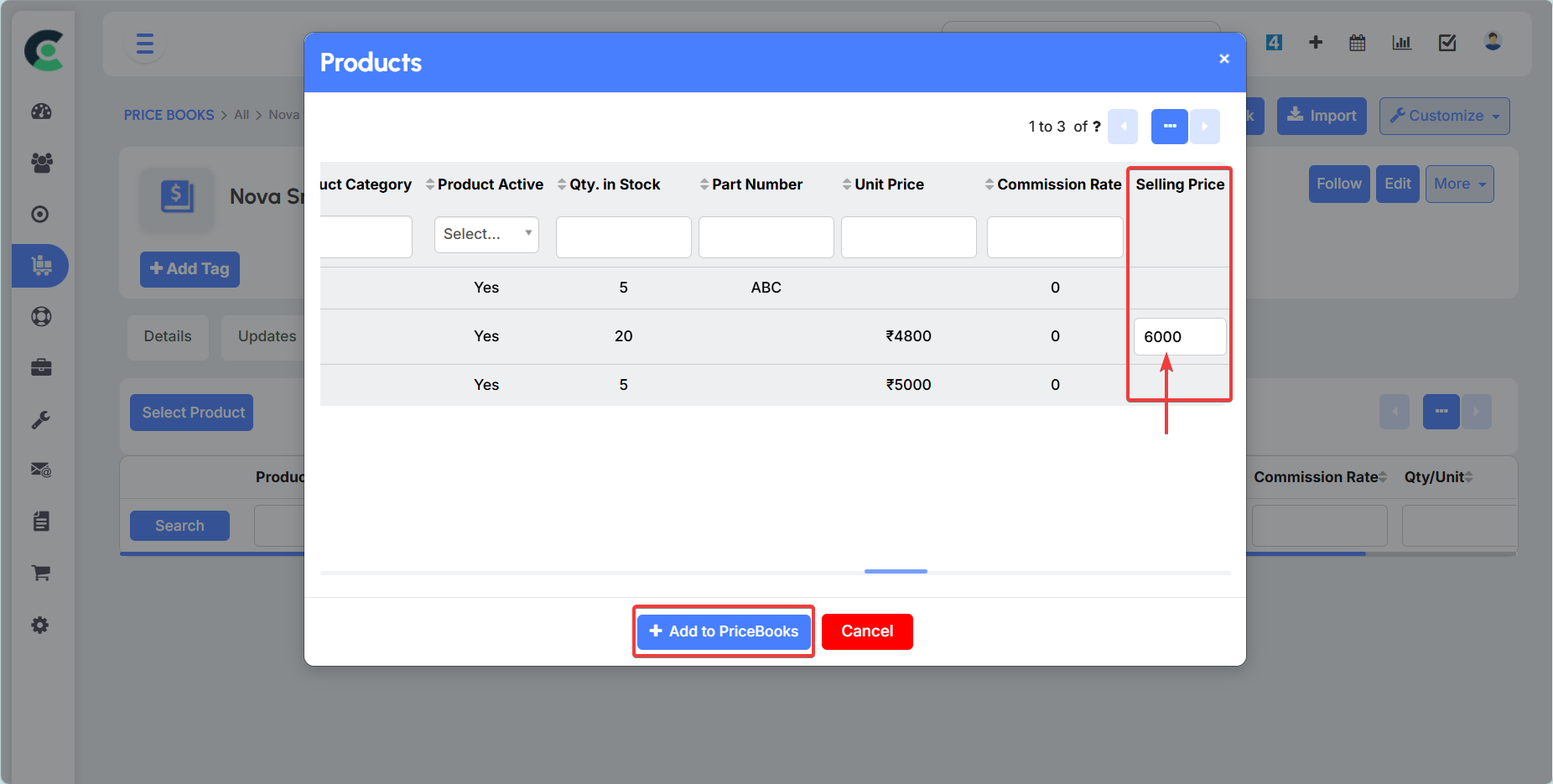
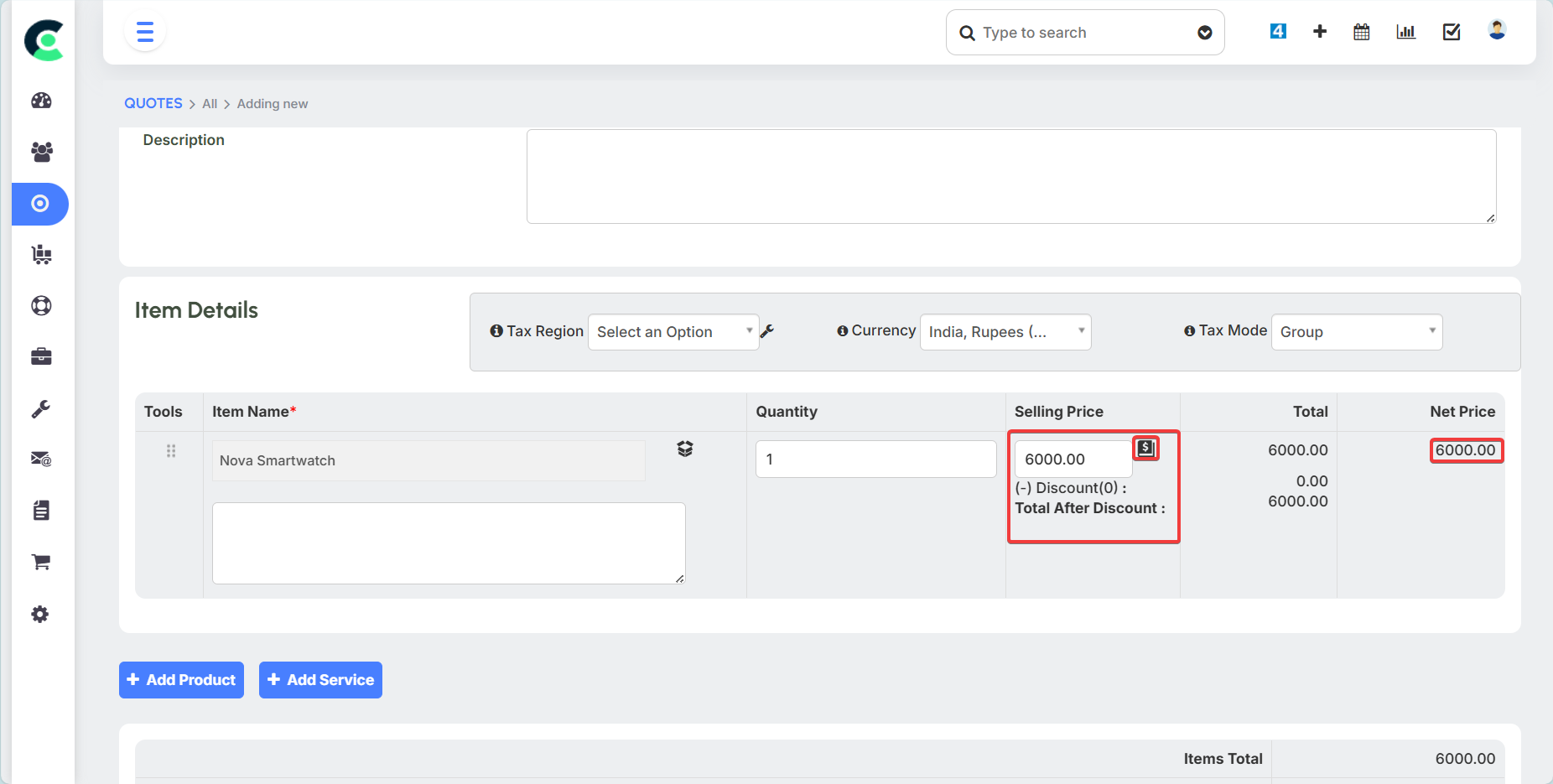
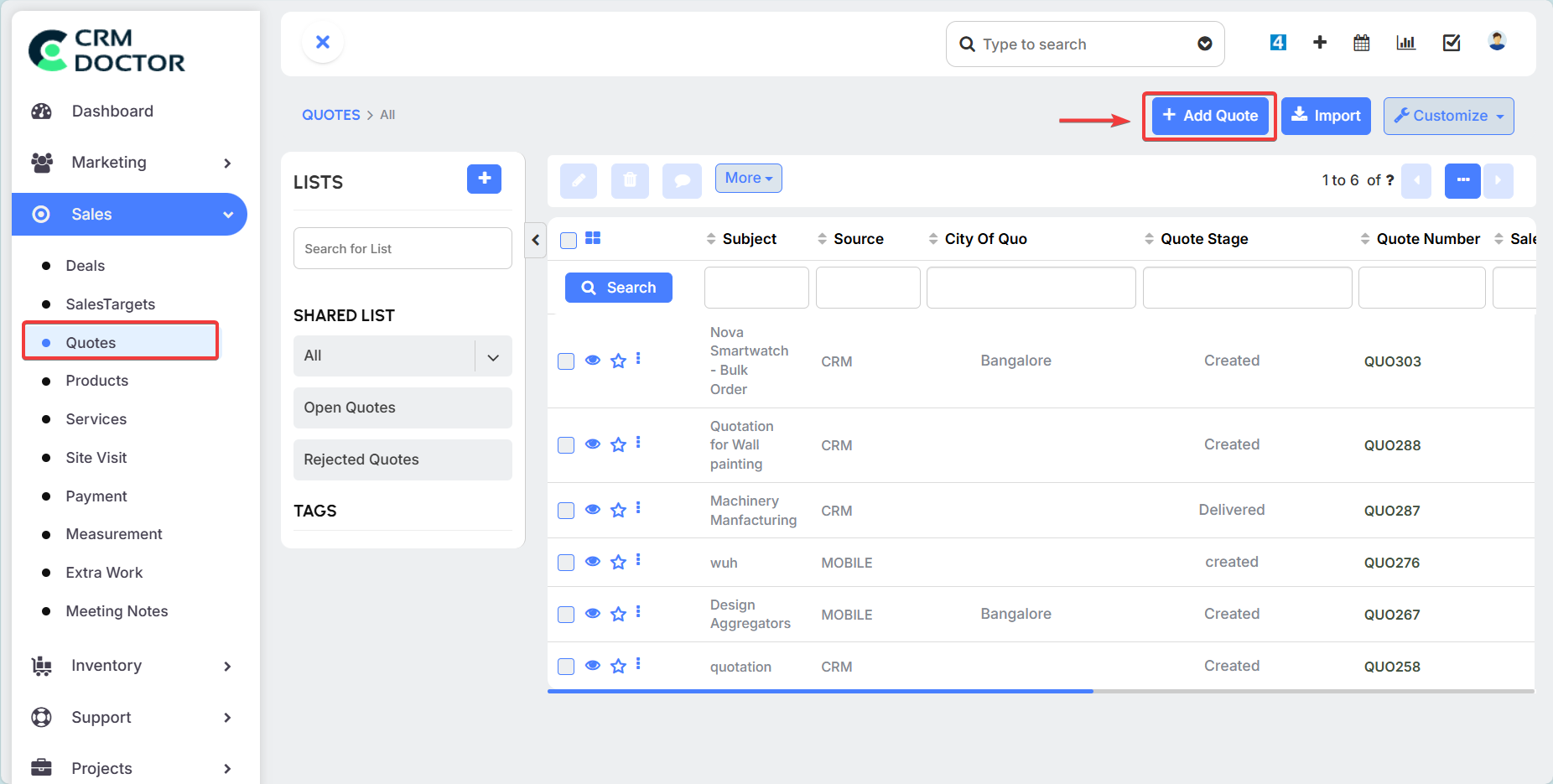
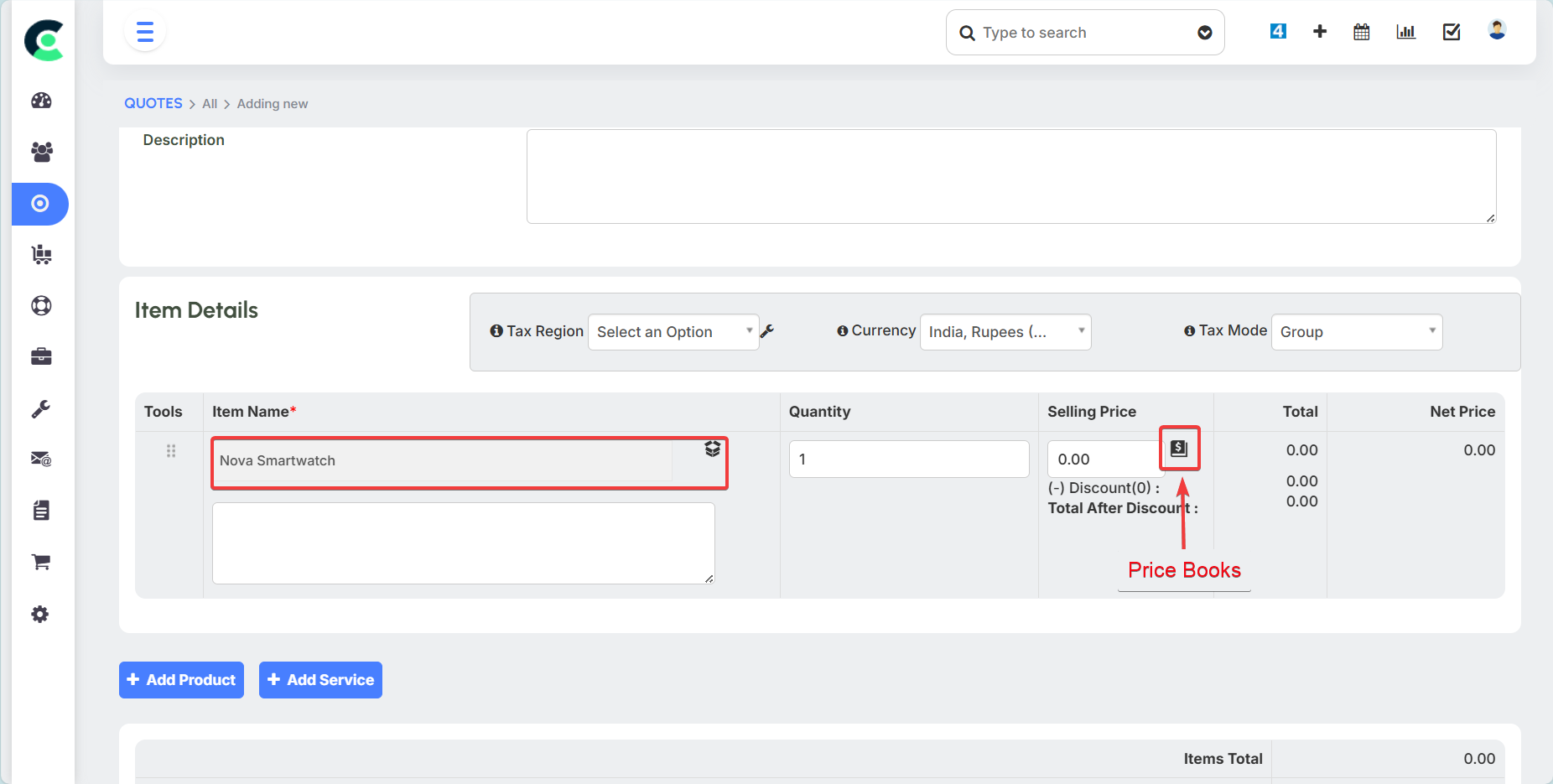
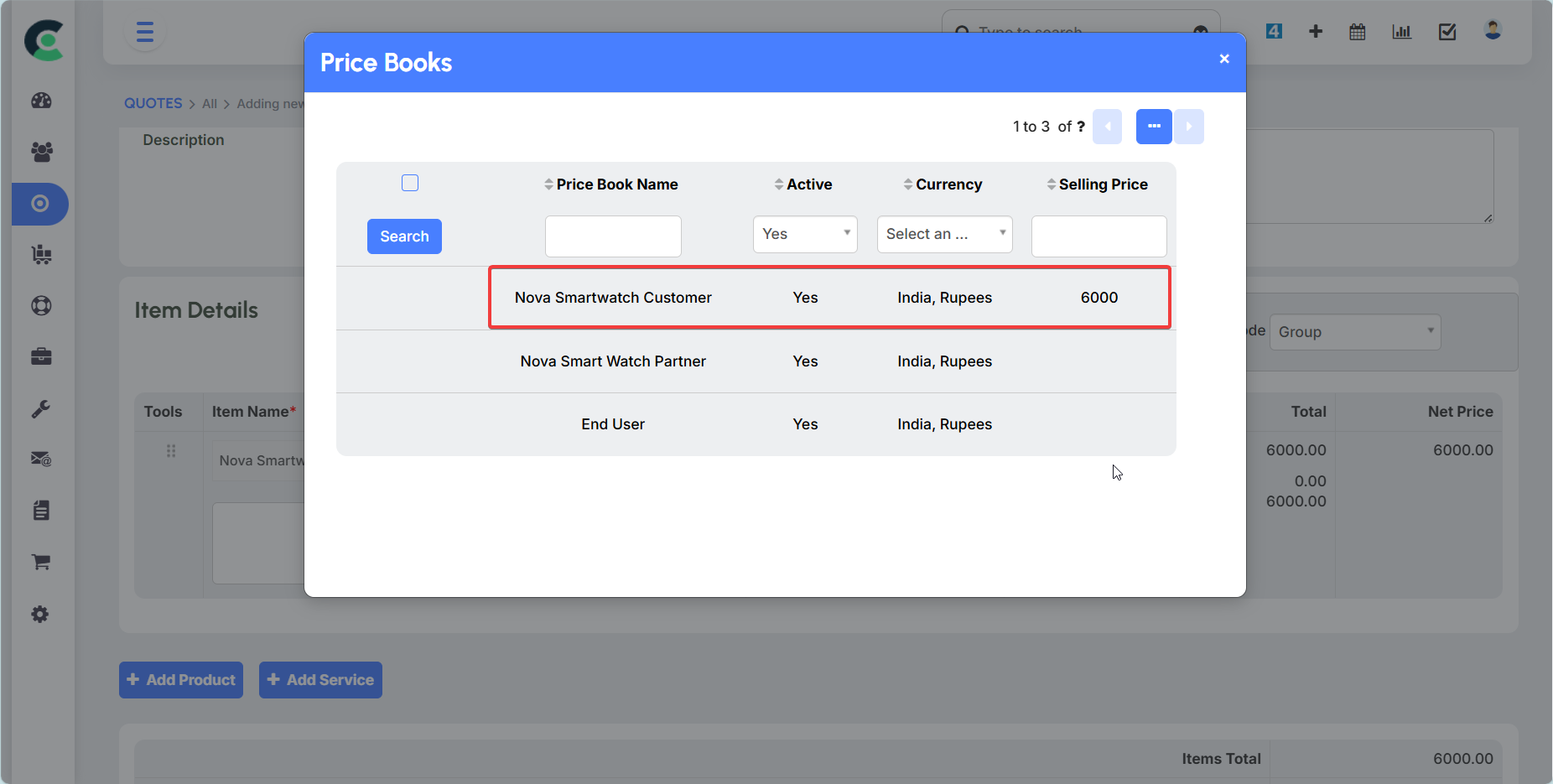
- Ensuring Consistency: The primary benefit of using Price Books is that it acts as a central lookup for prices. When a salesperson creates a quote, they can select the appropriate Price Book, and the system will automatically pull the correct price. This enforces a predefined pricing structure, preventing errors and ensuring that your pricing remains consistent across all sales channels.
Purchase Orders
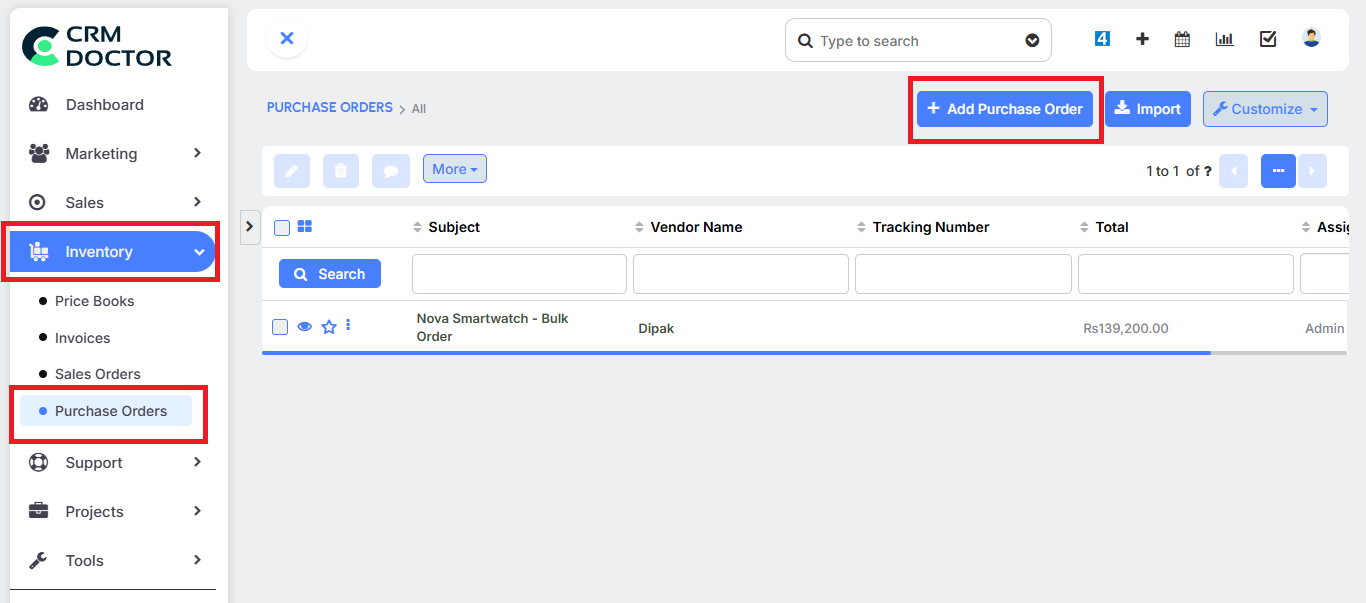
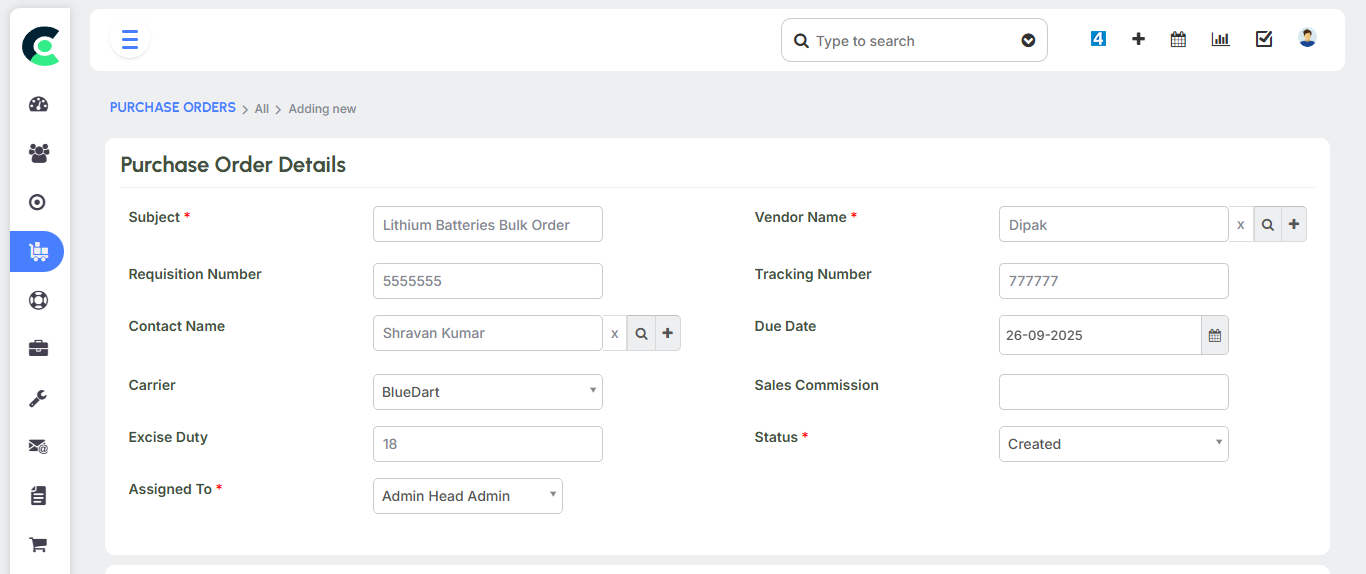
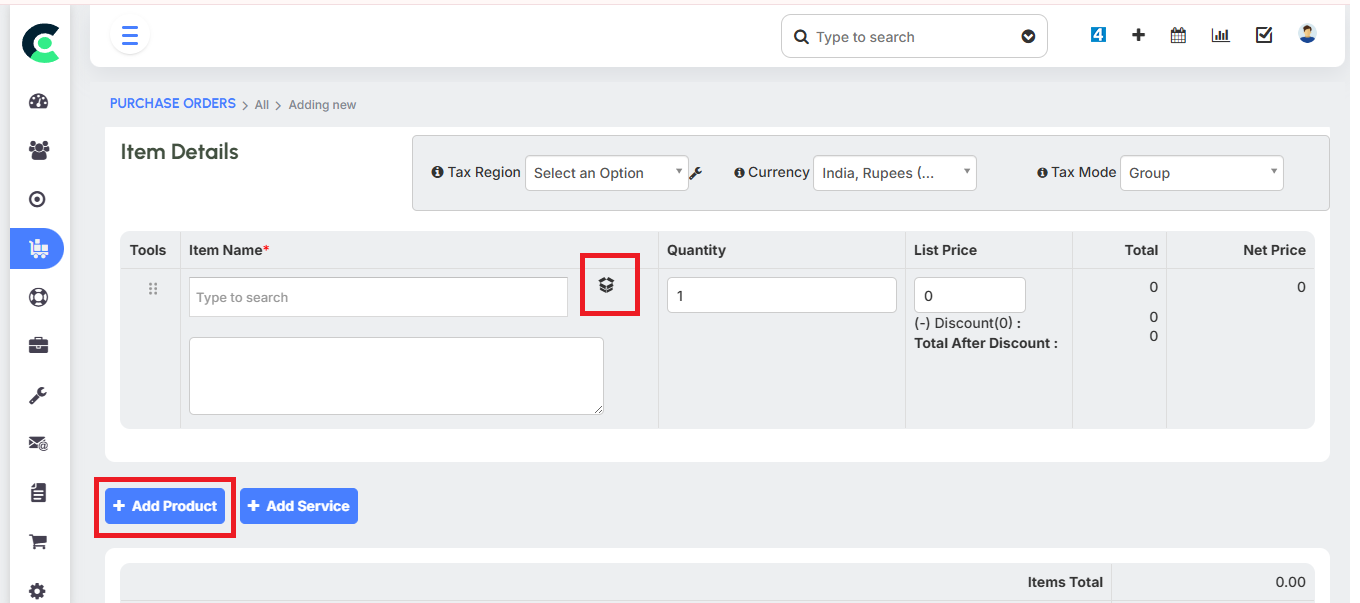
A Purchase Order is a document you send to a supplier to request products for your business. This feature is an integral part of the inventory management process, as it is the primary method for increasing your stock levels.
Automating Stock Inflow
The system automates the process of updating your stock levels when new products are purchased.
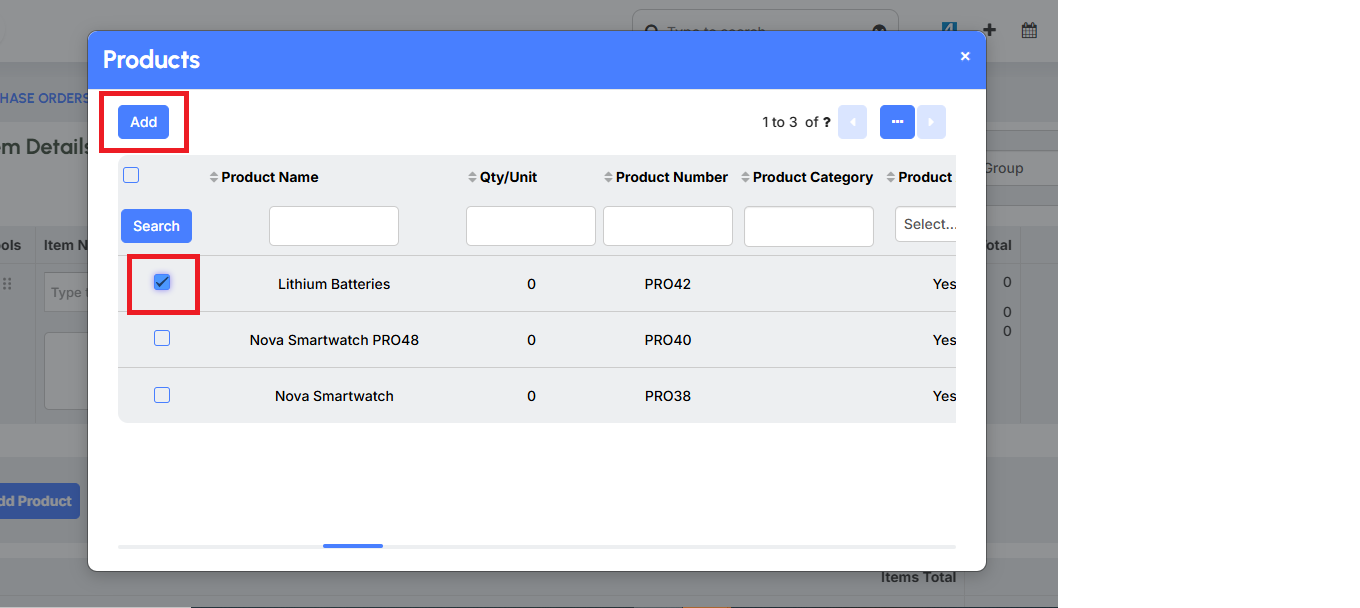
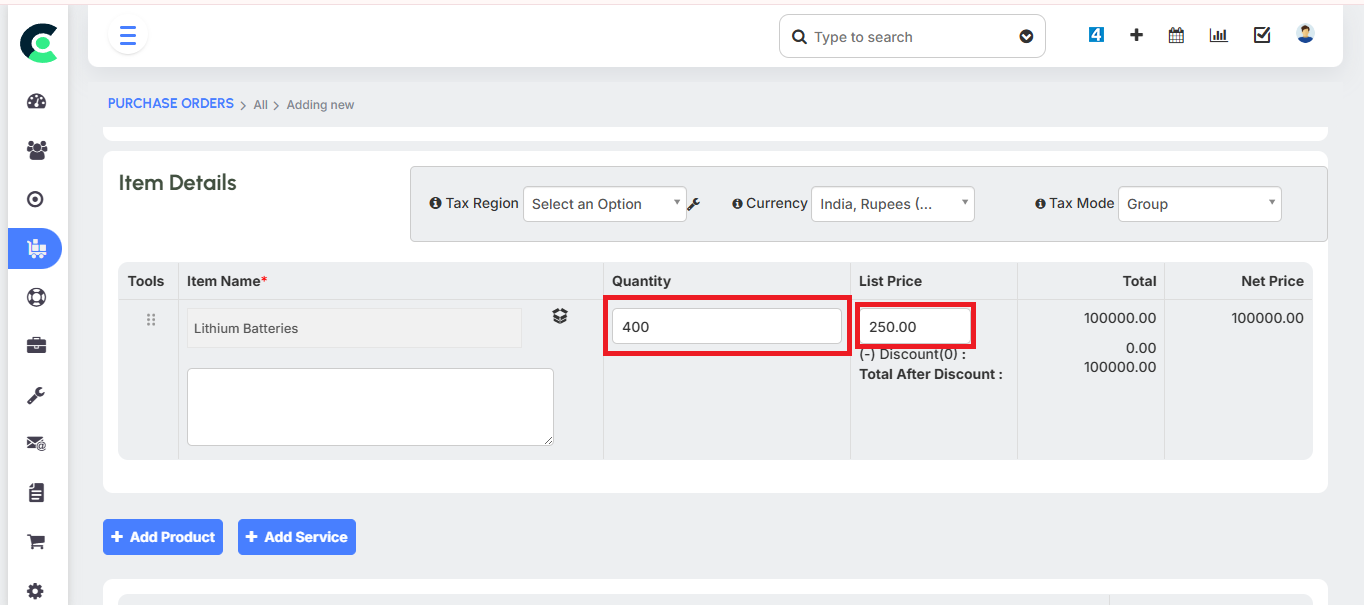
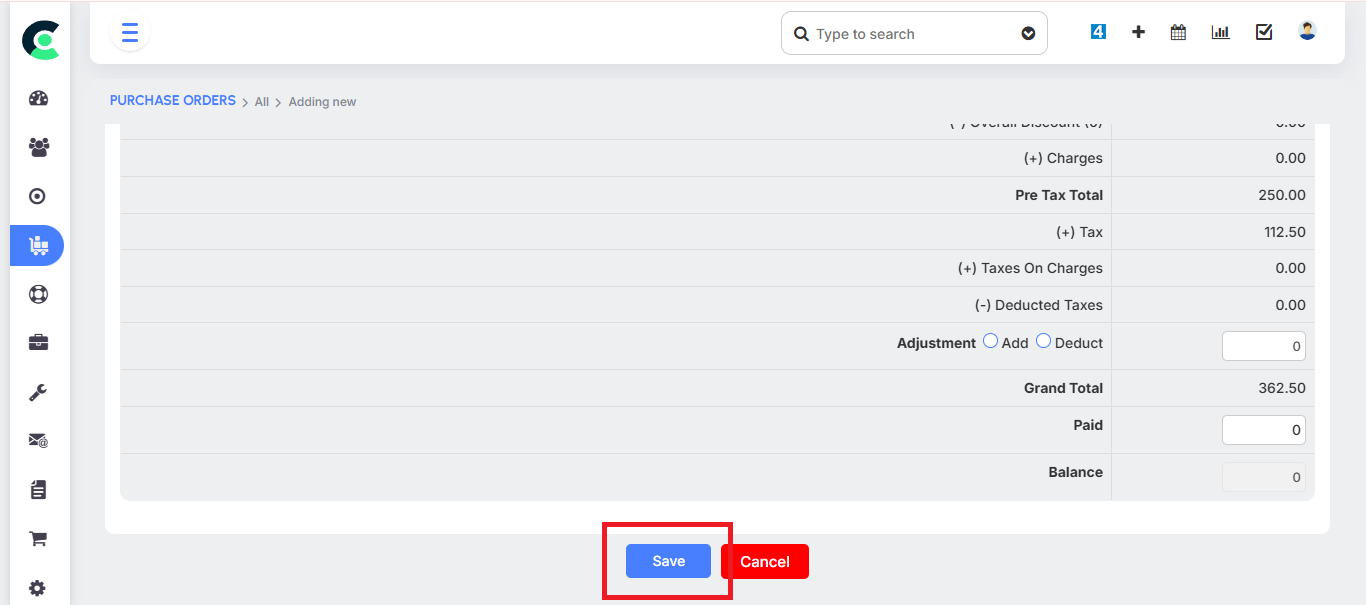
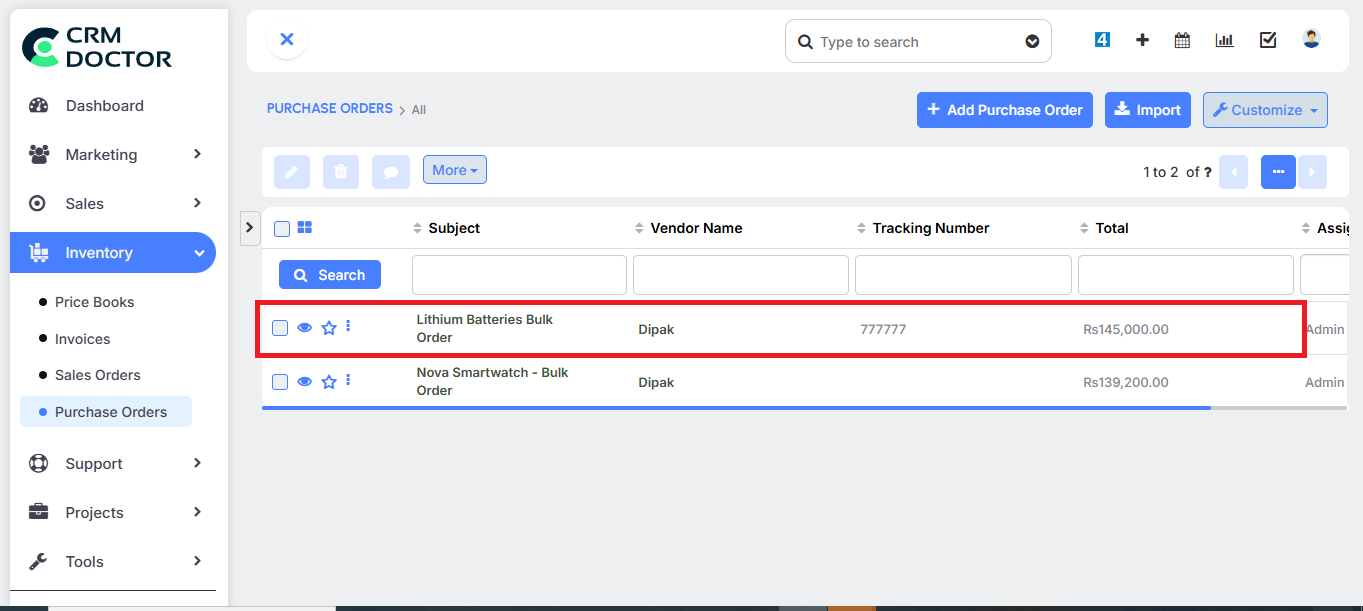
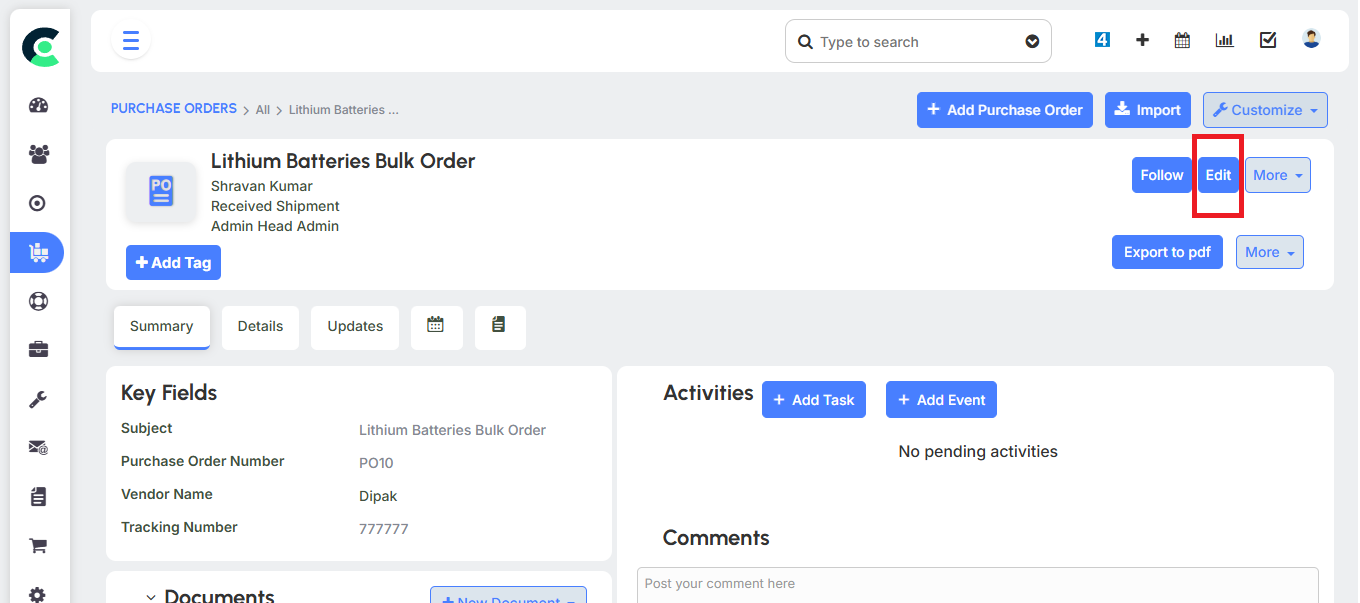
- Raise a Purchase Order: You create a Purchase Order for the products you need to buy.
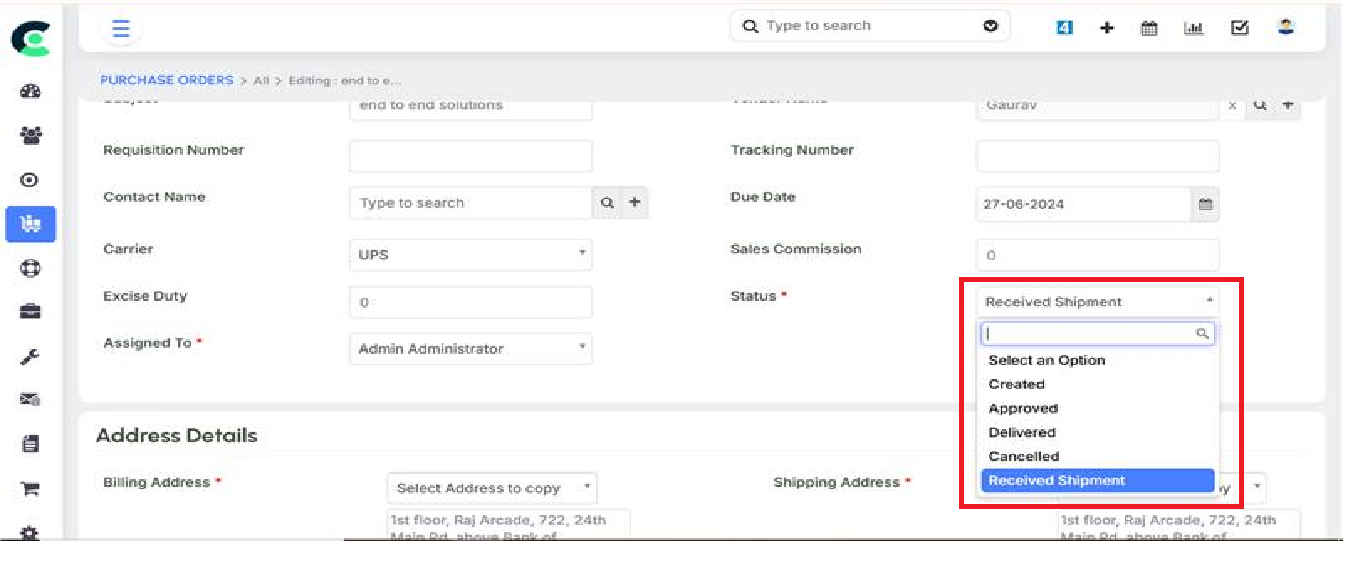
- Update Status: Once you have physically received the products in your warehouse, you change the Purchase Order status to "Received Shipment".
Stock is Updated: At this point, the stock quantity of those products is automatically increased in your inventory. For example, a product that had an initial stock of 0 would show a stock of 10 after a purchase of 10 units is received.
Sales Orders & Invoices
From an inventory perspective, Sales Orders and Invoices are the mechanisms that trigger the outflow of stock.
Automating Stock Outflow
This process is linked directly to the sales workflow.
- Generate an Invoice: Once a deal is closed and a customer's quote is accepted, you generate a final invoice for payment.
Stock is Reduced: The moment an invoice is created, the system automatically reduces the stock quantity of the products on that invoice. For example, if your stock was at 10 and you sold 4 quantities, the stock count would instantly drop to 6.
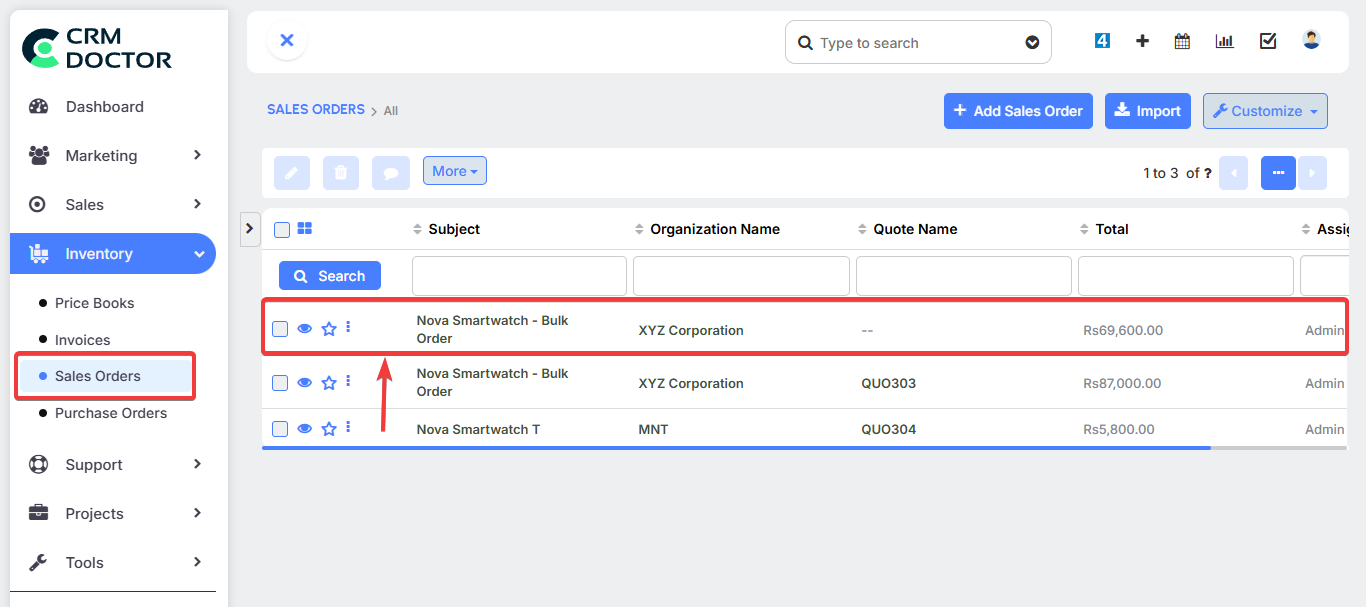
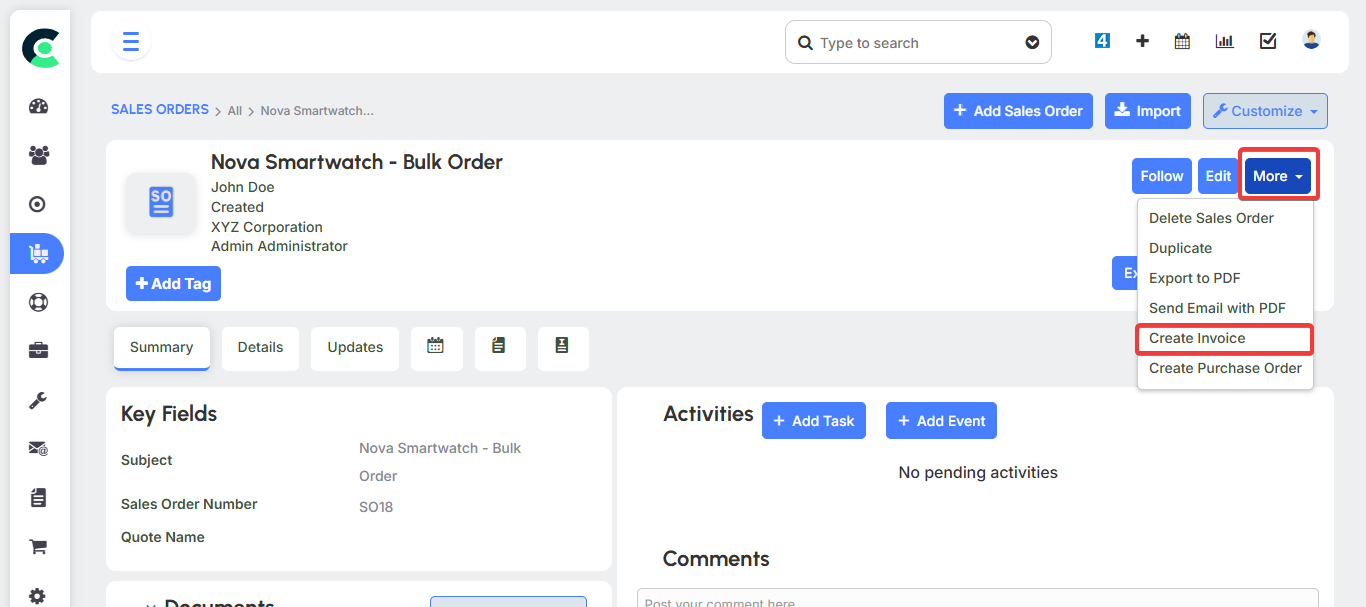
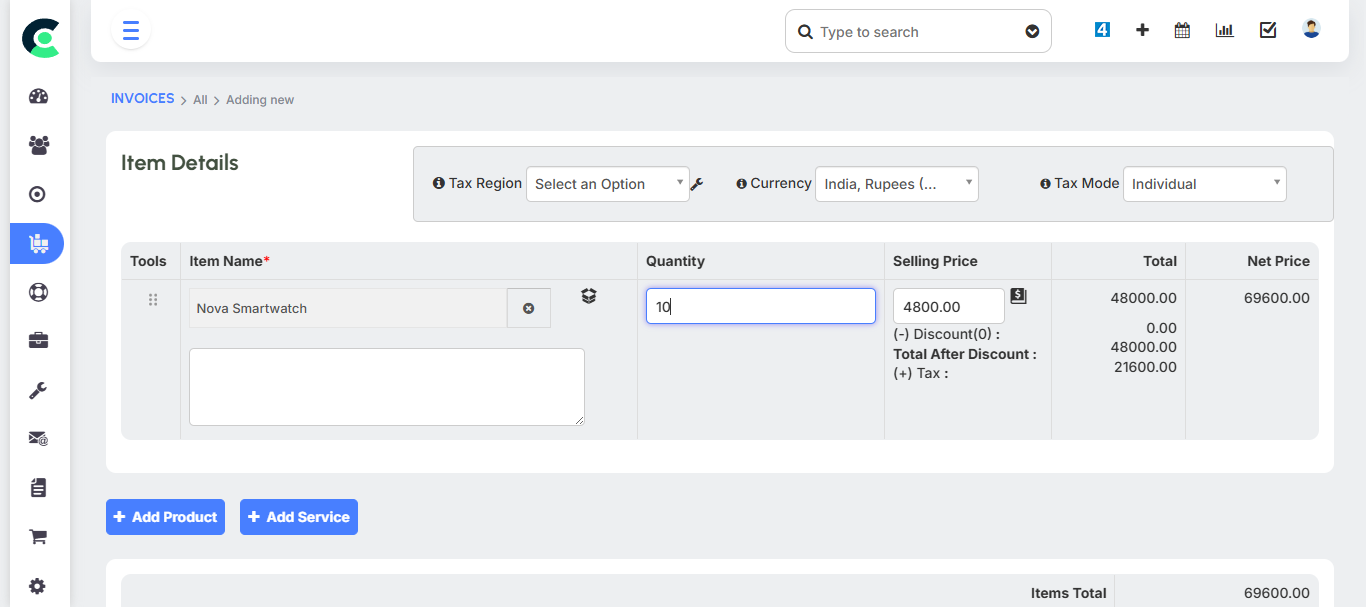
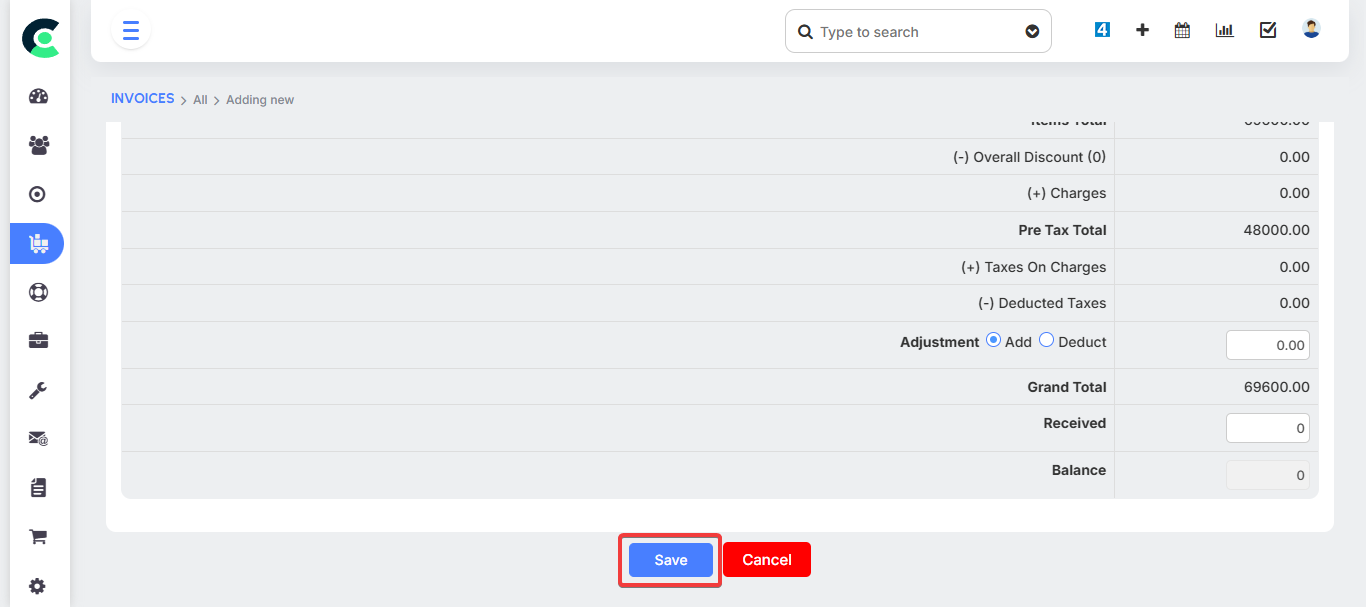
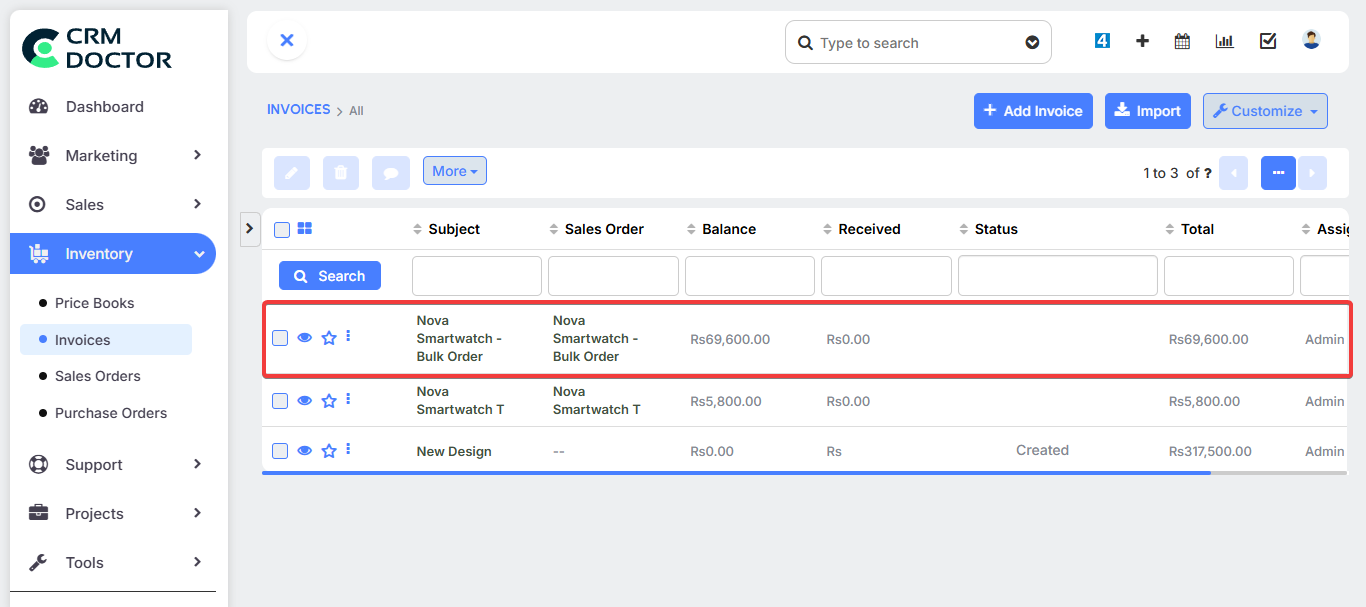
This automation ensures your inventory count is always accurate, reflecting your actual on-hand stock and seamlessly closing the loop between sales and inventory.
Stock Transfer Order
The Stock Transfer Order is used when you need to move materials or products from one warehouse to another. This functionality is part of the system’s ability to manage multiple warehouses. The purpose of this feature is to track the movement of inventory across different physical storage locations.