Table of Contents
Ready to Get Started?
Get the latest CRM insights and resources delivered directly to your inbox.
Start Free Trial20 Aug 2025
2 min read
Getting Started with CRM Doctor
CRM Doctor is a cloud-based CRM, which means you don't need to install any software on your computer to use it. You can access your CRM from any device, including laptops and mobile apps, simply by using a URL. This also means you don’t have to worry about managing servers, software upgrades, or maintenance - it's all handled for you.
First Steps
Before you can begin using CRM Doctor, you must have an active account.
Becoming a User
The first step is to sign up for CRM Doctor on our website and choose a subscription plan that fits your needs. Once you complete the sign-up process, an automated email will be sent to you containing your instance URL, username, and the password you provided during registration. You will use this information to log in to your CRM.
Logging In
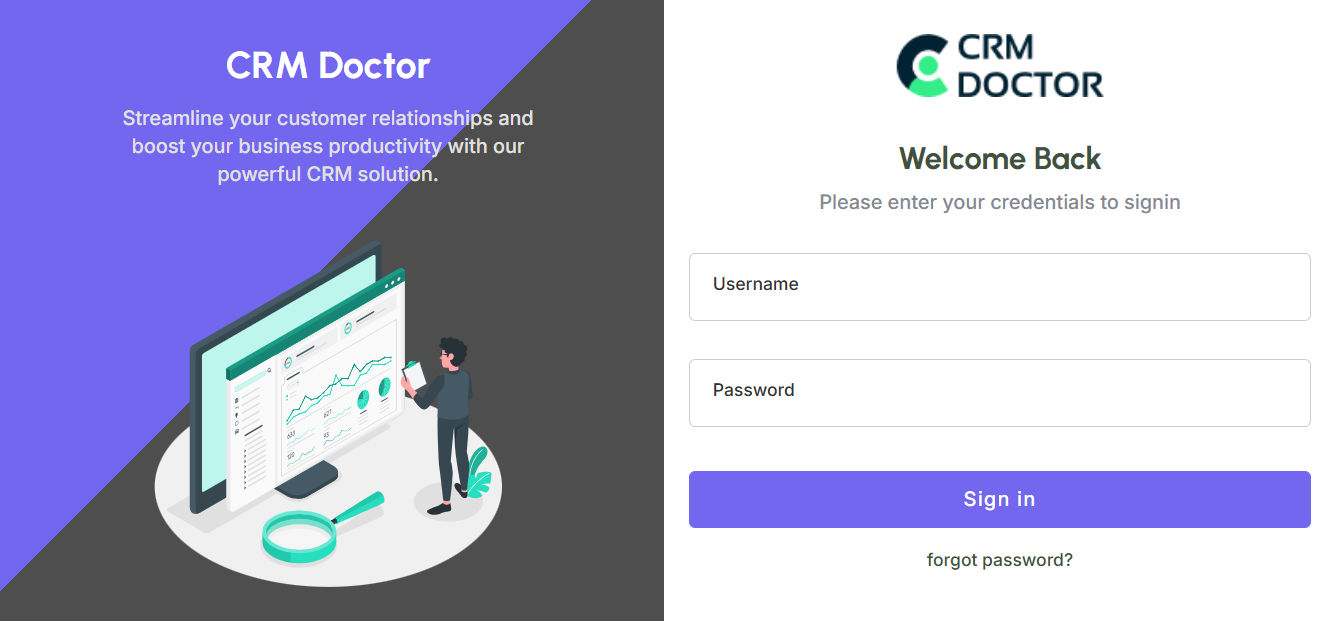
To log in, navigate to your instance URL in a web browser. The login page will appear.
- Username: Enter the username provided to you.
- Password: Enter your password.
- Login Button: Click the login button to access your CRM.
Caution
For security reasons, if you are using a public or shared computer, it is highly recommended that you do not save your login credentials in the browser. Unauthorised persons may get access to your confidential data.
The CRM Home Page
After you successfully log in, you will see your CRM Home Page. This page acts as your central dashboard, providing a high-level overview of key information.
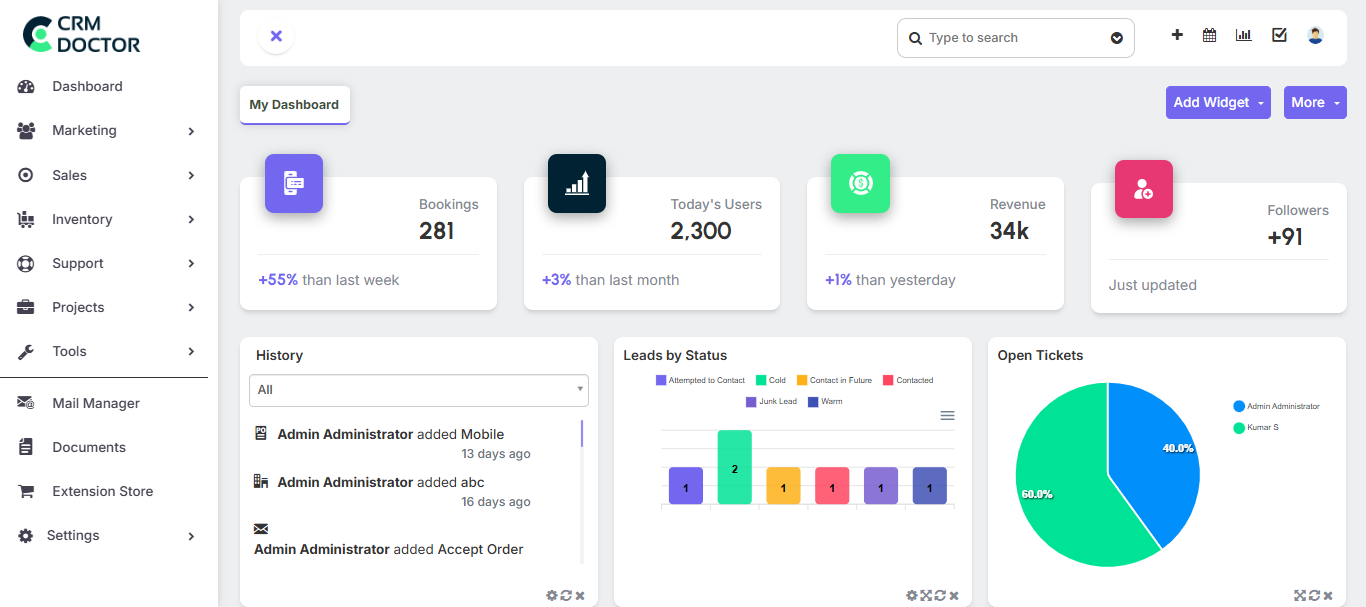
The Home Page is completely customizable. You can choose what information you want to see by adding or removing widgets, resize them, and rearrange the layout by dragging and dropping them. The dashboard is unique to each user; your team members will not see the same dashboard unless they configure it that way.
- Widgets and Reports: Widgets display key data points and reports at a glance. Clicking on a widget will open the corresponding report, giving you more detailed information.
- Navigation: You will find the main menu bar at the top of the screen, providing quick access to all the core modules: Marketing, Sales, Inventory, Support, Projects, and Settings.
Caution
It is not recommended to use your browser's back and forward buttons while navigating the CRM, as this can cause issues with dynamically generated pages. Always use the navigation links and buttons provided within the CRM interface.
Access Privileges
CRM Doctor operates on a role-based access system to ensure data security and maintain a clear organizational hierarchy. This means that user access is determined by their role within the company.
- A manager can view all the data of their team members.
- A team member cannot view their manager's data.
- Special custom sharing rules can be created to grant specific users access to data outside of their typical role hierarchy, when necessary, for example, a salesperson being able to access a CEO's client records for a specific region.
How to Start?
To get the most out of CRM Doctor, it's best to set up the system with your organization's structure in mind from the beginning.
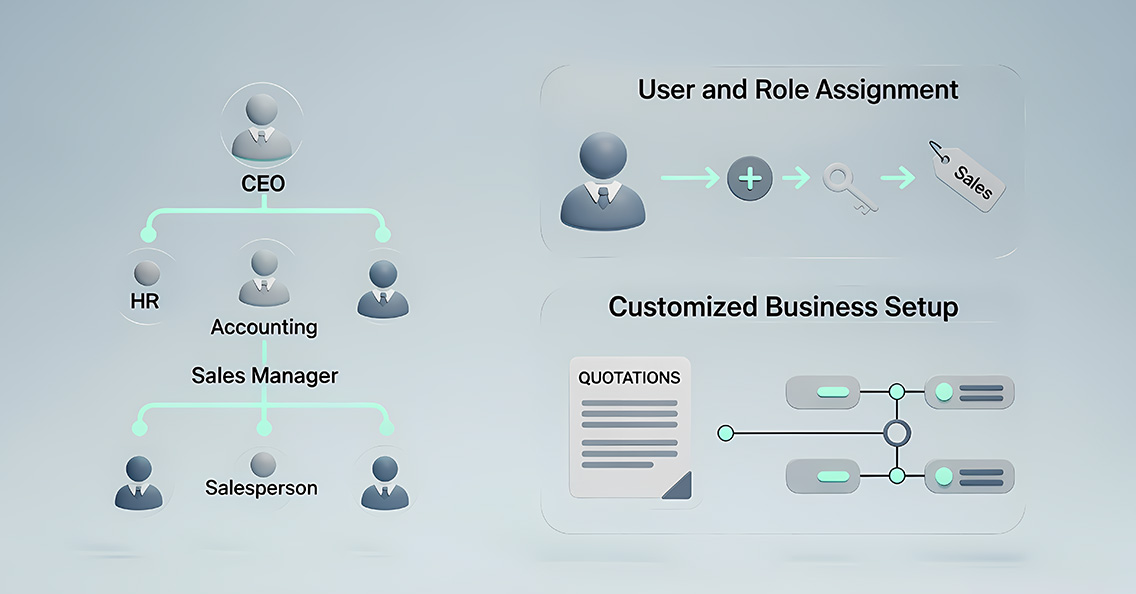
- Define your Organization's Hierarchy: Start by outlining your company's hierarchy, identifying who the sales managers, salespersons, marketing and accounting staff, and other key personnel are. This should be a clear role hierarchy for your organization.
- Create Users and Assign Roles: Your administrator can then create user accounts and assign the appropriate roles and permissions to each team member.
- Customize Your Templates: You can customize templates for documents like quotations by adding your company's logo and other branding details.
By following these initial steps, you'll be well on your way to leveraging CRM Doctor to its full potential.